My tasks
A task is a unit of work that a workflow has asked a person to do: confirm which practice group owns a matter, confirm a client's identifier on a new instruction, confirm a merge that two records resolve to. Where Match review is a queue of questions the model asked, My tasks is the inbox of things a process is waiting on.
Open the inbox
Choose Work, then My tasks. The header counts how many of your tasks are past their SLA, in red, so you know before you read a single row whether you are behind.
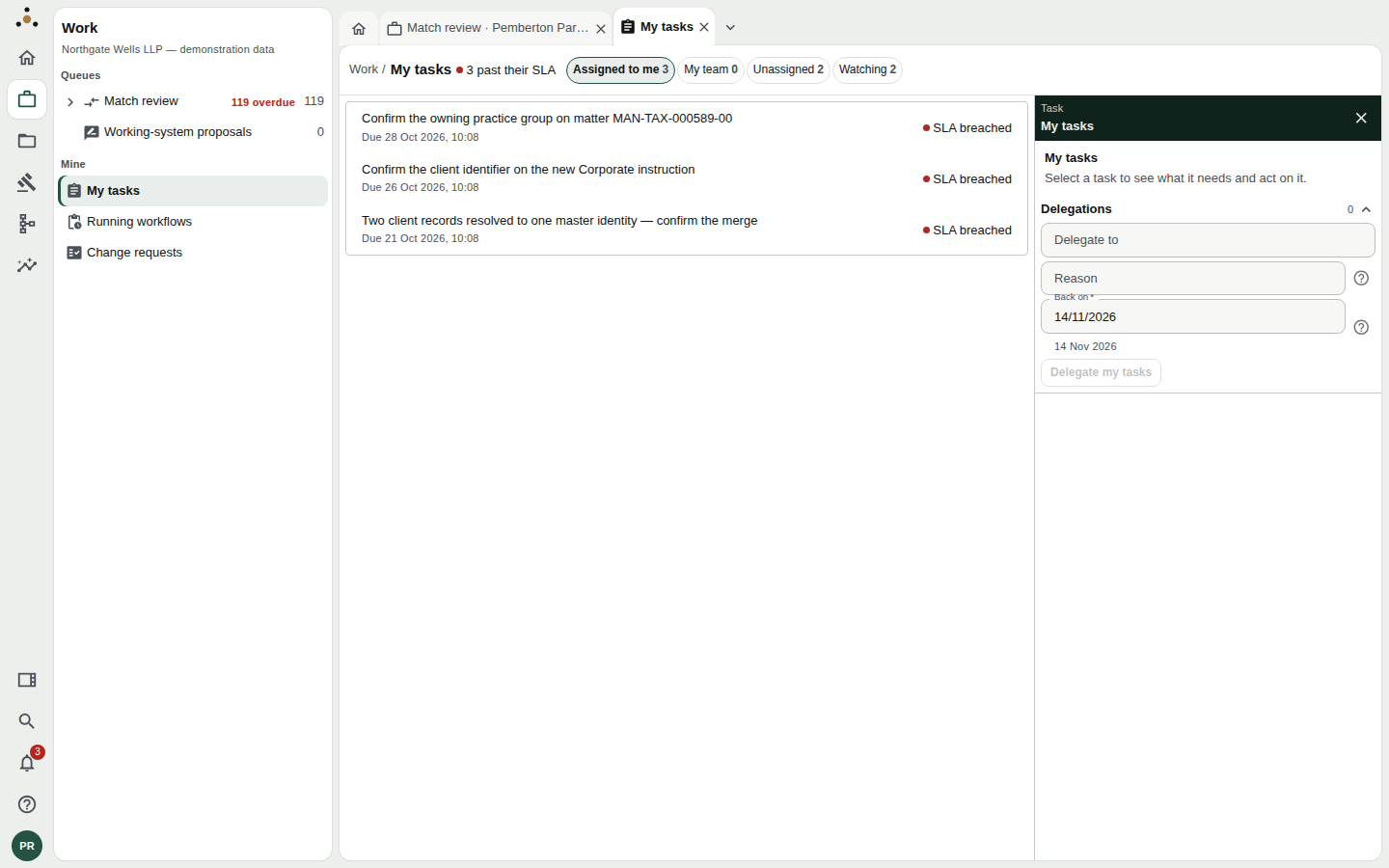
The inbox. The chips are buckets; each row shows the task, its due date and its SLA state.
The four buckets
| Bucket | What is in it |
|---|---|
| Assigned to me | Tasks that are yours to do. |
| My team | Tasks assigned to a group you belong to, such as data-stewardship, that nobody has taken yet. |
| Unassigned | Tasks no one holds. Anyone who may claim them can. |
| Watching | Tasks you have chosen to follow, or were brought into by an @ mention. |
Each chip carries its count. A bucket with nothing in it says Nothing in this bucket.
SLA state
Every task has a due date, and the row shows it as Due 28 Oct 2026, 10:08. Once the date passes, the row says SLA breached in red. Before it, you may see N h remaining. The SLA is the service level the firm has set for that kind of task, not a deadline Datum invented, and the clocks are the firm's: ages and due dates read against the firm's time zone.
A breached SLA is a promise already broken to whoever is waiting. Within Assigned to me, take the breached tasks first, and within those the one that has been breached longest.
Open a task
Click a row. The task opens in a panel at the right and the list stays visible, so you can step down the list without losing your place.
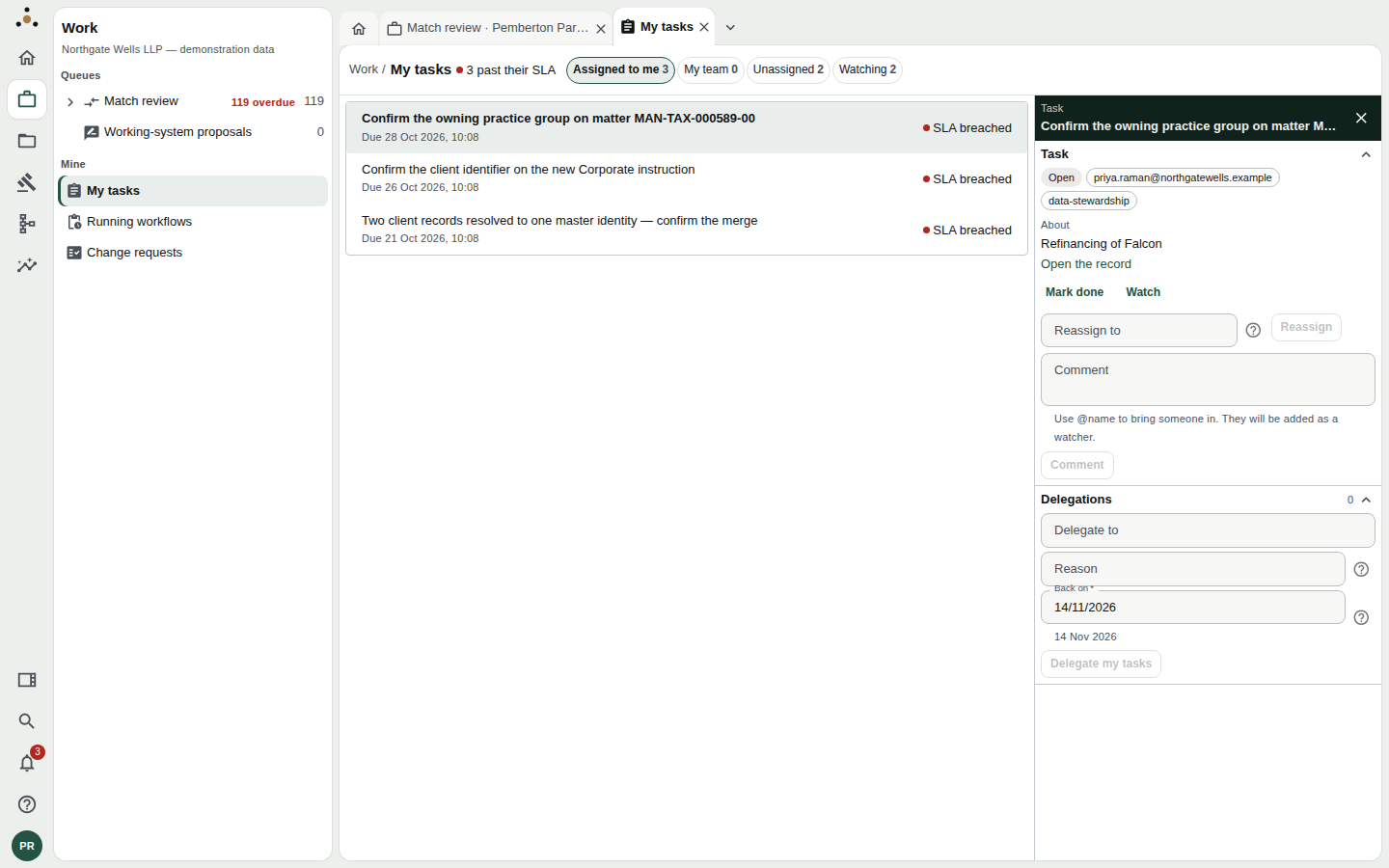
The task panel. Everything you can do to a task is here.
The panel shows:
- Status and assignee: for example Open, the address it is assigned to, and the group it belongs to.
- About: what the task is about, such as a matter or a client, with a link: Open the record, Open the pair (for a match decision) or Open the workflow. Follow it. A task is rarely decidable from its title alone.
- State and Available actions, when the task belongs to a workflow: where the workflow stands and what it can do next.
- The actions below.
What you can do
Claim and mark done
An unassigned task shows Claim. Claiming makes it yours and starts your ownership: from then on it sits in Assigned to me, and a colleague covering for you will not take it away (see Delegation and cover).
When the work is finished, press Mark done. That closes the task and lets the workflow it belongs to continue.
Claim and Mark done are for stewards. A fee earner can still Watch and Comment, but sees Claiming a task and marking one done need the stewardship endpoint class, which this session does not hold.
Reassign
Type the address a colleague signs in with into Reassign to and press Reassign. Datum checks that the person can claim and complete the task, and refuses anyone who cannot, including a fee earner and a service account. The check is made again when the task moves, not just when you type.
Use it for one task. If you are going away, use delegation so you do not move tasks one at a time.
Watch
Watch adds the task to your Watching bucket and means you are told when it changes. Pressing it again says Watching and stops. Watching is not ownership: it never makes a task yours and cannot be done on your behalf.
Comment and mention
Write in Comment. Write @name to bring someone in: they are added as a watcher of the task, so they are told about it and can see the thread.
A comment is usually written about the whole record, including fields that some roles do not read. If your role does not read those fields, the thread is withheld: Comments on this task are withheld from your role. Your own comment is still posted, and says so, but neither it nor any reply appears to you. The task itself is yours to see.
Delegations section
At the bottom of the panel is Delegations, where you hand your whole inbox to a colleague for a fixed period. It has its own page: Delegation and cover.
Where tasks come from
You do not create tasks by hand. Workflows create them at fixed points. The three in the demonstration firm are typical:
- Confirm the owning practice group on matter MAN-TAX-000589-00: raised when a new matter's practice group cannot be settled from the source systems.
- Confirm the client identifier on the new Corporate instruction: raised during matter intake.
- Two client records resolved to one master identity: confirm the merge: raised when a merge needs a person's agreement.
Which tasks you receive, and in what order, is decided by routing rules the firm's administrators maintain. If you are receiving tasks you think belong to someone else, tell them; you cannot change the rule yourself.
If the inbox will not load
Your tasks could not be read means the platform refused the read, and the message gives its reason. It does not mean you have no tasks. The commonest cause is a session without a role that reaches the inbox: your account panel (your initials, bottom left) shows what you hold, and Everything in Datum on Home lists the screens your roles allow.
Related
- Running workflows shows the workflow a task belongs to, which is the answer to "why has this not moved".
- Change requests is where proposed edits from fee earners wait. Each also raises a task.