People and timekeepers
Every fee earner is a timekeeper: somebody whose time is recorded against matters. Which practice group they sat in, what they charged, and whether their practising certificate was valid on the day all affect reporting and compliance, and all change over time. The Timekeepers screen holds that history and lets a steward add to it.
Open it from Legal operations → Timekeepers.
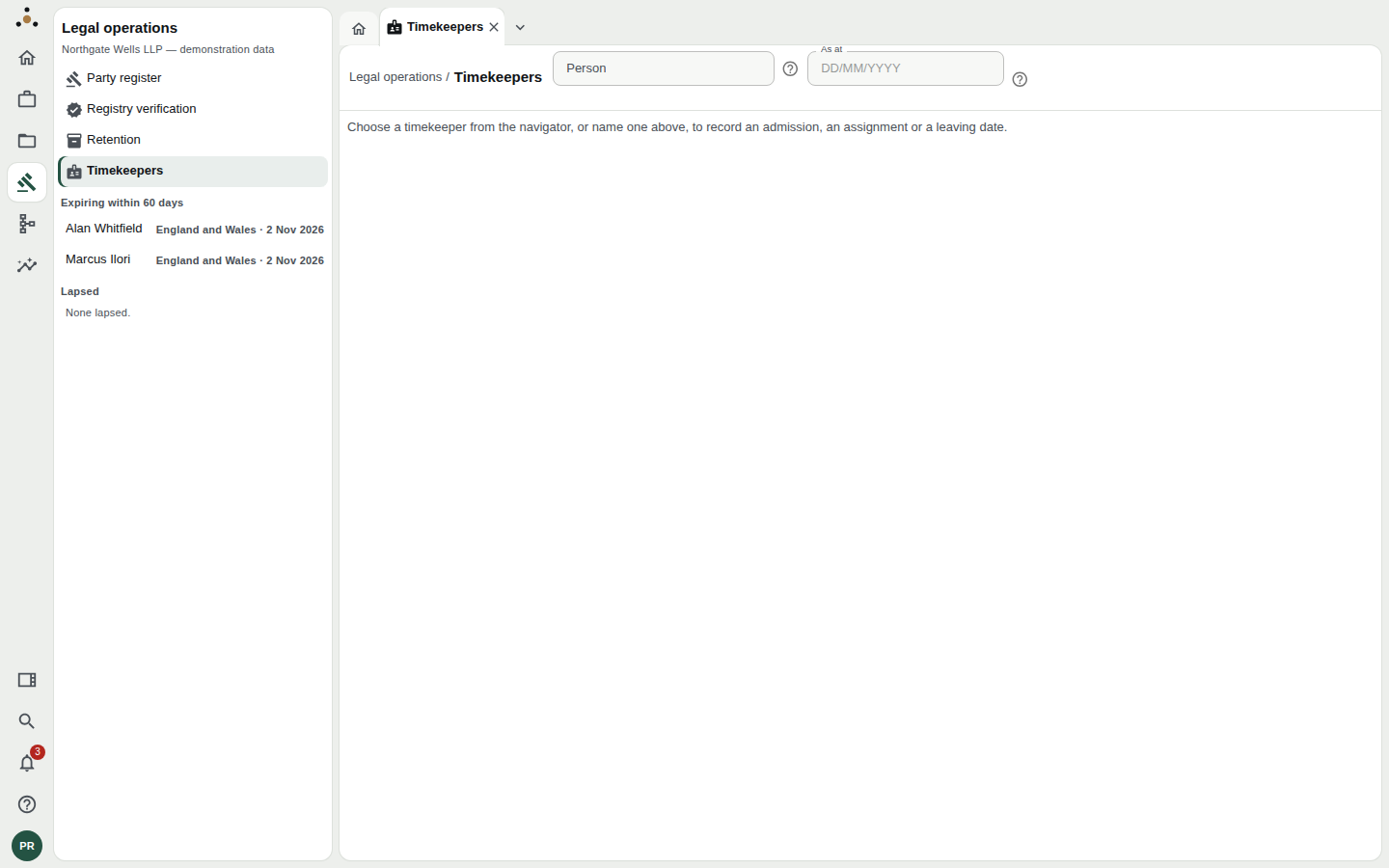
The navigator is a compliance watch-list: admissions expiring within 60 days, and any that have lapsed.
The navigator: who needs attention
Before you select anybody, the navigator shows two lists drawn from everyone's admissions — bar admissions and practising certificates:
- Expiring within 60 days — each person with the jurisdiction and the date it runs out (England and Wales · 2 Nov 2026).
- Lapsed — admissions whose date has passed. None lapsed is the answer you want.
These lists can only warn about dates somebody recorded. An admission entered without an expiry date will never appear here, which is why the admission form asks for one.
A timekeeper's page
Choose a person from the navigator, or search by name or timekeeper number in the Person box (you can also paste a reference and press Enter).
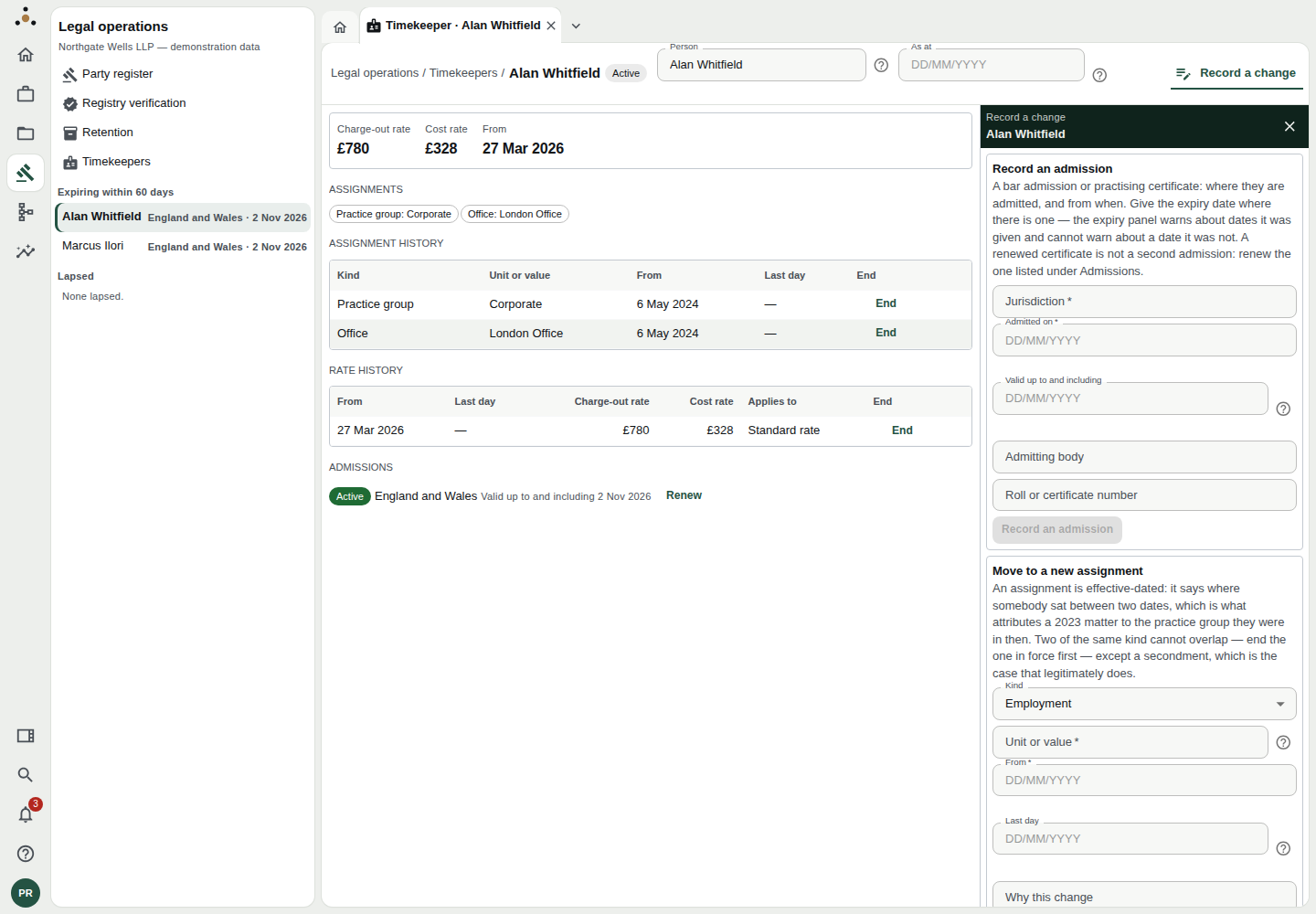
A timekeeper's page, with the Record a change inspector open on the right.
The header carries the person's name and a status chip — Active, Leaver or Alumnus — and the page shows:
- Rate card — the charge-out rate (£780), the cost rate (£328) behind it, and the date they apply from.
- Assignments — where the person sits now: Practice group: Corporate, Office: London Office.
- Assignment history — every assignment, with kind, value, start and last day.
- Rate history — every rate, with who it applies to: Standard rate, or a specific client or matter.
- Admissions — each jurisdiction, whether it is Active, and until when it is valid, with Renew beside it.
Looking at a past date
The As at box takes a date. History is effective-dated, so you can ask what was true on a day: which practice group the person was in, and which rate was in force. Datum is explicit about why this matters: a matter's rate is the rate in force when it was worked. A 2023 matter belongs to the practice group the lawyer sat in then, not the one they sit in now.
Recording a change
Press Record a change to open the inspector. It holds four actions; each takes a Why this change note, which is kept with it.
Record an admission
For a bar admission or practising certificate: Jurisdiction, Admitted on, and — importantly — Valid up to and including. Optionally add the Admitting body and a Roll or certificate number.
A renewed certificate is not a second admission. Use Renew beside the existing admission under Admissions, give the Now valid up to and including date, and the history stays one continuous admission. Recording a second one makes it look as though the person was admitted twice.
Move to a new assignment
Choose the Kind — Employment, Title, Practice group, Office or Secondment — then the Unit or value (search for the office or practice group by name), the From date, and, if it ends, the Last day.
Assignments are effective-dated. They say where somebody sat between two dates, so you do not overwrite — you end the old one and start the new. Two assignments of the same kind cannot overlap, with one exception: a secondment, which legitimately overlaps. So to move a lawyer from Corporate to Litigation:
- Press End beside the current practice-group assignment, giving its last day.
- Record the new assignment starting the day after.
The last day is included; the next one can begin the next day.
Record a rate
Give the Charge-out rate, the Cost rate where known, the Currency, and the From date. Leave Client reference and Matter reference both empty for the standard rate. Fill them in only for a rate negotiated for that client or matter — and a matter's rate names its client too. Two rates for the same client or matter in one currency cannot overlap, so end the one in force first.
Rate cards are the firm's commercial terms. They are read and written by data stewards, and withheld from other roles (see below).
Record a leaver
Recording a leaver is an administrator's action. The inspector shows the option as unavailable to a steward, and explains: Ending somebody's access is an administrative act rather than a steward's correction of a record. When an administrator records one, they give the Leaving date and the Status afterwards — Leaver or Alumnus.
Recording a leaver removes nobody. It closes the assignments still open on the leaving date and withdraws access. The person, their rate history and their admissions stay on the record, because a matter worked in 2019 by somebody who left in 2025 must still resolve to a person.
What other roles see
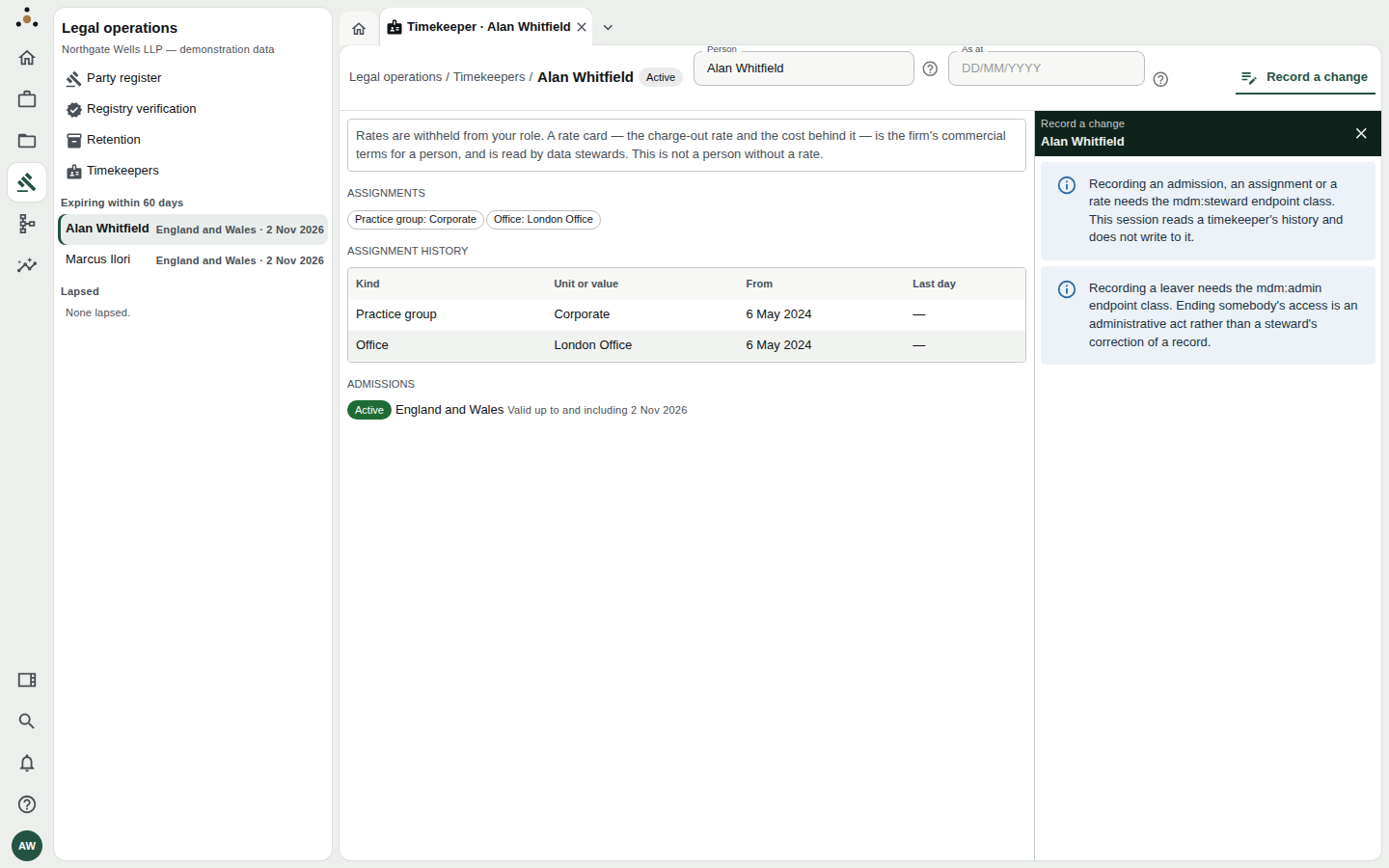
A partner sees the history, but rates are withheld and there is nothing to record.
A fee earner can read a timekeeper's assignments and admissions, but not the money:
Rates are withheld from your role. A rate card — the charge-out rate and the cost behind it — is the firm's commercial terms for a person, and is read by data stewards. This is not a person without a rate.
That last sentence is deliberate. A blank would look like "no rate"; Datum states that a rate exists and you may not read it. Recording an admission, an assignment or a rate needs the stewardship permission, and the page says so. Roles holding no read permission — a platform administrator, for instance — see no timekeepers at all, apart from being able to record a leaver by reference (the screen warns that nothing can then confirm whose reference it is, so check it first).
Good habits
- End, then start. Never edit history to reflect a move; add to it.
- Always give an expiry date on an admission, or the expiry watch-list cannot protect you.
- Check the "As at" box before answering "what was their rate on that matter?". The answer is the rate in force when the work was done, not today's.
- Write the reason. Why this change is the only explanation a future steward will have.