Your daily routine
A steward's job is the part of master data that software cannot settle: whether two records are the same client, whether a proposed change should land, whether a value is right. Datum is built so that this work arrives in one place and is cleared in a sensible order. That place is Home.
Start on Home
Home is the first screen after you sign in, and the house icon at the top of the rail always returns to it. The header names the firm and who you are signed in as, so you can tell at a glance which session you are in.
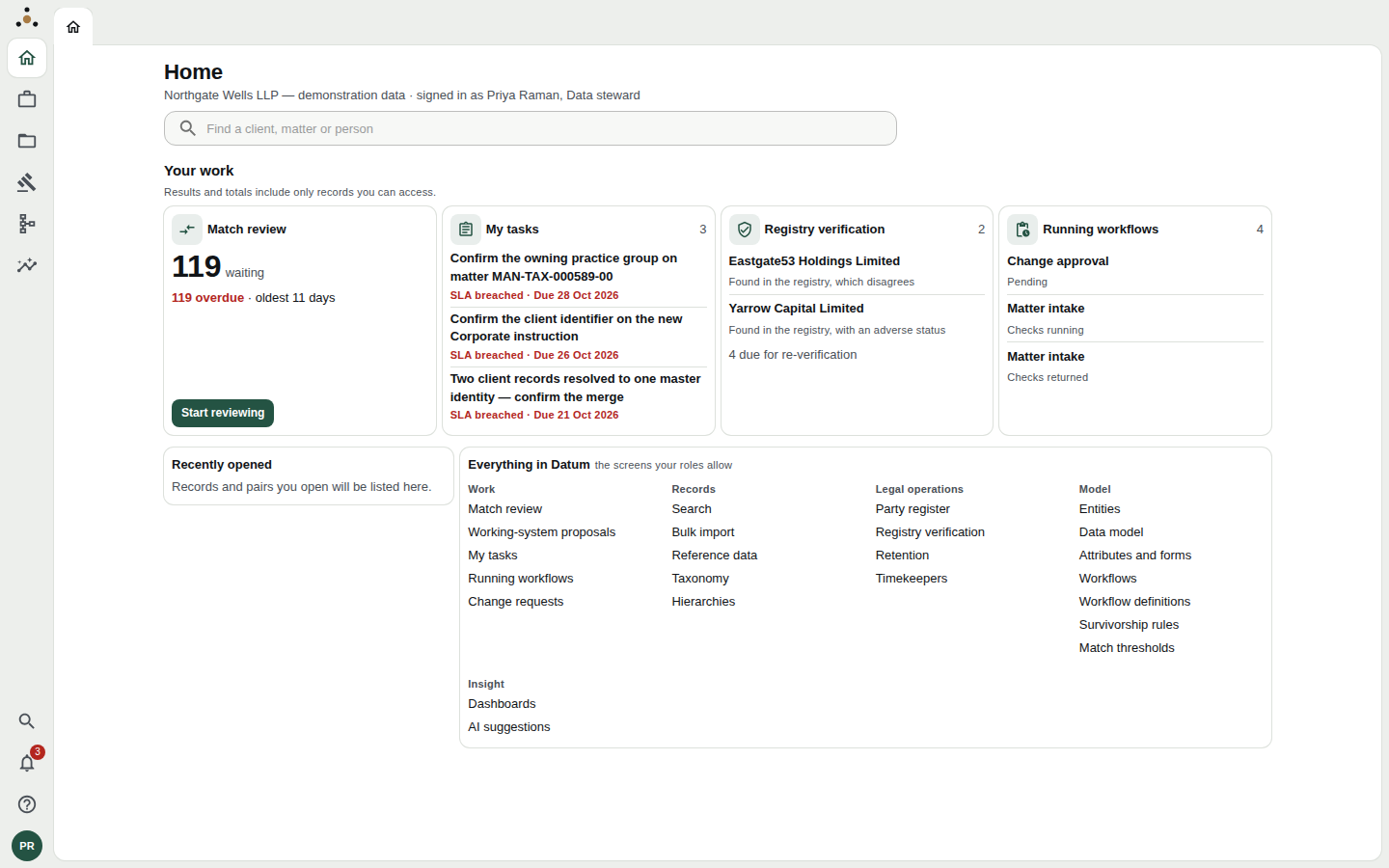
Home for a steward. The four cards under Your work are live counts; each opens the screen where the work is done.
Home has four parts, top to bottom.
- The search box. Type a client, matter or person and press Enter. It is the same search as the Search screen, reached without a click. From anywhere in the application, / or Ctrl+K opens the command palette, which finds records and screens alike.
- Your work. Four cards, described below.
- Recently opened. Records and pairs you have opened lately, so you can go back to one without searching for it again. It starts empty on a fresh session.
- Everything in Datum. An index of every screen your roles allow, grouped the way the rail groups them. If a screen you expect is missing here, it is missing because your role does not reach it, not because it has moved.
Under Your work you will see Results and totals include only records you can access. That sentence appears on every list in Datum, not only where something has been withheld. A counter that said "N hidden" would itself disclose that something exists, so Datum never says it. A steward is not walled, but a fee earner may be, and the sentence is the same for both.
The four cards
| Card | What it counts | Where it takes you |
|---|---|---|
| Match review | Pairs of records the matching model could not decide on its own, with how many are overdue and how old the oldest is. | Match review. The Start reviewing button opens the first pair directly. |
| My tasks | Tasks assigned to you, with their due dates. A task past its target shows SLA breached in red. | My tasks |
| Registry verification | Parties found in an official registry whose record disagrees with Datum, or has an adverse status, plus how many are due for re-verification. | The registry screen under Legal operations |
| Running workflows | Workflows in flight that you started or that wait on you, with their current state. | Running workflows |
A card that cannot be shown says why in a line of its own, either Your roles do not reach this or This could not be loaded. Neither means the count is zero. If a card says it could not be loaded, reload; if it persists, tell your administrator.
A sensible order for the day
There is no single correct order, but this one works for most stewards because it clears the work with the shortest clocks first.
- Tasks that are past their SLA. Open My tasks first. These are promises someone else is waiting on, and they are usually quick: confirm an owning practice group, confirm a client identifier.
- Change requests. A fee earner who may not edit a record cannot be refused outright, so their edit arrives here as a proposal and waits for you. An unanswered request is a person who will go and keep a spreadsheet instead. See Change requests.
- Match review. This is the long queue, and the one that shrinks as you work it. Clear the overdue pairs, oldest first.
- Running workflows and registry findings. Check anything that has stopped moving.
Match review's default sort is Priority, which already puts the pairs that have waited longest and carry the most risk first. Resist re-sorting to pick off the easy ones. A queue that is only ever skimmed teaches stewards to approve by reflex.
The shape of the workspace
Everything you open becomes a tab across the top of the screen, beside the Home tab. A queue is one tab; a pair you open from it is another; a record is another. Closing a tab that holds unsaved work asks you first.
The rail on the left has up to seven areas. As a steward you will live mostly in two of them.
| Area | What a steward uses it for |
|---|---|
| Work | Match review, working-system proposals, My tasks, Running workflows, Change requests. |
| Records | Search, bulk import, reference data, taxonomy, hierarchies, and browsing records by type. |
Legal operations, Model and Insight hold the registers, the data model and workflows, and the dashboards. They are described in their own guides. Administration appears only to administrators.
The navigator panel beside the rail lists the screens in the area you have chosen. Press Ctrl+B to collapse it when you want the width.
? opens the keyboard shortcut overlay for the screen you are on. The overlay is generated from the bindings that are actually active, so it is always right, which a printed card never is.
When there is nothing in your queue
An empty queue is a good day, but be careful what it means. Datum distinguishes three situations that look alike.
- This queue is clear. Nothing is waiting. New items appear after the next load from the source systems.
- Nothing matches. Your filter or search hides the items. Clear it.
- This queue could not be read. The platform refused rather than returning an empty list. The message quotes the platform's reason. This is not an empty queue.
That last case is why the application never shows a quiet "nothing here" when a read has failed: an unnoticed outage would look exactly like a finished day.
Next
- Match review is the core of the job.
- Tasks and Delegation and cover cover how work is assigned and how it is handed over when you are away.