Bulk import
Bulk import is for the file somebody emailed you: a spreadsheet of clients opened in a new office, a list of matters from a system Datum is not yet connected to, a batch of corrections. It is a four-step wizard, and the order of the steps is the point — nothing is written to Datum until you have seen every row checked and pressed Commit.
You will find it under Records → Bulk import.
Importing is a stewardship action. A session without the stewardship permission sees the screen with a single message — Imports are run by stewards — and nothing to click. That is deliberate: a form that would only ever be refused is not offered.
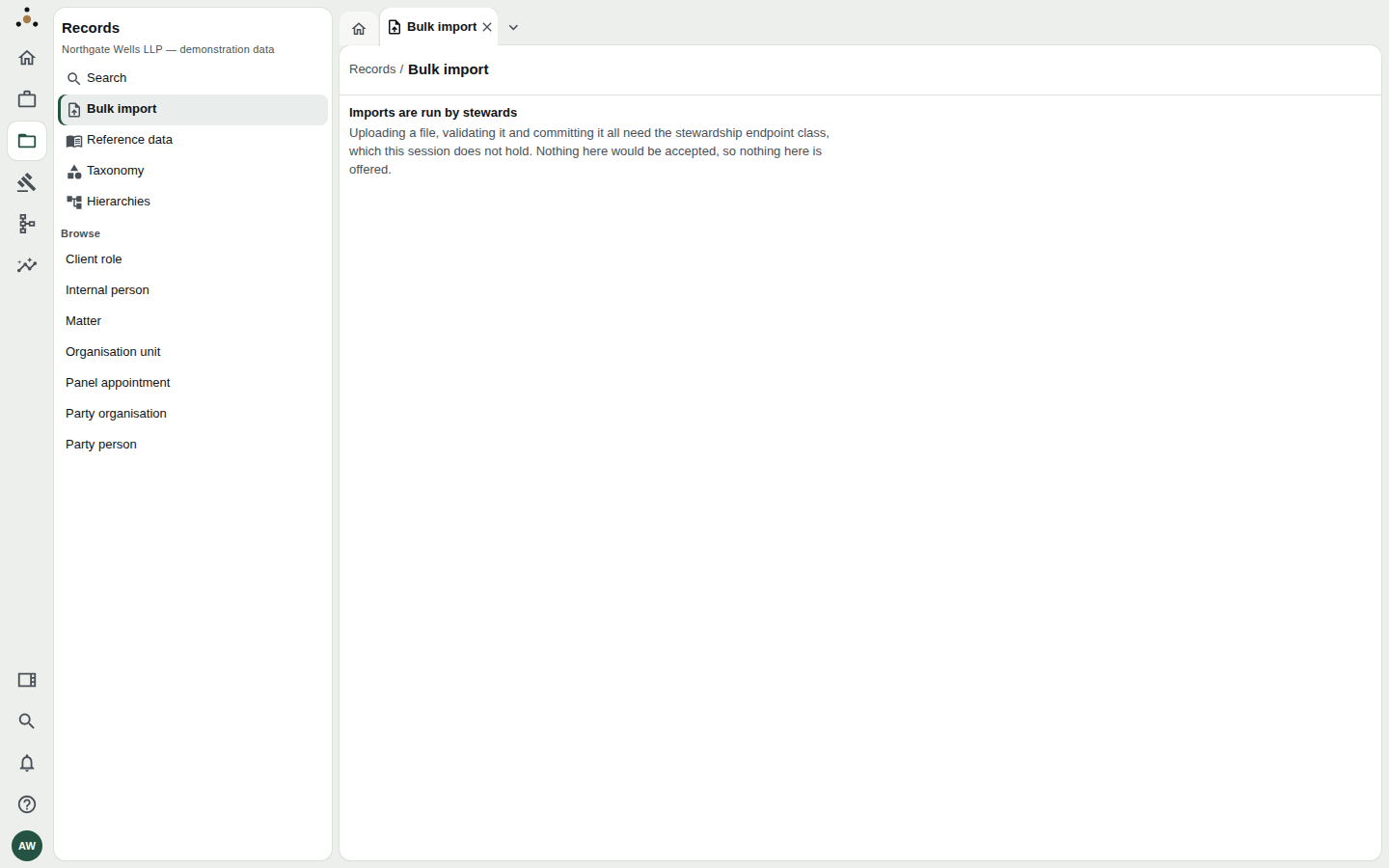
What a fee earner sees: the screen explains itself instead of offering an upload that would be refused.
The four steps at a glance
| Step | What you do | What Datum tells you |
|---|---|---|
| 1. Upload | Choose a file | Rows, columns, encoding, delimiter and a checksum |
| 2. Map columns | Choose a mapping template — or save one | Each column's type, fill rate and examples |
| 3. Validate | Choose the source system and run validation | Valid, error and warning counts for every row |
| 4. Commit | Press Commit | A queued job run, with progress |
Step 1 — Upload
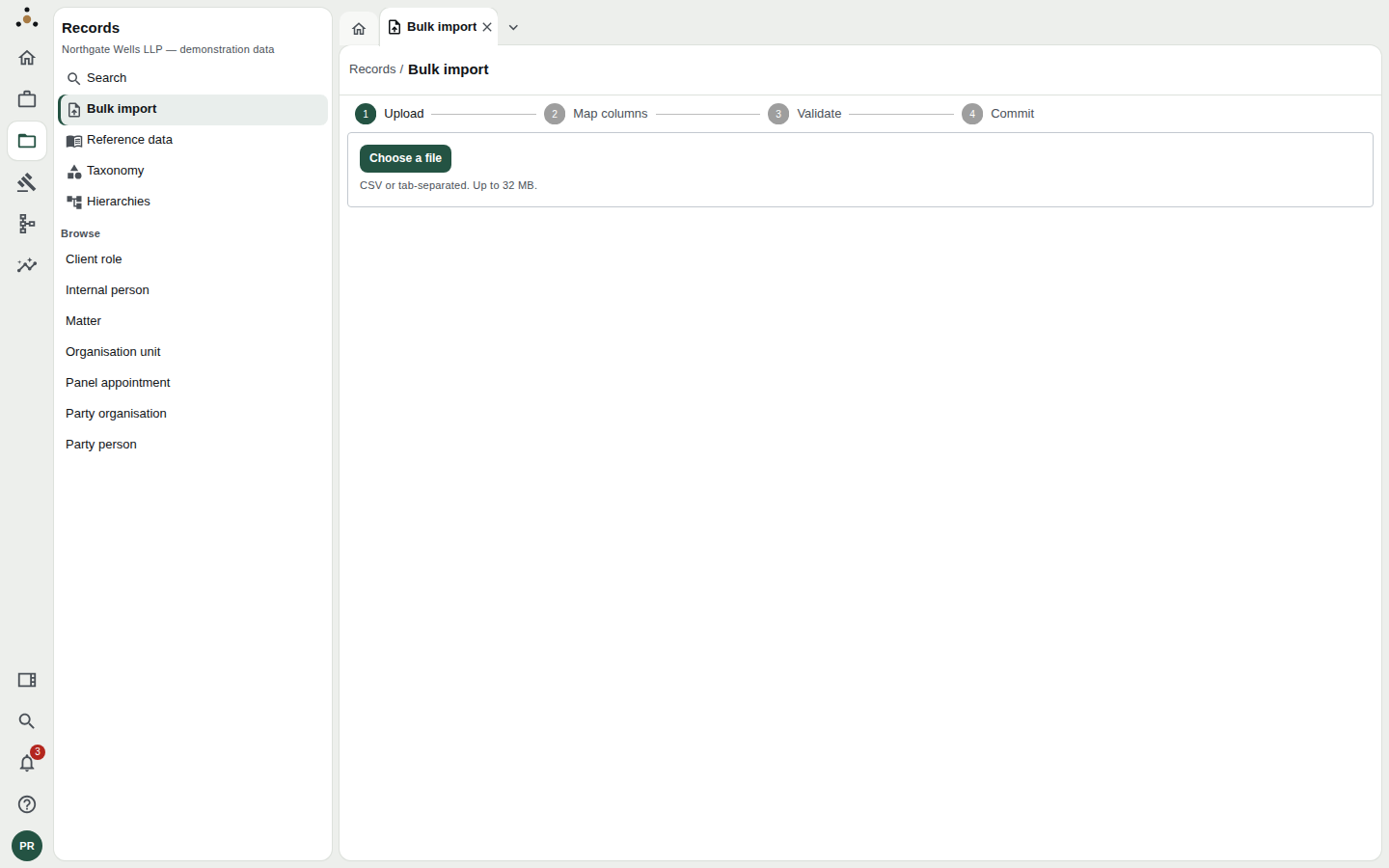
The first step. Datum accepts CSV or tab-separated files up to 32 MB.
Choose Choose a file and pick your file. Datum reads it at once and reports what it found:
sample-import.csv— 5 rows, 4 columns, utf-8, delimiter,
Checksum6f66aa04ff0835b9
Check these figures against what you expected. A file that should have 3,000 rows and reports 1 usually has the wrong delimiter or a stray quote early on.
The checksum is worth a second look if the file has been open in Excel or passed between colleagues. The commit reads these exact bytes, not whatever is on your disk later, so the checksum is how you tell that the file you validated is the file you are about to load.
Back on the Upload step, a Your imports table lists the runs you have queued, with their status and progress. If you left the wizard after committing, this is how you find the outcome again — use Show run beside it.
Step 2 — Map columns
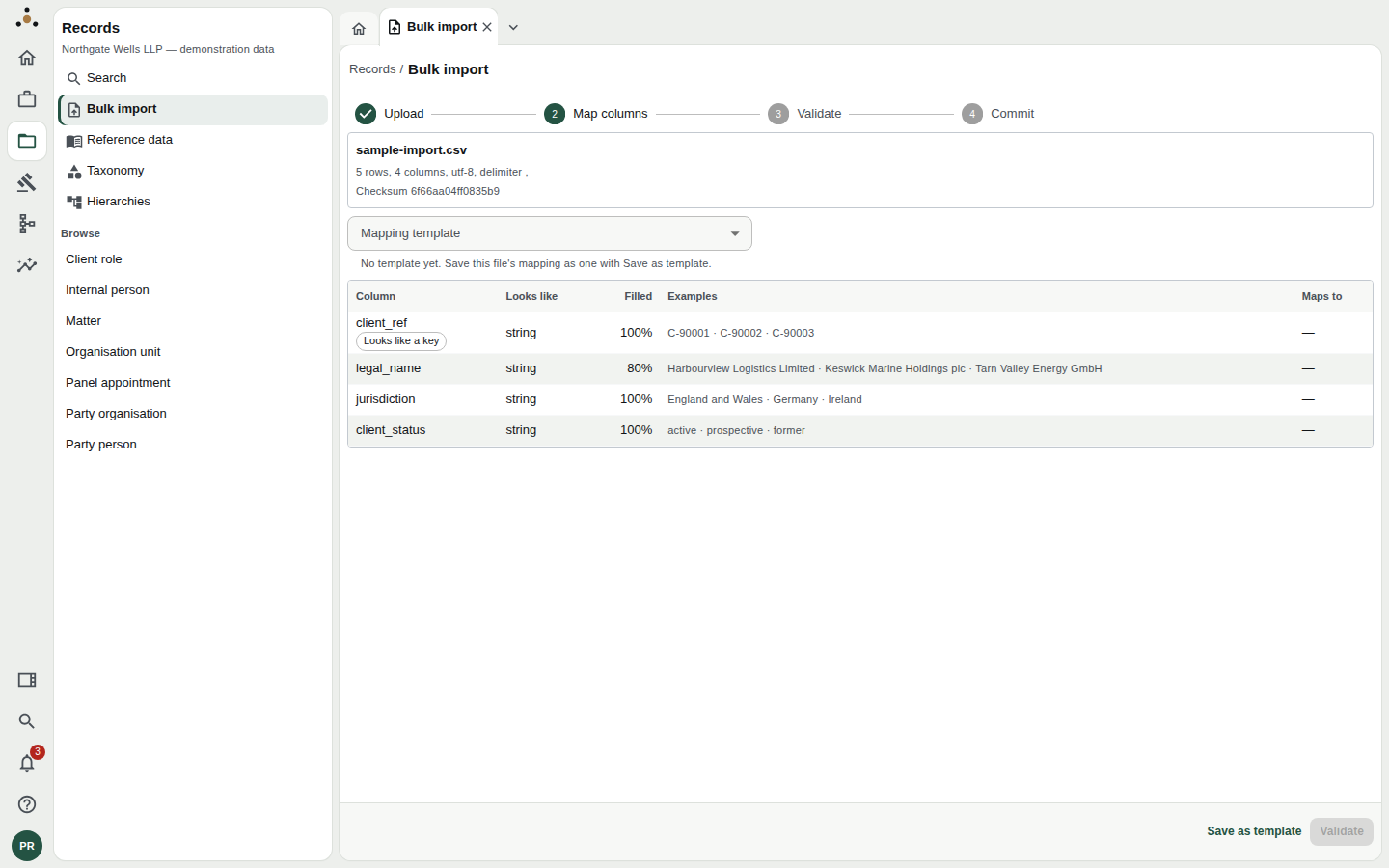
Each column is profiled before you map it: what it looks like, how full it is, and three examples.
The table profiles every column in your file:
- Looks like — the type Datum inferred (string, date, number…).
- Filled — the percentage of rows with a value. A name column that is 80% filled means one row in five has no name; you will meet those rows again at validation.
- Examples — the first few values, so you can recognise the column.
- Looks like a key — a small badge on a column whose values are unique, such as a client reference. It is a hint for choosing the key column below, not a decision.
Mapping is done through a mapping template: a saved description of which column feeds which attribute of which record type. Pick one from the Mapping template list. Beside it Datum tells you whether the template fits this file, or what is missing from this file if a column the template expects is not there. The Maps to column then shows what each of your columns will become.
Saving a template
The first time you load a file of a given shape there is no template yet, and the page says so. Press Save as template.
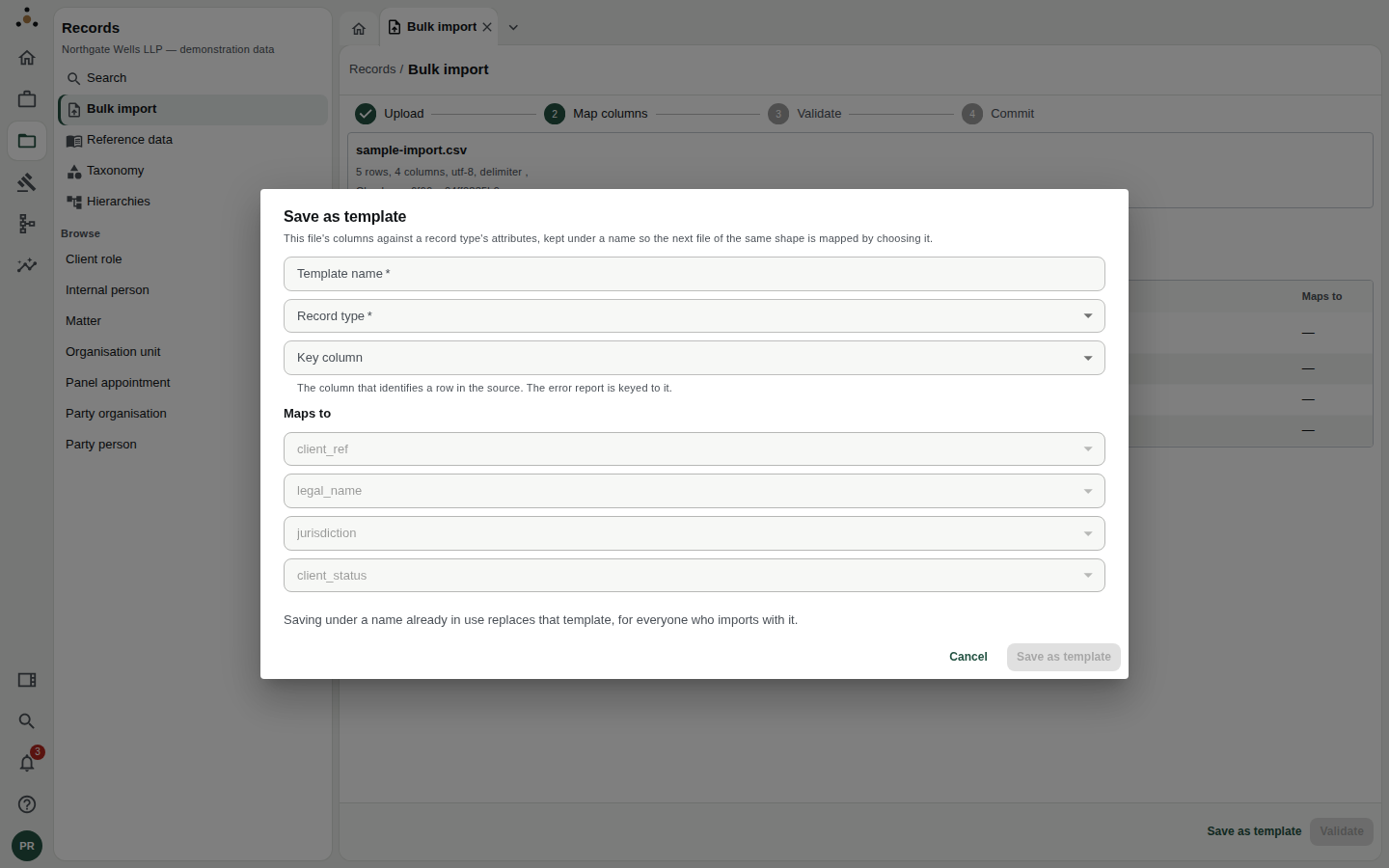
Name the template, choose the record type, pick the key column, and map each column to an attribute — or to Not imported.
- Template name — something your colleagues will recognise, such as
Dublin client list. - Record type — the kind of record the rows become (client role, matter, party organisation and so on).
- Key column — the column that identifies a row in the source system. Your error report is keyed to it, so choose a reference that means something to the person who sent the file.
- Maps to — for each column, the attribute it feeds. Choose Not imported for columns you want to ignore.
If you save under a name that is already in use, the old template is replaced for everyone who imports with it. Datum says so in the dialog. Use a new name unless replacing is what you mean.
Next time a file of the same shape arrives, you choose the template and press Validate. You never map twice.
Step 3 — Validate
Validation checks every row, not a sample — the screen says so. You see four counters:
- Valid rows
- Rows with errors
- Rows with warnings
- Would be written — what a commit would actually load.
Rows with errors are listed with their file row, their key, and what was wrong — for example a required name left blank, a code that is not on its list, or a value that is not a concept in the firm's taxonomy (see Taxonomy). Press Download the error report to send the list back to whoever produced the file; it is keyed to the row numbers and keys in their file.
Would be written is what a commit will actually load, and the commit button carries that number. If it is lower than your row count, the difference is the rows with errors. Whether to fix the file and re-upload, or to load what is valid, is your decision.
Choose the source system
Before committing, choose the Source system the file comes from. This matters more than it looks. Datum explains it beside the choice:
Each row becomes this source's record, keyed as the source keys it. It is matched against the records the firm already holds, the survivorship rules weigh its values with every other source's, and this source's next load replaces it. History tells it as an import from this source, by you.
In plain terms: an import is not an edit to the golden record. It is a new contribution from a source, and the golden record is recomputed from all the sources by the survivorship rules. Your file does not automatically win.
If the list is empty, no source system is registered for this firm. An administrator registers one under Administration → Connections; you cannot do it from here.
Step 4 — Commit
Press Commit N rows. The load runs on Datum's worker, not in your browser:
Queued as job run 4412. Its progress is here, and you can leave: your imports are listed when you come back to Bulk import.
You can close the tab. A progress bar shows done of total rows, and the status moves from Queued to Running to Finished (or Failed).
When it finishes you see how many rows were written, and — separately — any rows that did not apply. These are different from validation errors: they passed validation and then failed on write, after the write was attempted. The report for them is keyed to your file's row numbers just like the validation report.
After the import
- New and changed values are contributions to the golden record. The match engine compares incoming rows with what the firm already holds, so a few new Match review pairs may appear in your queue shortly afterwards.
- History on each affected record shows the change as an import from the source, by you.
- A source's next load replaces its previous contribution rather than stacking on it, so re-loading a corrected file from the same source supersedes the earlier one.
Common problems
| Symptom | Likely cause | What to do |
|---|---|---|
| Only one column detected | Wrong delimiter or a semicolon-separated file | Re-save as CSV or tab-separated |
| Template says Missing from this file | A column was renamed or dropped | Fix the header, or save a new template |
| Every row errors on one code | The code is not on the list | Map it under Reference data and re-validate |
| Validate is greyed out | No template chosen | Pick or save a template |
| Source list is empty | No source registered | Ask an administrator |