Corporate hierarchies
Clients are rarely one company. A group has a parent, subsidiaries, joint ventures and a billing entity that may not be any of them. Corporate hierarchies shows those relationships, the matters hanging from them, and lets a steward model a change before making it.
Open it from Records → Hierarchies.
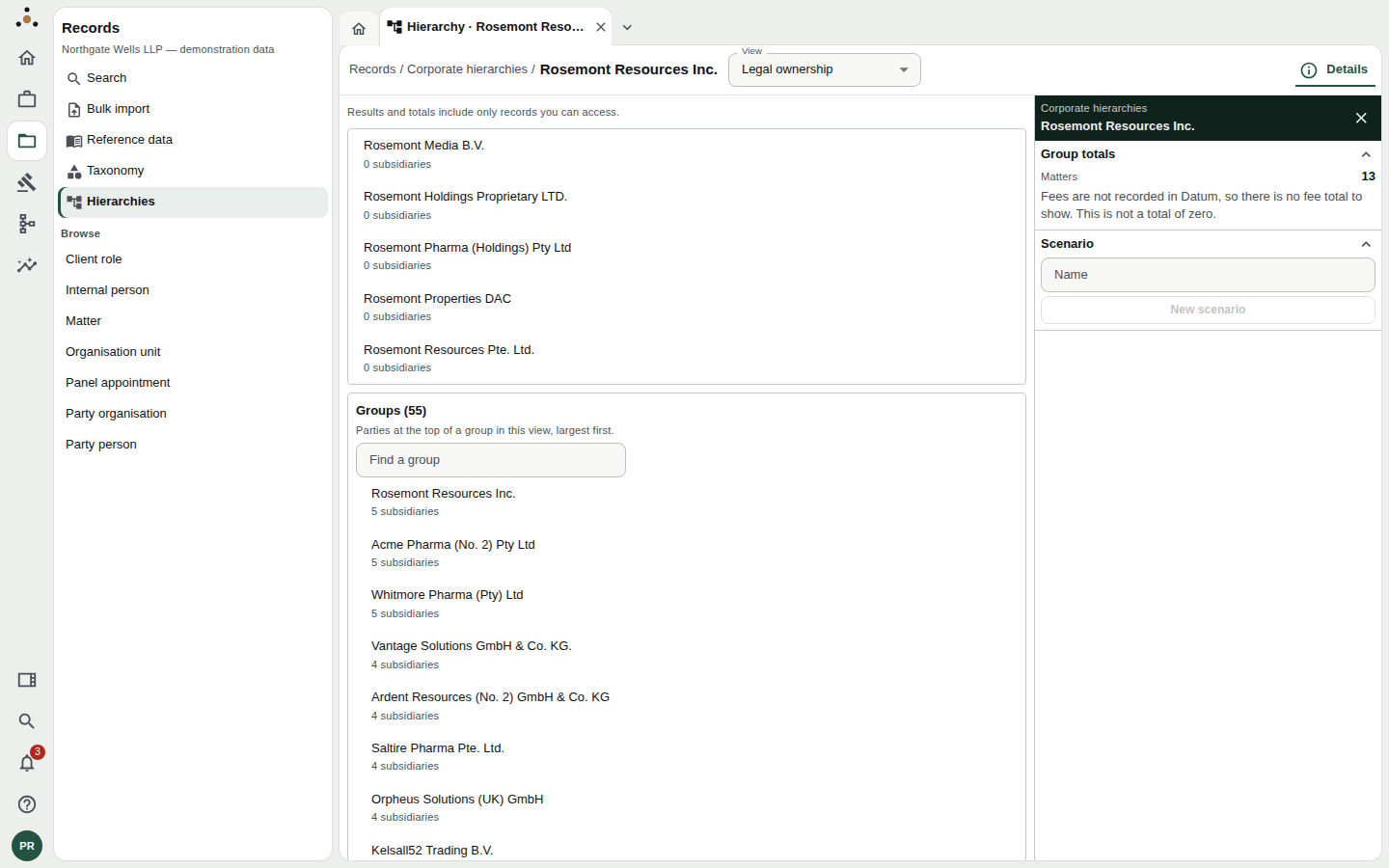
A group's subsidiaries at the top, every group in the firm beneath them, and the group's totals in the inspector.
Three views of the same parties
The View control at the top switches between three hierarchies:
| View | Answers |
|---|---|
| Legal ownership | Who owns whom, as a matter of corporate law |
| Firm relationship | How the firm treats the group — which entity is the relationship lead |
| Billing | Who is invoiced, which may not be who owns |
The same party can sit in different places in each. That is not an error: legal ownership and billing are different facts. When a party's position differs between views, Datum tells you — The views disagree for this party.
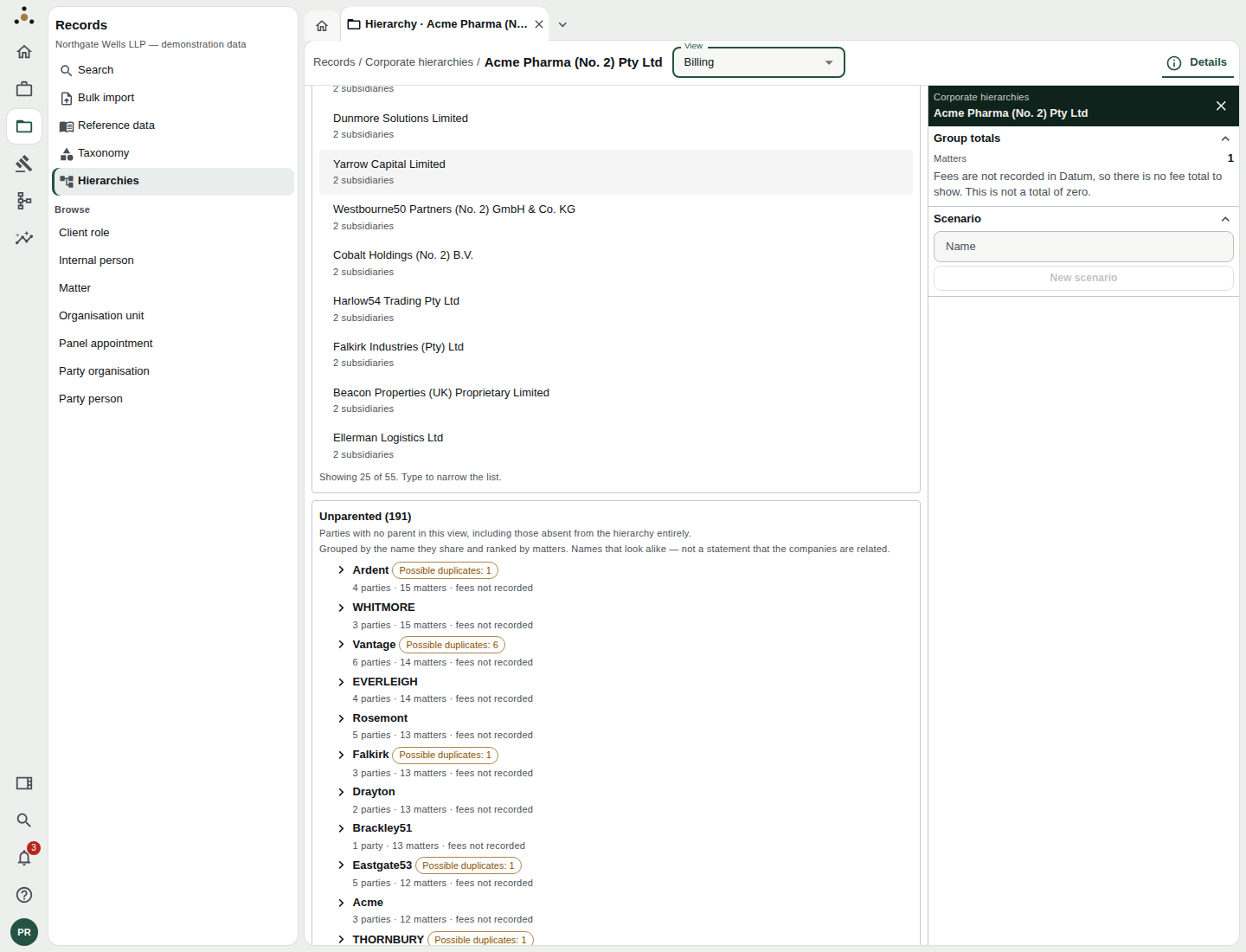
The Billing view. Switching view keeps you on the same party where it appears.
Drilling into a group
The tree loads one generation at a time. A large group can have thousands of members, and fetching them all to show a dozen would be slow. Instead:
- Choose a group from the Groups list (the largest first), or type part of a name in Find a group. Only 25 are shown at once — the foot of the list says Showing 25 of 55. Type to narrow the list.
- The group's direct subsidiaries appear at the top, each with its own count: 5 subsidiaries.
- Click a subsidiary to move into it. The breadcrumb follows, and Back climbs out again.
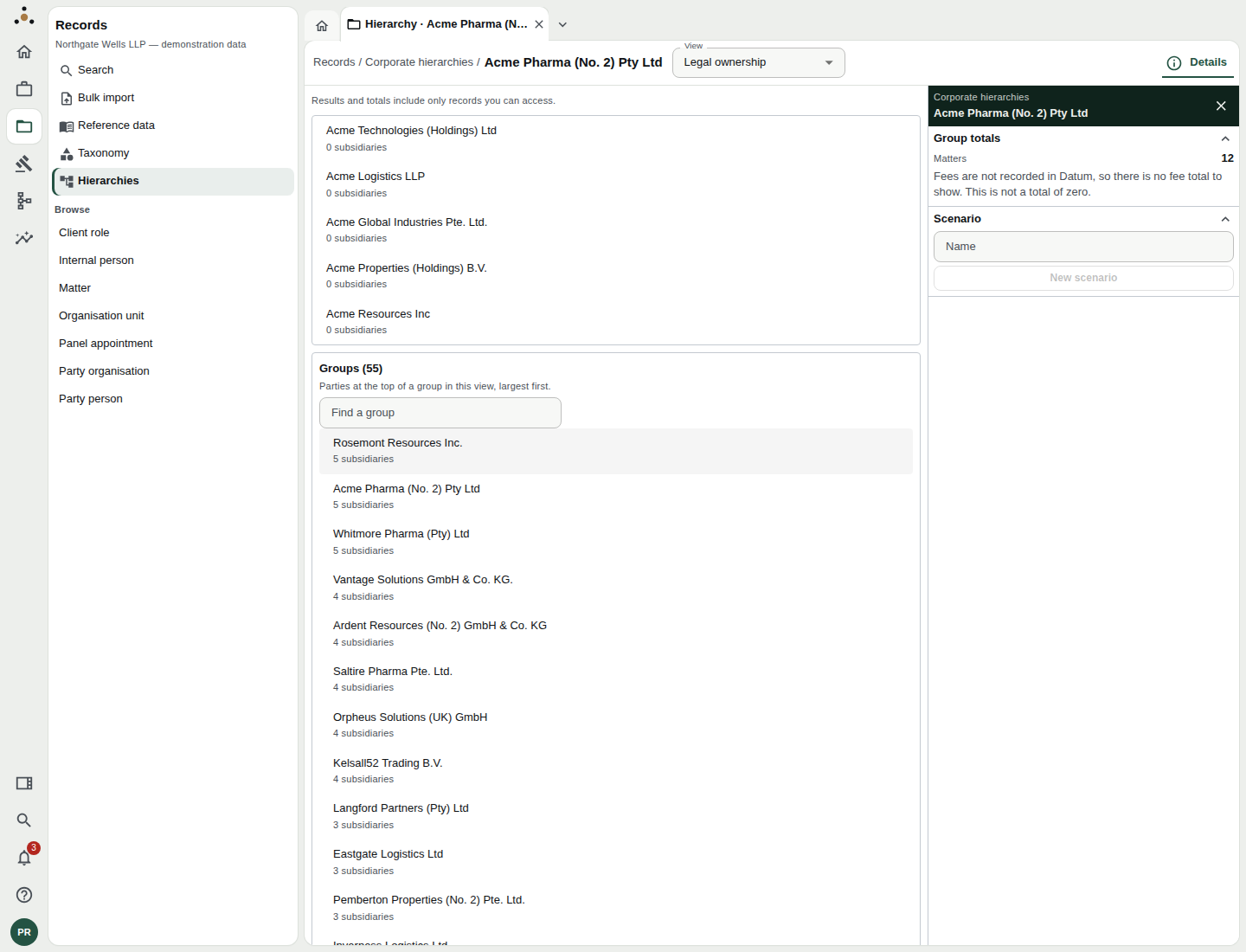
Drilling into Acme Pharma (No. 2) Pty Ltd. Each drill changes this tab's address rather than opening a new tab.
Group totals
Select a party and the inspector's Group totals show the number of matters across the group — for example Matters 13.
Datum does not hold fee data, so the panel states: Fees are not recorded in Datum, so there is no fee total to show. This is not a total of zero. Do not quote a fee figure from this screen. The absence is deliberate, not a missing feature.
Under the search bar every screen of this kind carries the line Results and totals include only records you can access. A group's total for a screened partner may be lower than for a steward who sees everything. Neither session is told by how much — that would itself disclose the wall.
Parties with no parent
Below the groups list, Unparented lists every party that has no parent in the current view — including those absent from the hierarchy entirely. In the demonstration firm there are 191.
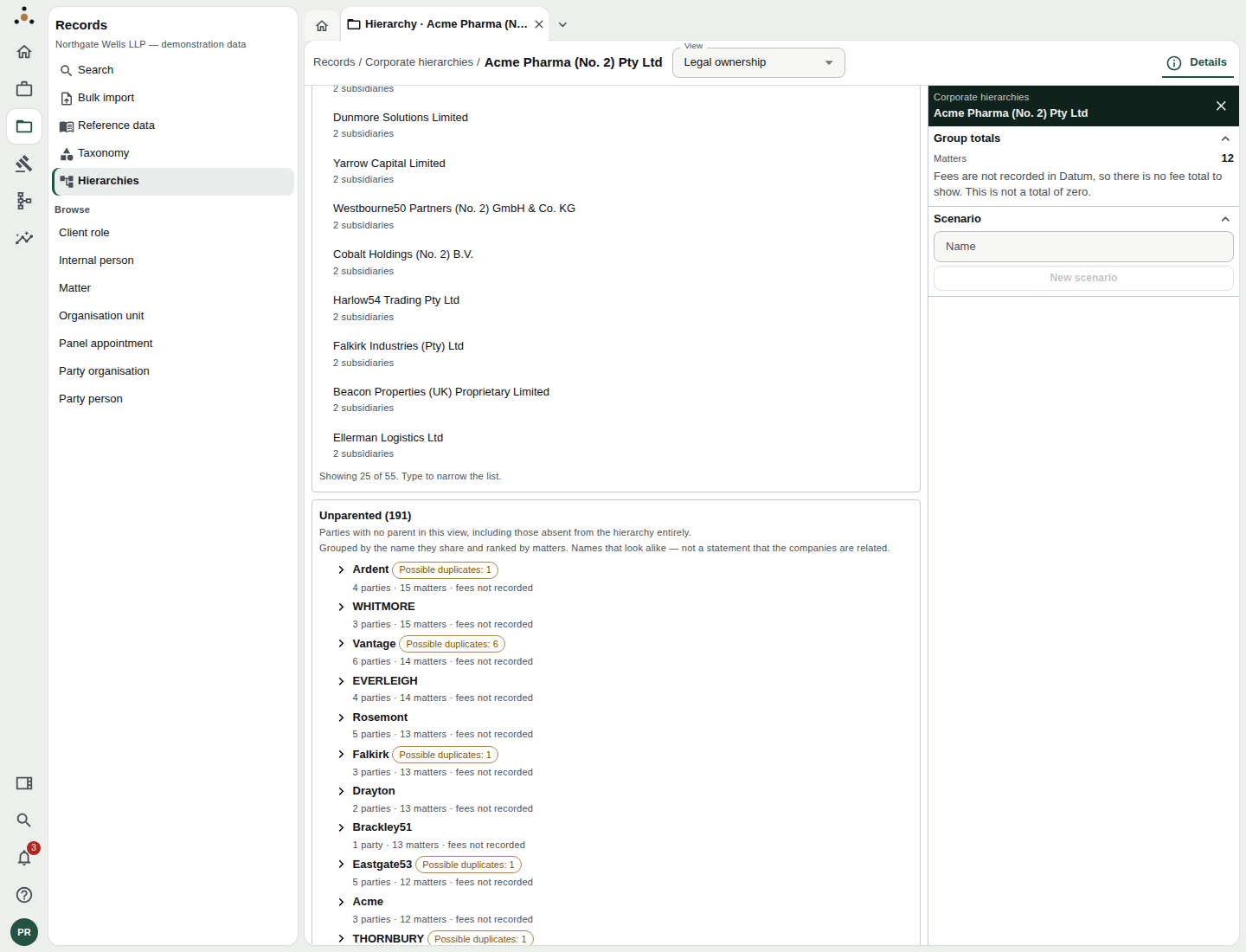
Unparented parties, grouped by the name they share and ranked by matters.
They are grouped into name families: parties that share a name — Ardent, Vantage, Rosemont — with the number of parties and matters in each. Expand one to see the parties.
The panel says it itself: Names that look alike — not a statement that the companies are related. It is a worklist for finding parties that probably belong under a parent, not evidence that they do.
A family with Possible duplicates: 6 is flagged because two or more of its parties may be one party recorded twice. You will not resolve that here — nothing on this screen merges a record. Choose Open the match queue and decide there.
Restructuring with a scenario
The real value of the screen is on the right, under Scenario. When a group restructures, moving a subsidiary from one parent to another shifts matters between reporting lines. Doing that on the live hierarchy and seeing what happened is a poor way to find out. A scenario is a sandbox copy.
Stewards can:
- Type a Name (for example Acme — post disposal) and press New scenario.
- Make edits in it: Move under another parent, or Detach a party from its parent. Datum refuses a move that would create an ownership loop, and says so.
- Read the Impact panel. It is recalculated every time an edit changes, and lists each party whose matter count would change, and by how much. If you have made no edits it says No changes yet. Move a node to see its impact.
- Either Discard the scenario, or Apply to the live hierarchy.
Promotion changes the structure every rollup in the firm's reporting runs over. It is a separate, deliberate step and requires re-authentication. Check the Impact panel first; there is no gentler way to undo it than to model and apply the reverse change.
Scenarios live on the server, not in your browser: reloading the page, or opening Datum on another machine, brings back your open scenarios, which are also listed so you can resume one.
What other roles see
Anyone with read access can browse every view and read group totals. Opening a scenario, editing it and promoting it all need the stewardship permission; without it, the screen explains: Opening a scenario and promoting one need the stewardship endpoint class. The structure and its rollups are readable without it.