Editing a record
A golden record is Datum's single best version of a client, party or matter, assembled from the source systems by rules. A steward can change it, but never silently. Every change carries its author, its time and, where you give one, its reason, and none of it destroys what was there before. This page covers the whole of editing: the plain edit, pinning a value, reading the history, looking at the past, and reversing a merge.
The record screen
Open a record from Search, from a task, or from Recently opened on Home. The header gives the name, the entity type, a Golden record marker, a Quality score, and the record's identifier, which you can copy.
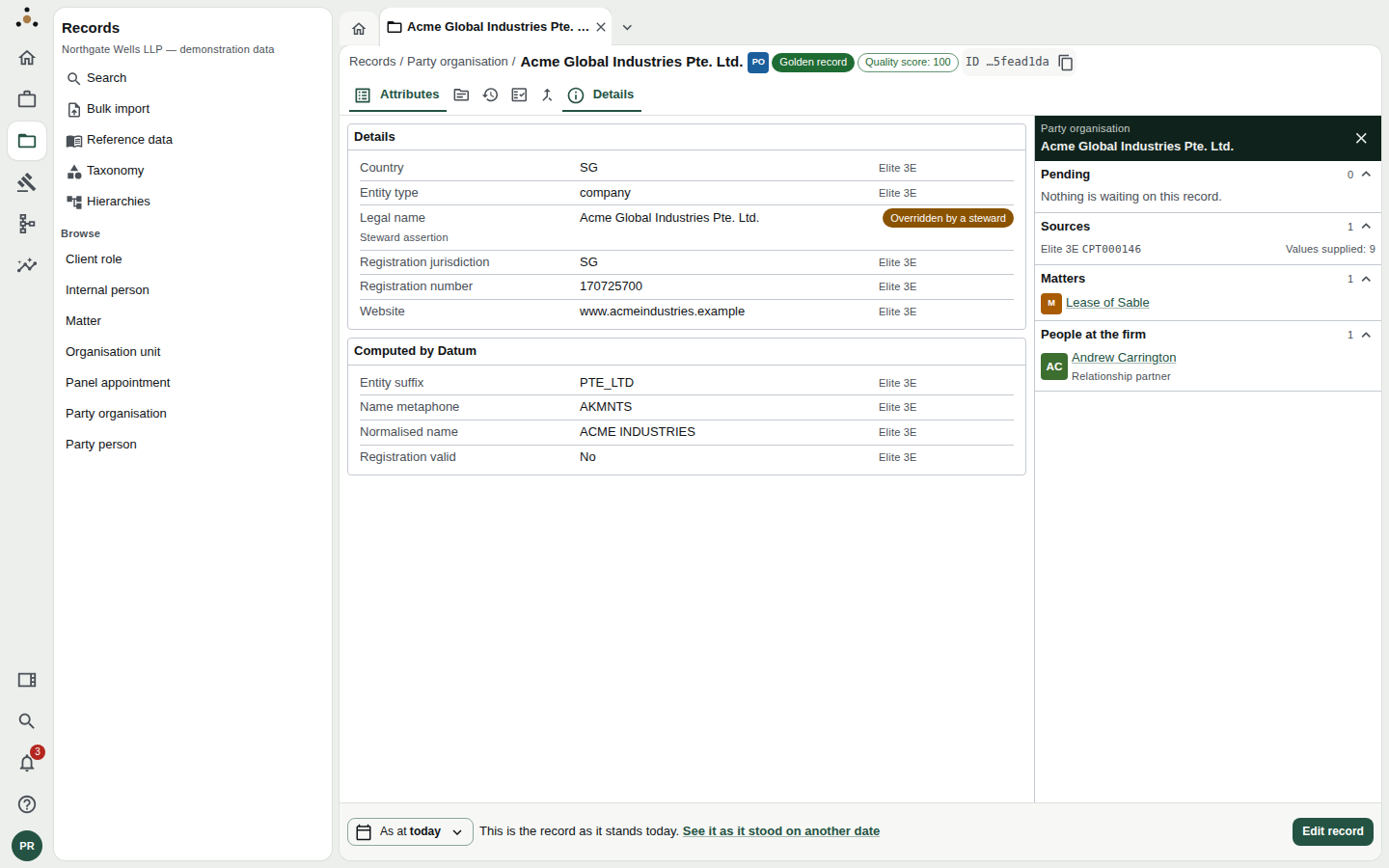
A golden record. Each value shows the system that supplied it; the badge on Legal name shows a steward pinned it.
The icons at the right of the header switch the record's views, each named in its tooltip and, once selected, beside the icon:
| View | What it shows |
|---|---|
| Attributes | The values, grouped as Details and Computed by Datum. |
| Sources | A comparison of what each source system says, attribute by attribute, hiding those they agree on until you ask. |
| History | Everything that has happened to the record. |
| Quality | The quality findings, as in Quality scorecard. |
| Merges | What has been folded into this record, and the control to fold another in or reverse one. |
| Details (panel) | Pending changes, sources, related matters and the people at the firm. |
Values under Computed by Datum are derived, such as a normalised name or a metaphone key. You cannot edit them; change what they are computed from.
Why this value?
Click the source name at the right of any attribute, for example Elite 3E, to open Why this value?
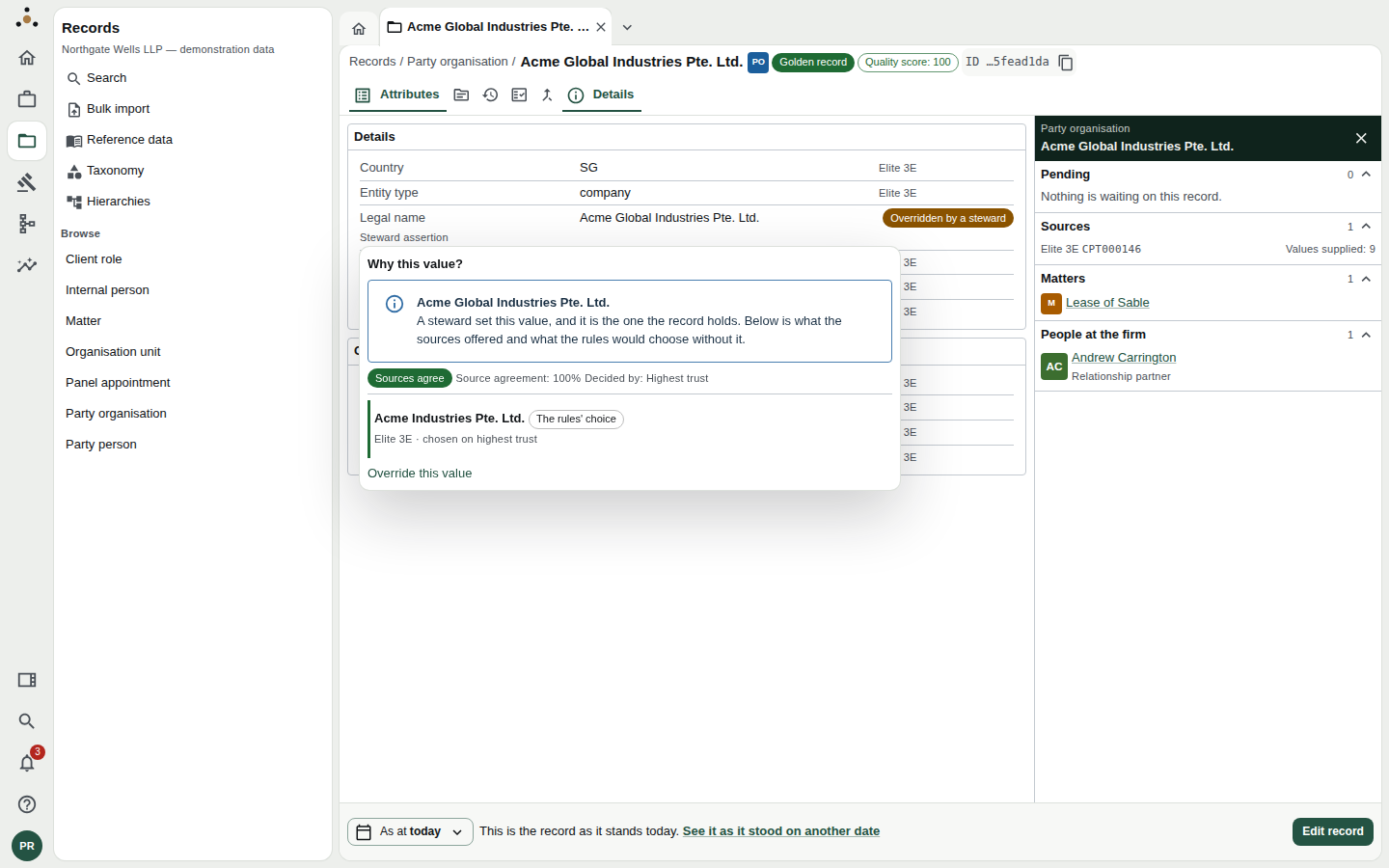
The explanation behind one value: who or what chose it, what else was offered, and whether the sources agree.
It names the rule that decided (for example highest trust), shows Source agreement, and lists Also offered alternatives. This is the answer to the question a finance director asks: why does the client name here not match 3E?
Change a value
- Press Edit record (bottom right).
- Change the fields you need. Required ones are marked; a required field left empty stops the save and names the fields.
- Add a Reason for the change. It is optional but you should always use it: it is recorded on the timeline beside what changed.
- Press Save changes.
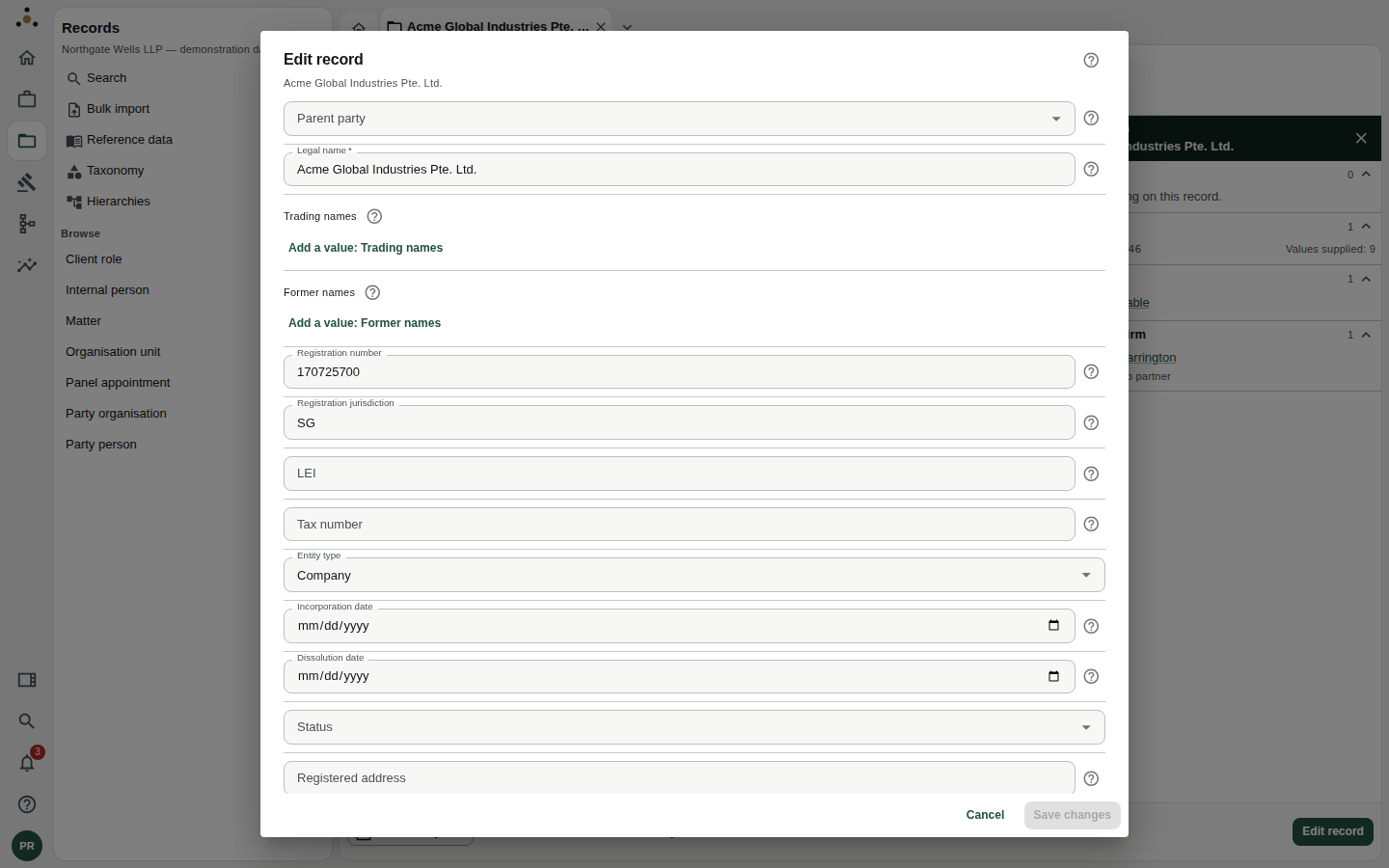
The edit form. Save changes stays disabled until something has changed.
After saving, the message reads Saved. The record is at a new version and the timeline records the change. Every save creates a new version.
Some behaviour you will meet:
- Pickers. Fields that point at reference data, at another record, or at the firm's taxonomy let you type to search; an entry that has since left the taxonomy still shows, marked no longer in the firm's taxonomy.
- Personal data is labelled as such where a field holds it.
- A conflict. If another steward saved while your form was open, Datum does not overwrite them. It shows When you started, Their value and Your value for each clash and asks you to choose Keep theirs or Keep mine for every attribute. If their change touched different attributes from yours, it simply says so and lets you save on top.
- Unsaved work. Closing the tab or leaving the screen asks Leave without saving?
While you are looking at a past date (see below) Edit record is disabled, with the note Editing is for the record as it stands today. Press Back to today first.
Creating a record
A steward can also create a new record, through the New [entity] record form, which asks Why the record is needed. Before it is created, Datum compares it with the records of that kind you can access, so you are warned of a probable duplicate before you add one.
Pin a value over the rules
Sometimes the rules choose a value you know is wrong, and editing the field would simply be overwritten by the next source load. A pin (shown as Overridden by a steward) tells survivorship to hold your value instead.
From Why this value?, choose Override this value.
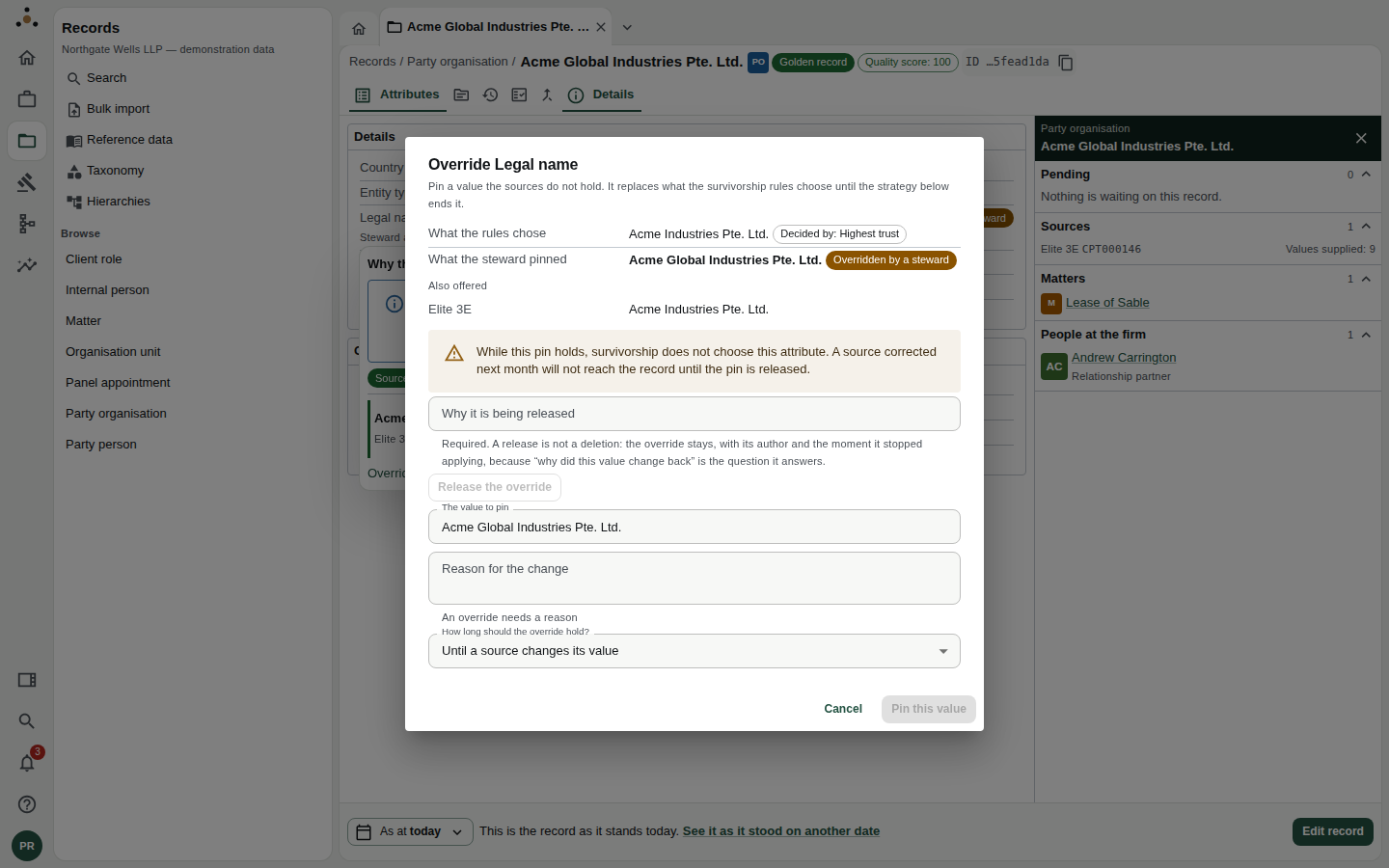
The override dialog. It shows what the rules chose, what you are pinning, and what the pin will cost.
You choose:
- The value to pin.
- How long should the override hold? Permanently; Until a source changes its value; or Until a date, after which the rules choose again.
- A reason. An override without one is refused.
The dialog warns: A source corrected next month will not reach the record until the pin is released. Use Until a source changes its value unless you have a reason to hold it longer.
To end a pin, open the same dialog and press Release the override, giving a reason. A release is not a deletion. The override stays in the record's history, with its author and the moment it stopped applying, because "why did this value change back?" is the question it exists to answer.
Read the history
Choose History. The timeline lists the record's life, newest first, with a one-line summary: Created 23 Oct 2026. 1 change since.
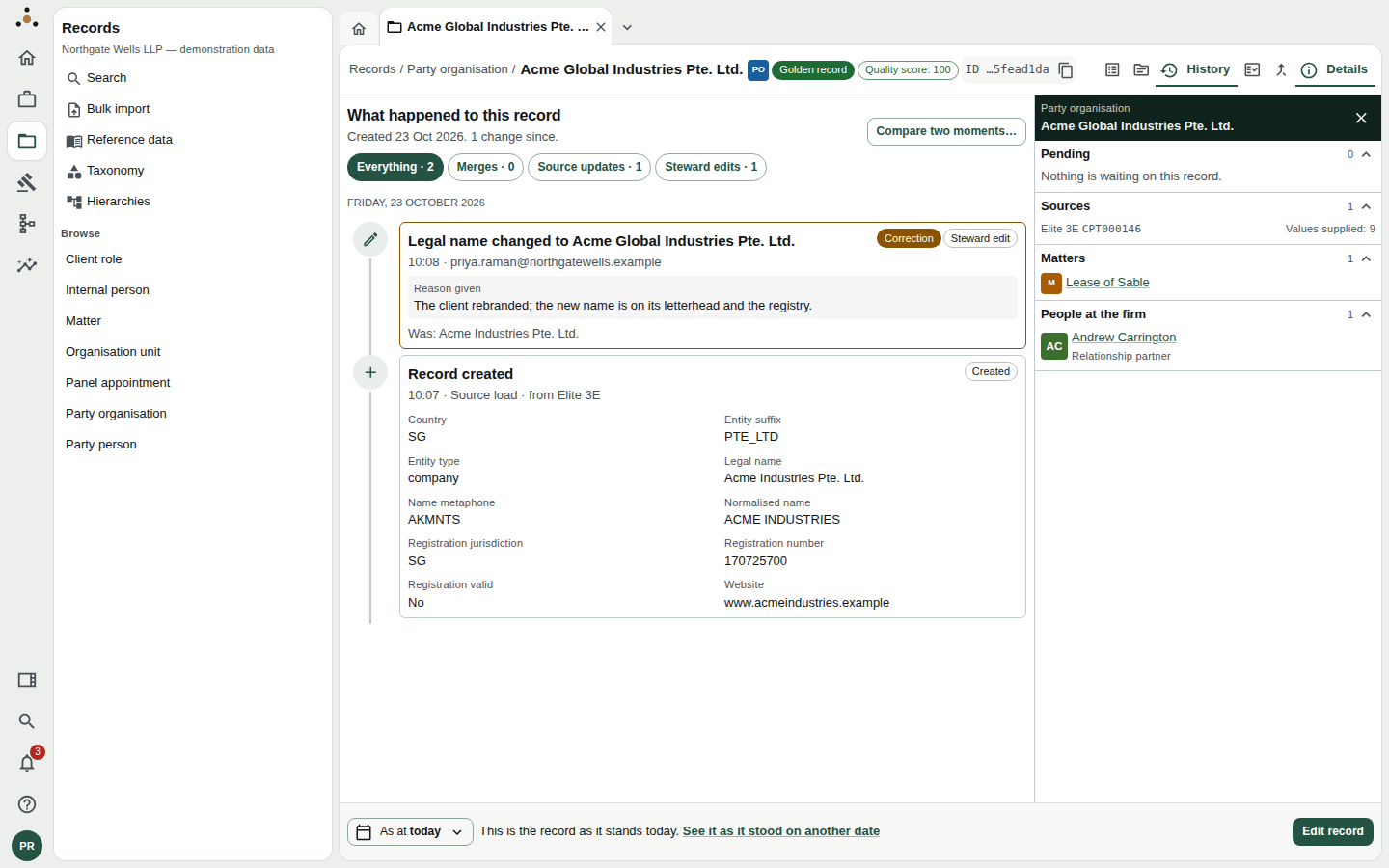
The timeline. The orange Correction marker is the platform's, not a style choice.
Each entry says what happened, when and by whom, and the Reason given where there was one, with Was: showing the earlier value. The filter chips narrow it: Everything, Merges, Source updates, Steward edits, and Proposals not applied, which holds rejected and withdrawn change requests.
Correction, or change?
Datum is bitemporal: it holds two timelines. Valid time is when a fact was true in the world. Recorded time is when the firm knew it. A change says the world moved on: the client rebranded last Tuesday. A correction says the firm had it wrong: the name was never what we recorded. The timeline marks a correction with a Correction label and a colour, never colour alone, so you can see at once which entries rewrote the firm's belief rather than reporting a new fact.
This matters when you are sued about advice given last March. The question then is what the firm knew at the time, and a correction is how that is preserved rather than overwritten.
Compare two moments
Compare two moments… sets two dates side by side, valid and recorded, and shows what differed. From a comparison you can propose restoring an attribute to its earlier state; that is submitted for independent approval rather than applied by you.
See the record as it was
The control at the bottom left reads As at today.
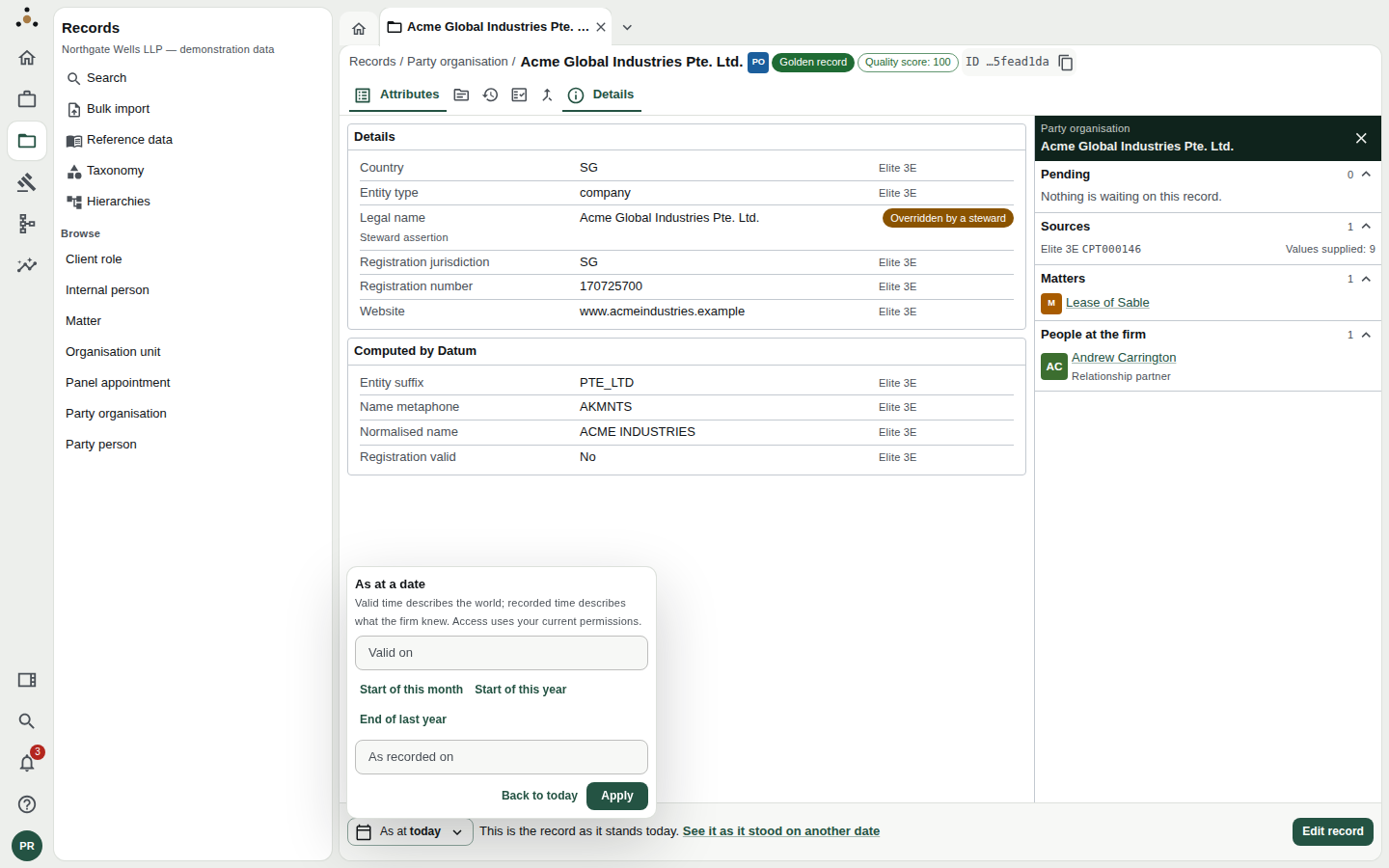
As at reads either timeline.
- Valid on shows the record as the world stood on that day.
- As recorded on shows the record as the firm had it recorded on that day, ignoring anything entered since.
Enter a day as DD/MM/YYYY, or pick a quick choice, and press Apply. A sentence beside the control says exactly what you are looking at, for instance This is the record as it stood on 31 March 2026, as far as the firm had recorded it by 1 April 2026. Back to today restores the present.
As-at views use your current permissions. A wall raised today applies to yesterday's view of the same record.
Merging, and reversing a merge
Most merges come from Match review. The Merges view is where they are managed afterwards.
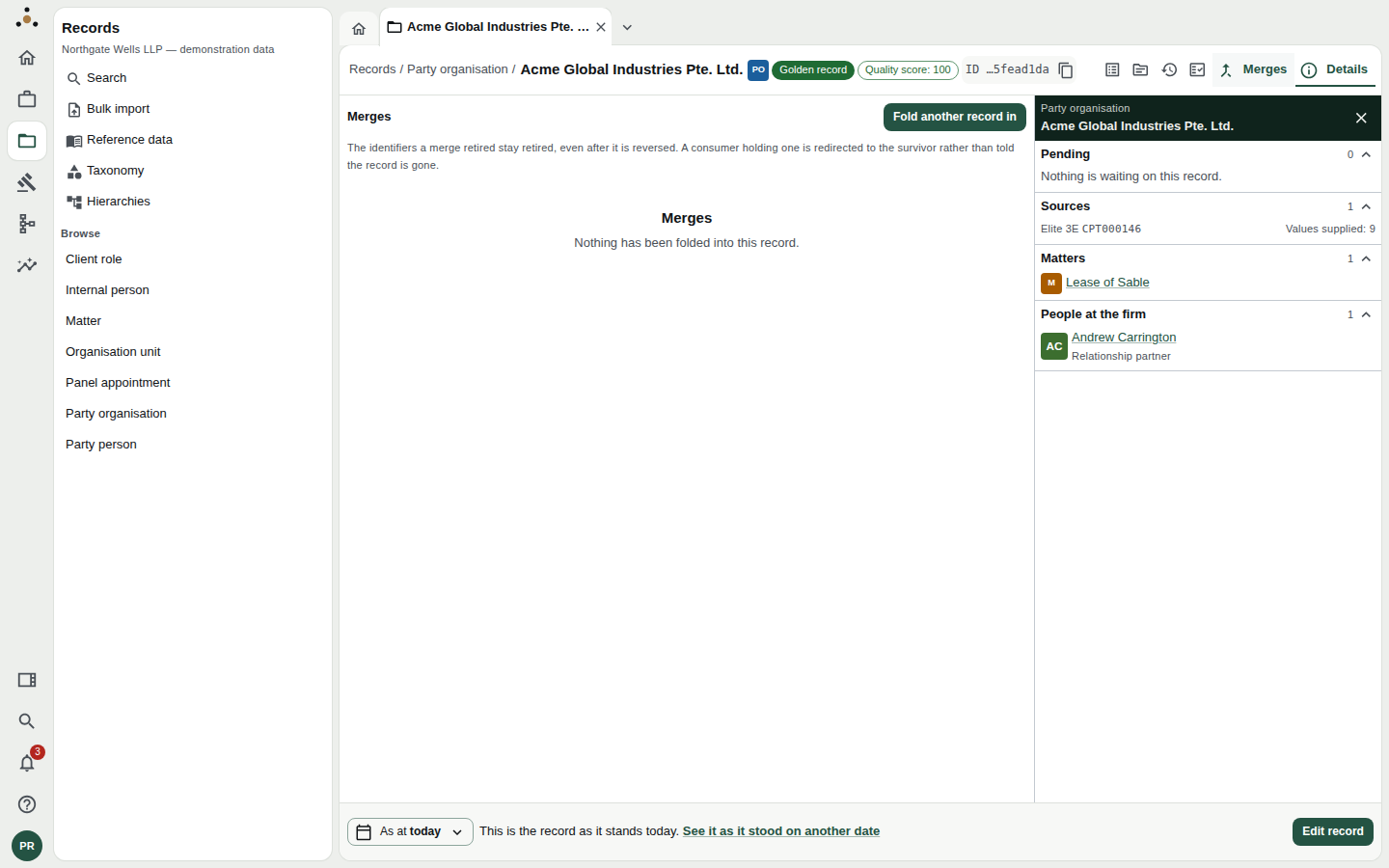
A record that has had nothing folded into it. Once a merge happens it is listed here with who decided it and what the survivor looked like before.
- Fold another record in merges a record you name by identifier. It previews first, requires a reason (a merge with no reason is one no steward will ever dare reverse), and asks for a recent sign-in.
- Each merge listed shows who decided it, where (for example Decided in the match review), and What the survivor looked like before.
- Reverse this merge (re-authenticate) separates the records out under new identifiers. It needs a reason and a recent sign-in, and a role that may reverse merges of this kind. The result reads Reversed. 2 records were separated out under new identifiers.
Reversing a merge does not give a retired identifier back to the record that held it: the identifiers a merge retired stay retired, even after it is reversed. Anything holding the old identifier is redirected to the survivor rather than left pointing at nothing.
If your edit becomes a proposal instead
If you see Propose a change where this page says Edit record, your session does not hold stewardship rights, and your edit goes to the change requests queue for a steward to decide.