Ethical walls
Administration → Ethical walls is the firm's register of screens. A wall stops named people from reaching named clients, client relationships or matters. It is the control a firm's compliance function is audited on, so this screen is built around a single idea: a wall is never edited and never deleted — only proposed, agreed, put into force, and withdrawn with a reason.
You can raise and withdraw walls without being able to read a single matter. The register shows who is screened and from which master identifier, not the content of the records.
How a wall behaves
A wall is applied last, after roles and privileges, and unconditionally. No role — including administration — can see past it.
For a person who is screened:
- The record does not exist, as far as they can tell. Opening it returns not found, never access denied, because "denied" would confirm the matter exists.
- Lists, searches and totals leave it out silently. Nothing says how many were withheld, because a count of what was held back is itself a leak.
- Exports apply the same evaluation as the screen. There is no separate export query.
The wall covers a client relationship and therefore also every matter opened under it later.
The register
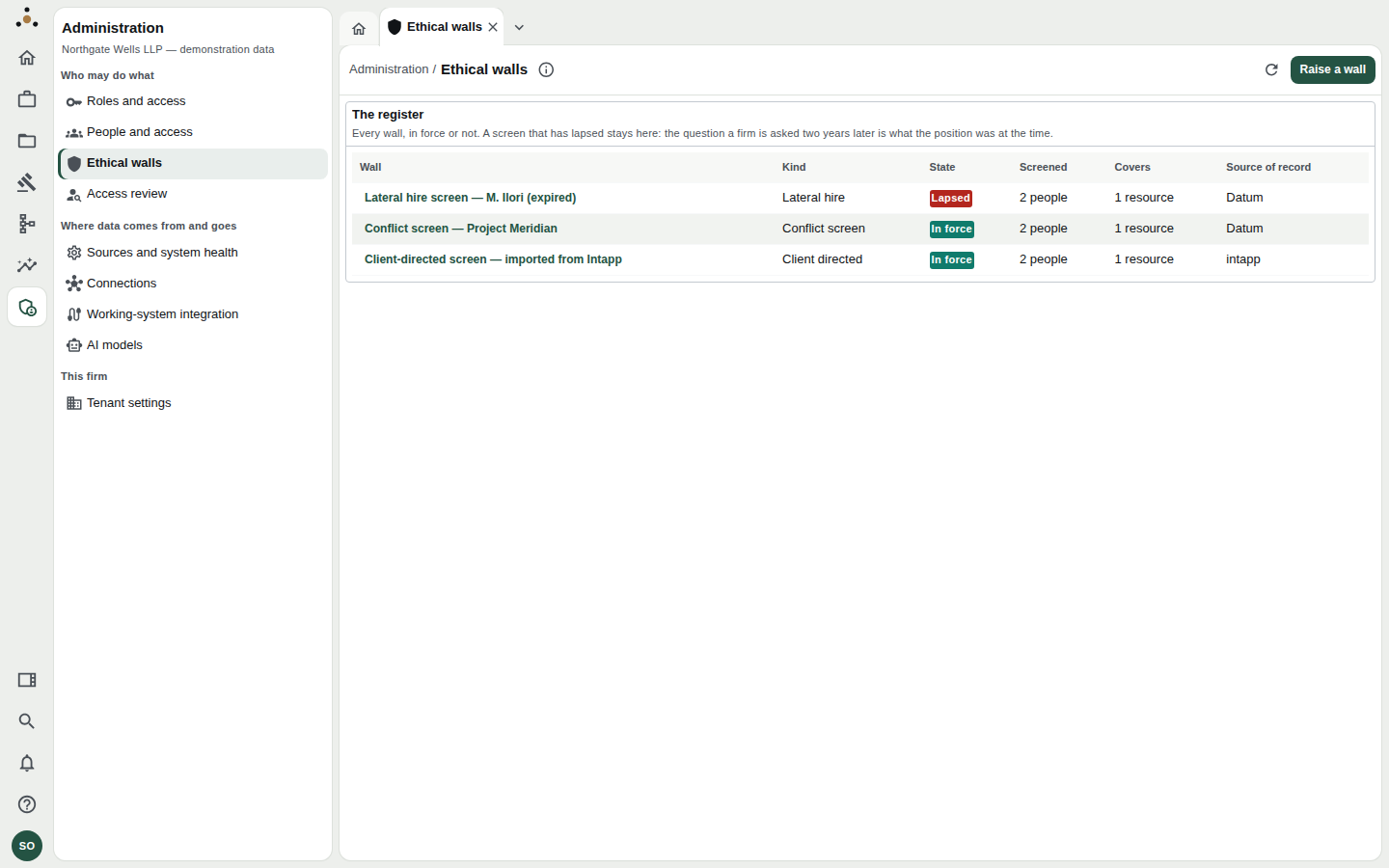
Every wall, in force or not. A Lapsed screen stays: the question a firm is asked two years later is what the position was at the time.
| Column | Meaning |
|---|---|
| Wall | Its name. Click to open it. |
| Kind | Lateral hire, Conflict screen, Confidentiality, Regulatory, or Client directed. |
| State | See below. |
| Screened | How many people it screens. |
| Covers | How many resources it covers. |
| Source of record | Datum for walls raised here, or an external system such as Intapp for imported walls. |
States
| State | Meaning |
|---|---|
| Proposed | Raised, screens nobody yet. Needs a second person to approve. |
| Approved | Agreed by a second person. Not yet in force. |
| Scheduled | Approved and activated for a future in force from date. |
| In force | Screening reads now. |
| Lapsed | Its last day has passed. Kept in the register. |
| Withdrawn | Withdrawn while in force; from then it screens no read. |
| Withdrawn before start | Withdrawn before it ever screened anybody; it can never be put into force. |
Raising a wall
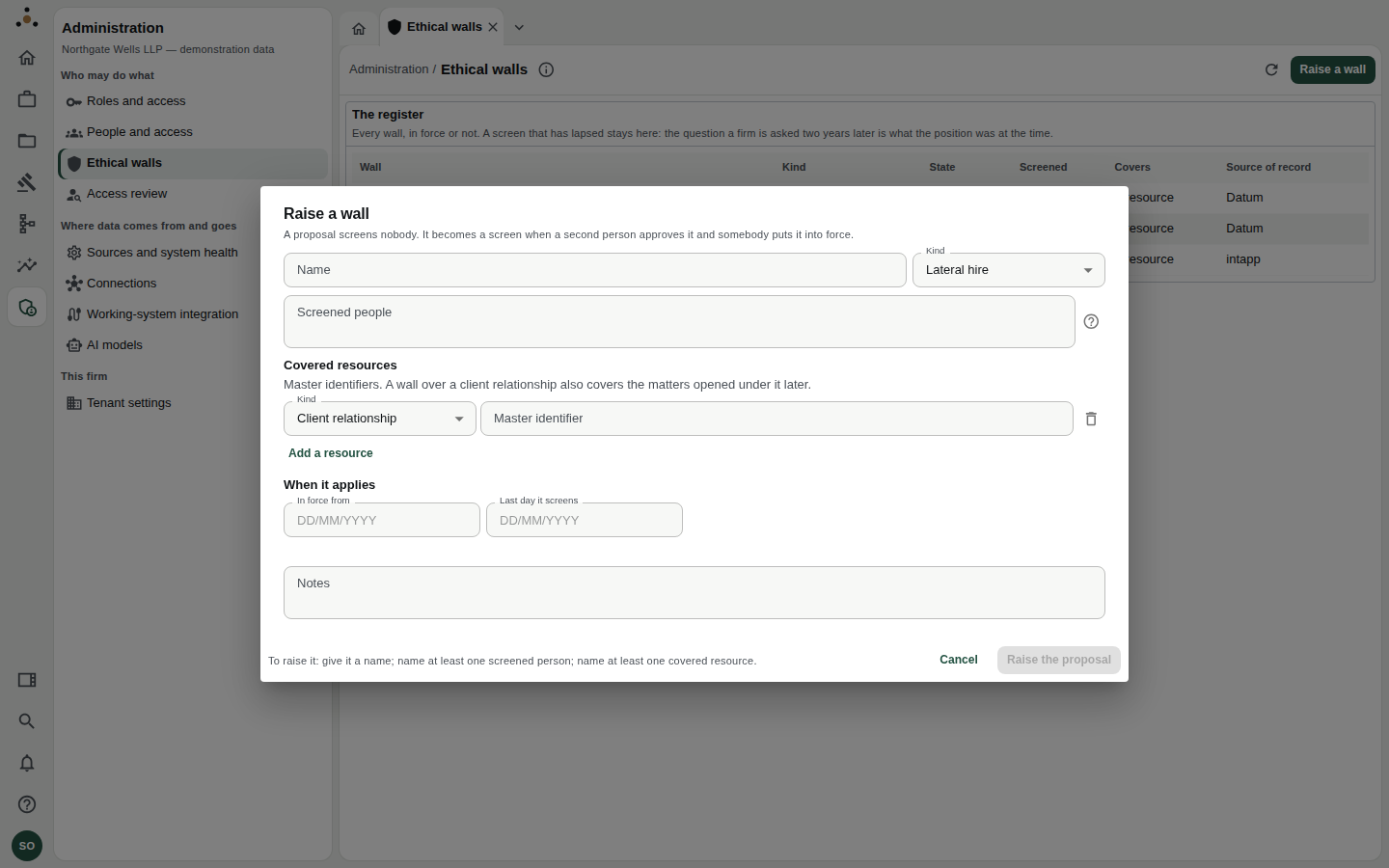
Raise a wall opens the proposal form.
- Choose Raise a wall at the top right.
- Name — something a compliance officer will recognise in two years, such as Lateral hire screen — A. Smith.
- Kind — pick the nearest of the five.
- Screened people — one subject identifier per line. These are the identity provider's identifiers, not email addresses, unless that is what your provider uses as the subject.
- Covered resources — choose Client relationship (or another kind), then paste its master identifier. Choose Add a resource for more.
- When it applies — In force from and Last day it screens, as
DD/MM/YYYY. Leave the first empty for today; leave the second empty for no end date. - Notes — why it was raised, who requested it.
- Choose Raise the proposal.
The button stays disabled until the form says what is missing: give it a name; name at least one screened person; name at least one covered resource.
The platform records identifiers exactly as given and does not tell an administrator whether somebody exists. If you mistype a subject, the wall screens nobody. Opening the wall shows Nobody has signed in as this yet for any subject never seen — check it against the directory. To correct it, raise a new wall with the right identifier and withdraw the first.
Approving and putting a wall into force
A proposal screens nobody. It needs two further steps, each by the right person:
- Approve as the second person. Somebody other than the person who raised it opens the wall and chooses Approve as the second person. A dual approval satisfied by one person is not one.
- Put the screen into force (re-authenticate). Raising a screen re-authenticates, always. It starts to bite from its in force from date — at once if that date has come.
The wall's detail shows who raised it, who agreed, and its dates.
Reading a wall
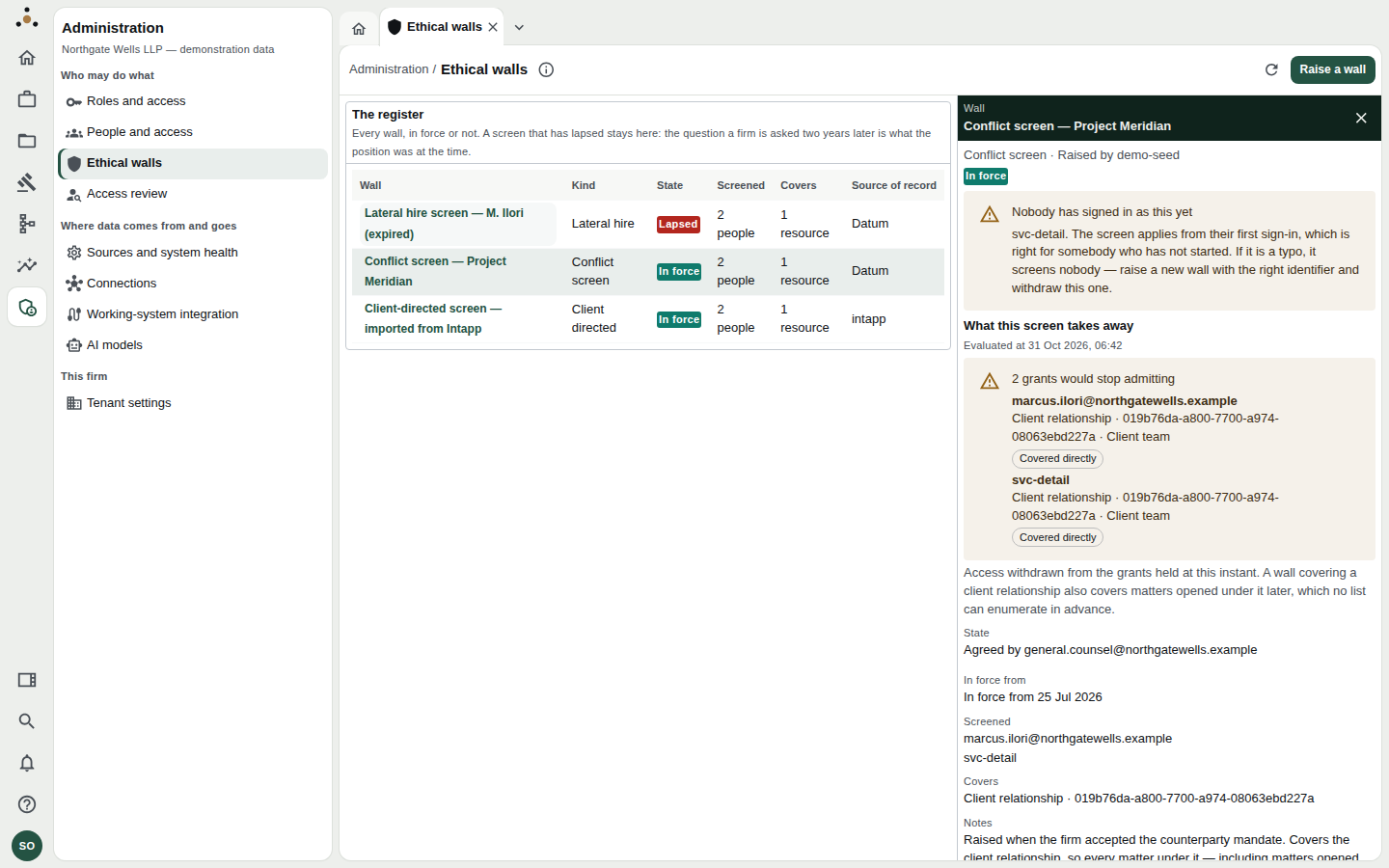
The detail pane. What this screen takes away lists the stored grants that would stop admitting, evaluated at a stated instant.
The detail pane shows:
- State and history — raised by, agreed by, in force from.
- Screened — each subject identifier. Subjects never seen at sign-in are flagged.
- Covers — each resource, with Covered directly or Through containment (a matter under a covered client relationship).
- What this screen takes away — the number of stored grants that would stop admitting, with each person and resource named, evaluated at a precise time.
This screen withdraws nothing that is granted today means nobody screened holds a stored grant to what it covers at this instant. Access that arrives through a practice group is a directory claim, not a stored grant, and is not counted here. The wall still applies to it.
Imported walls
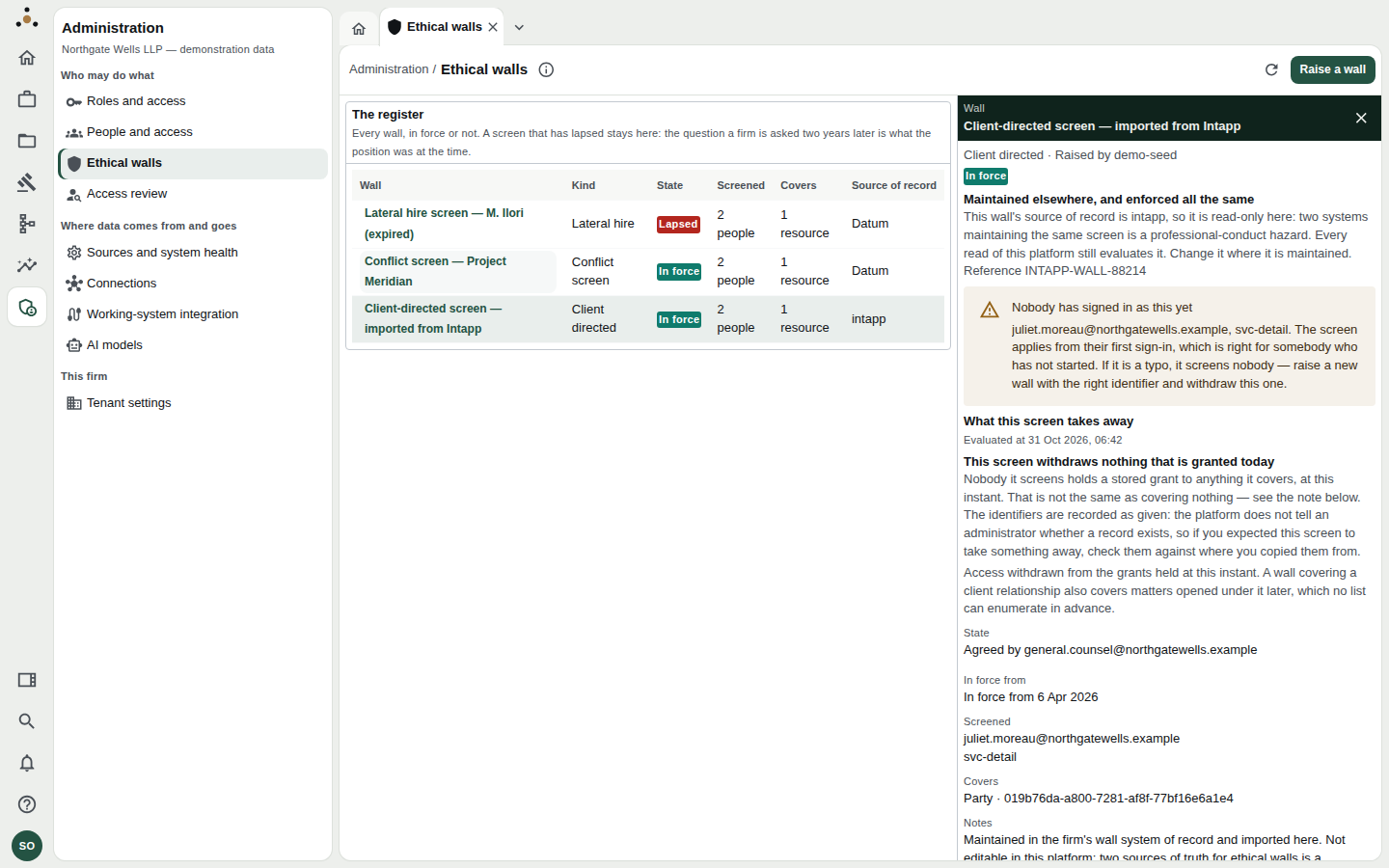
An imported wall is read-only here, but enforced all the same.
A wall whose Source of record is another system (for example Intapp) is read-only in Datum. Two systems maintaining the same screen is a professional-conduct hazard, so Datum refuses every change to it — including its creation. Every read still evaluates it. Change it where it is maintained; the next feed updates the register.
If the source named somebody the directory could not map, the wall shows Unresolved subject and screens everyone until the mapping is repaired — failing safe.
Withdrawing a wall
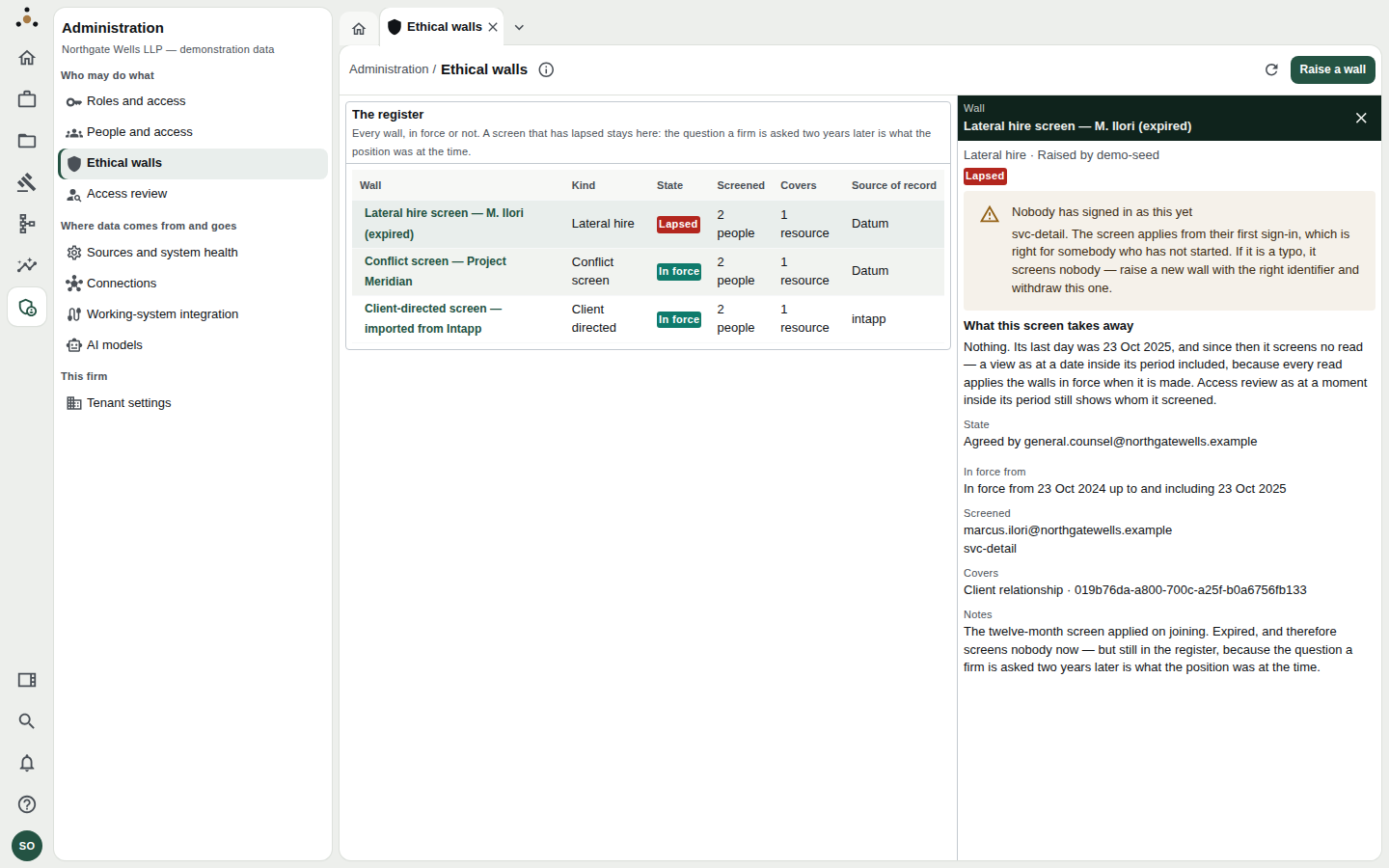
A lapsed wall: its last day has passed and it screens no further reads, but the record remains.
- Open the wall and choose Withdraw the screen (or Withdraw the proposal if it has not started).
- Give Why it is being withdrawn. The reason is kept with the row.
- Choose Withdraw the screen (re-authenticate).
From that moment the people it screened can reach what it covered again — including a view as at a date while it stood, because every read applies the walls in force when the read is made. The row stays in the register with your reason.
This is the most consequential action on the screen. Confirm with the compliance officer who requested the screen, and keep their instruction with the reason.
Checking the effect
To confirm what a wall does for one named person, open Access review and explain that person. It lists the screen against each resource it affects.