Access review
Administration → Access review answers the question a compliance officer asks: Why can this person see this? For one named person, at this instant, it names the grant that admits them and the wall that screens them.
Access review lists resources by their type and master identifier and says whether a person reaches each. It never shows what is inside them.
Two layers, in order
| Layer | Source | Shown where |
|---|---|---|
| A grant permits | A stored row admitting a person to a resource (for example Client team). | Stored grants on this screen. |
| A wall subtracts | Every wall in force, applied afterwards. | Screened by … beside the resource. |
Access that arrives through a practice group is a directory claim, not a stored grant, and is not listed here.
Explaining one person
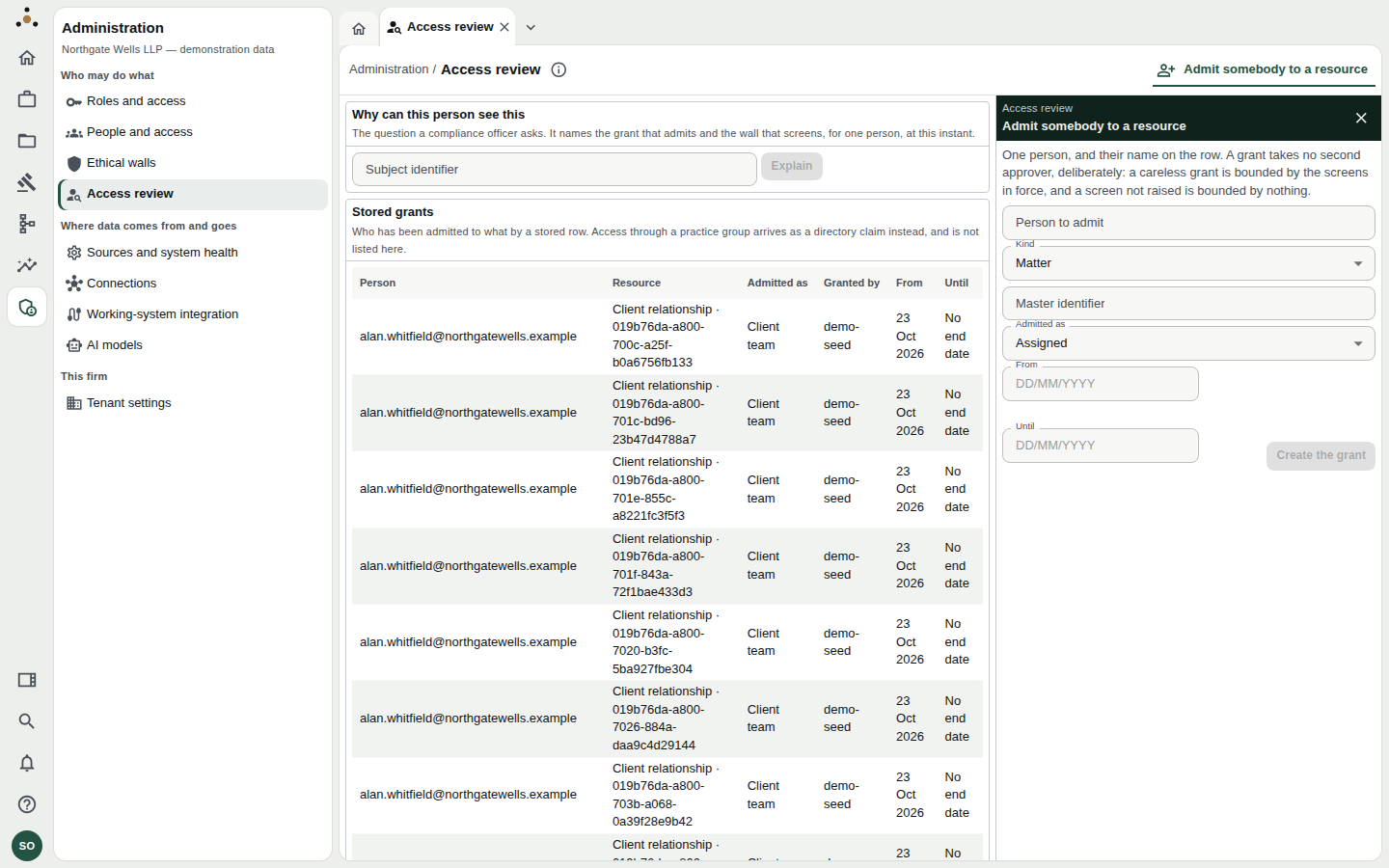
The question box at the top, the table of every stored grant, and the Admit somebody to a resource panel.
- Type the person's Subject identifier — the identity provider's identifier, for example
marcus.ilori@northgatewells.example. You can also arrive here from Why can they see it? on People and access. - Choose Explain.
- Read the result. It is stamped As at a date and time.
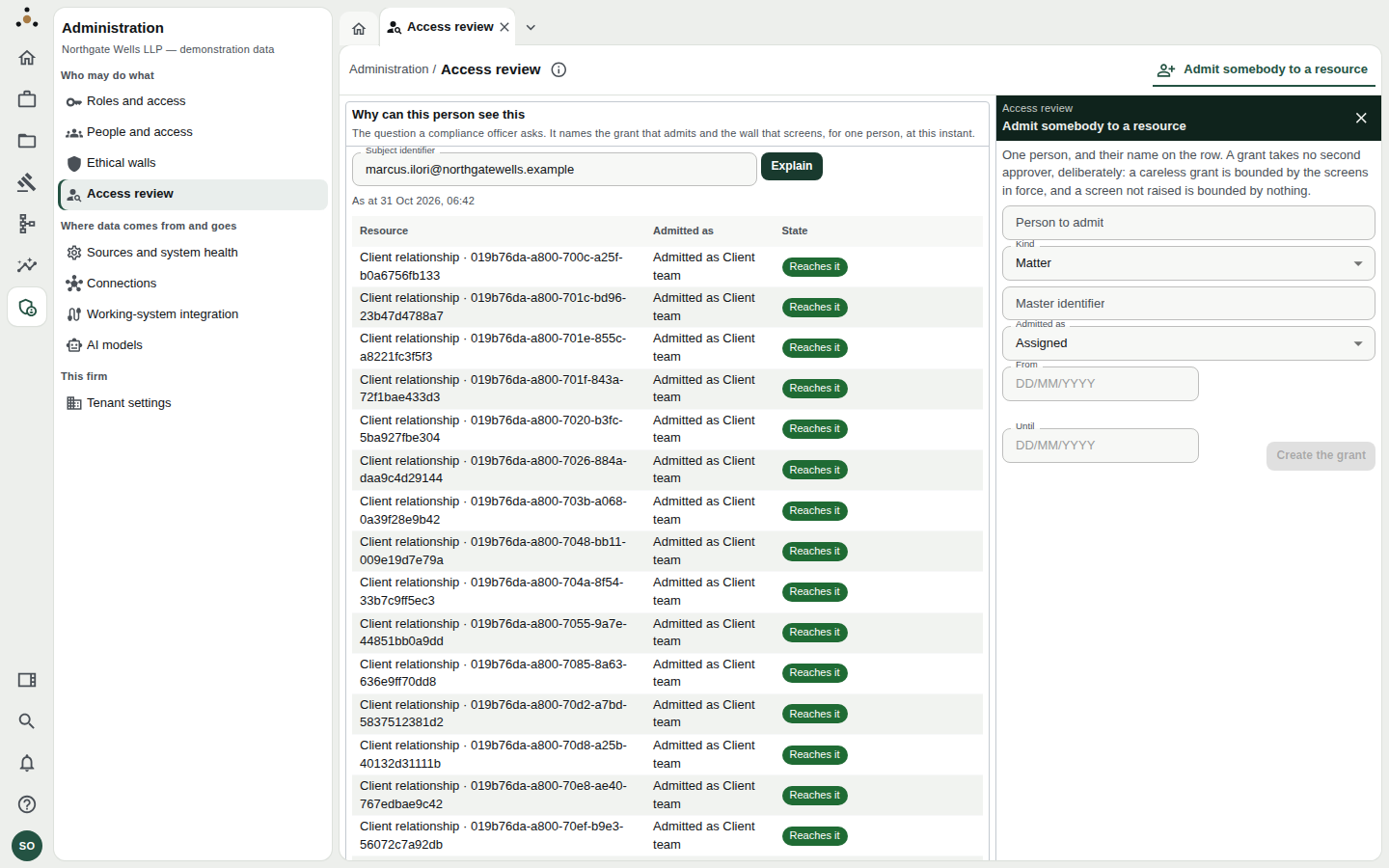
Each resource the person holds a stored grant to, how they were admitted, and the outcome.
Each row has one of two outcomes:
- Reaches it — admitted by a grant, and no wall in force screens them.
- Screened — admitted by a grant, but a wall removes it. The badge names the wall.
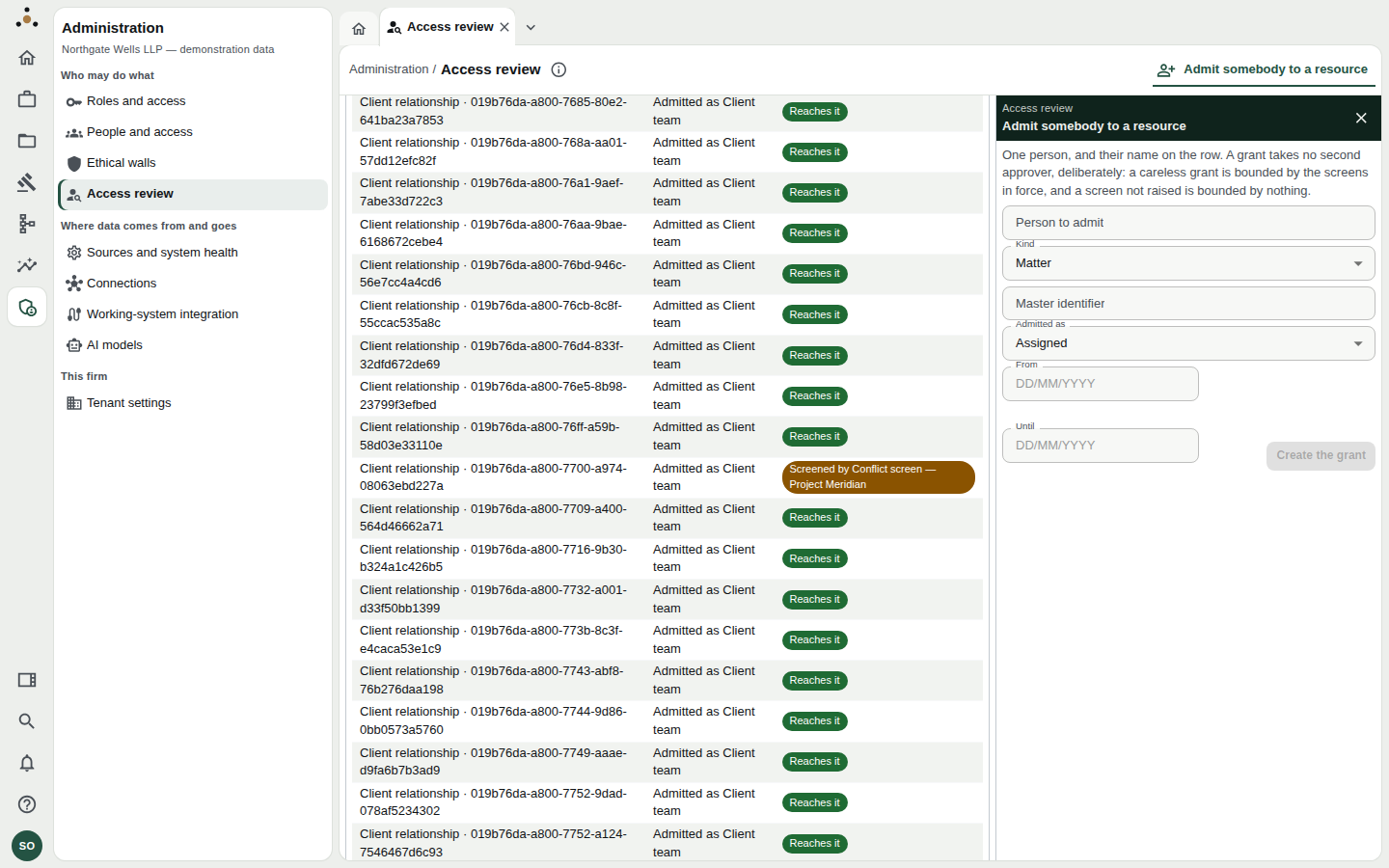
A screened resource. The badge names the wall responsible, so the answer to "why not?" is on the same line as the answer to "why?".
"On 14 March, could this person see this client?" Explain them, note the wall named, then open that wall on Ethical walls and read its in force from date and who agreed it. Together they answer the question and who was accountable.
If the person holds no stored grant to anything, the screen says so: This person holds no stored grant to anything. That does not mean they see nothing — their practice-group access is separate.
The stored grants table
| Column | Meaning |
|---|---|
| Person | Whose grant. |
| Resource | Kind and master identifier, such as Client relationship · 019b76da-…. |
| Admitted as | The capacity — for example Client team. |
| Granted by | Who created the row (demo-seed for seeded demonstration data). |
| From / Until | The dates it applies, or No end date. |
Admitting somebody to a resource
The right-hand panel creates a grant.
- Enter the Person to admit (subject identifier).
- Choose the Kind of resource (Matter, Client relationship…) and enter its Master identifier.
- Choose Admitted as (for example Assigned).
- Optionally set From and Until as
DD/MM/YYYY. - Choose Create the grant.
The panel says so: a careless grant is bounded by the screens in force, and a screen not raised is bounded by nothing. The safeguard is the wall, not a second signature. Your name is recorded on the row as Granted by. Before admitting somebody to a client, check for a wall you should raise first.
When to use it
- A partner says "I can't see a matter I should" — explain them and look for a Screened badge.
- A regulator or insurer asks who could access a client on a given day.
- You have raised or withdrawn a wall and want to confirm its effect on the people named.