The administration console
Administration → Sources and system health answers one question: did last night's load work, and is the platform healthy enough to do tonight's? It is the first screen you see when you open the Administration area, and the one to check at the start of every working day.
The administrator role holds the Administer the platform permission and nothing else. This console shows you sources, jobs and counts — never a client, a matter or a person. Every records screen refuses an administrator by design (see Two-person approvals).
Opening it
Choose the Administration icon in the rail (the shield with a cog), then Sources and system health under Where data comes from and goes. The screen has four views, chosen with the icons at the top right.
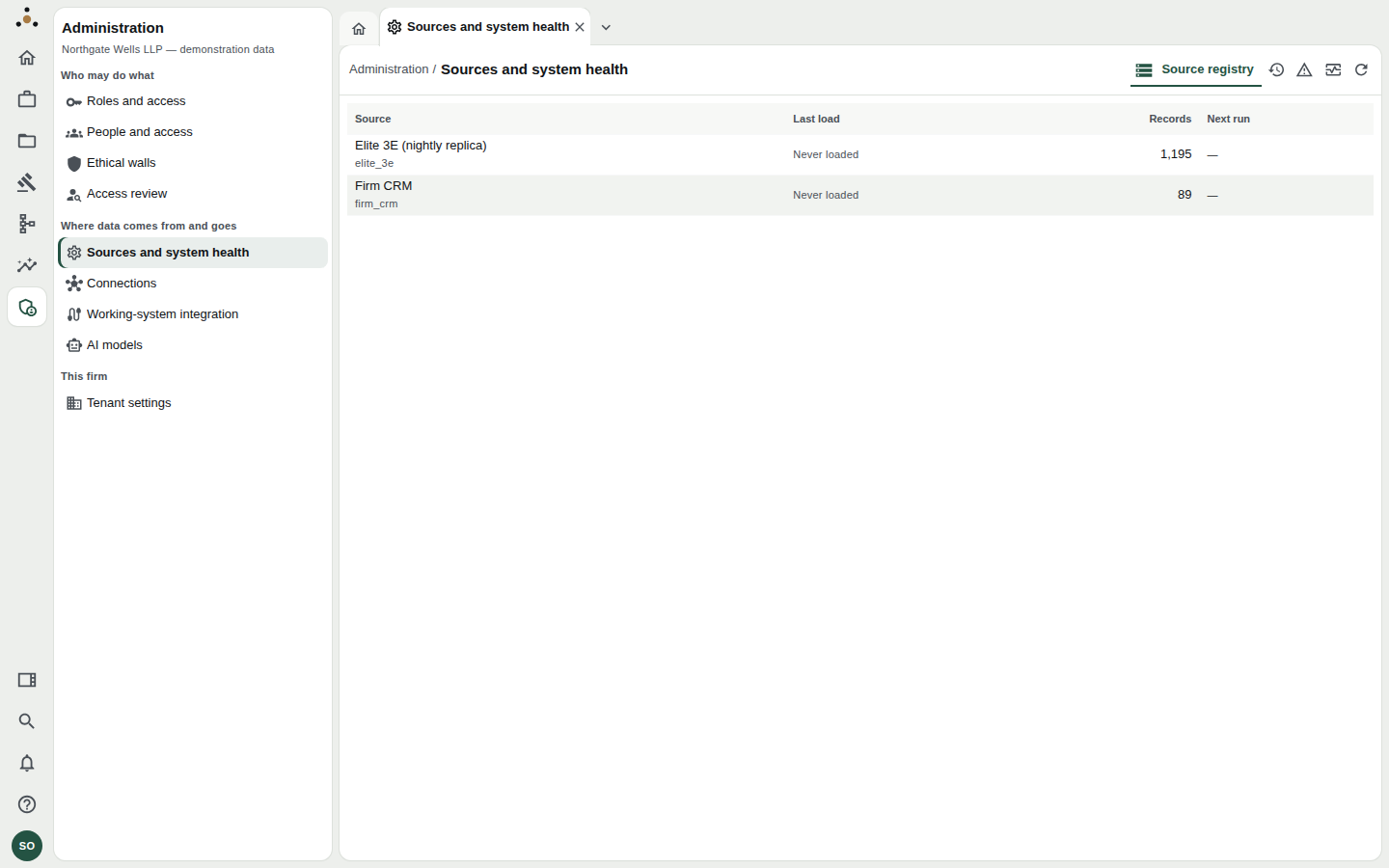
The Source registry: each source system the firm is connected to, when it last loaded, how many records it holds, and when it next runs.
The four views
| View | Icon | What it tells you |
|---|---|---|
| Source registry | list | Every registered source: last load, record count, next scheduled run. |
| Load history | clock | Every job run, newest first, with its outcome. |
| Dead letters | warning triangle | Rows a load could not apply, held until somebody replays them. |
| System health | pulse | The platform API, the dead-letter count, the worker and the data model. |
Source registry
One row per source system. Last load reads Never loaded until the first run completes, and Next run shows a dash when the source has no schedule. A source with no schedule is only ever loaded when somebody presses Run now on the Connections screen.
Sources are added from the Connections screen, not here. This list only reports on them. If it is empty, the console says so: No source system is registered.
Load history
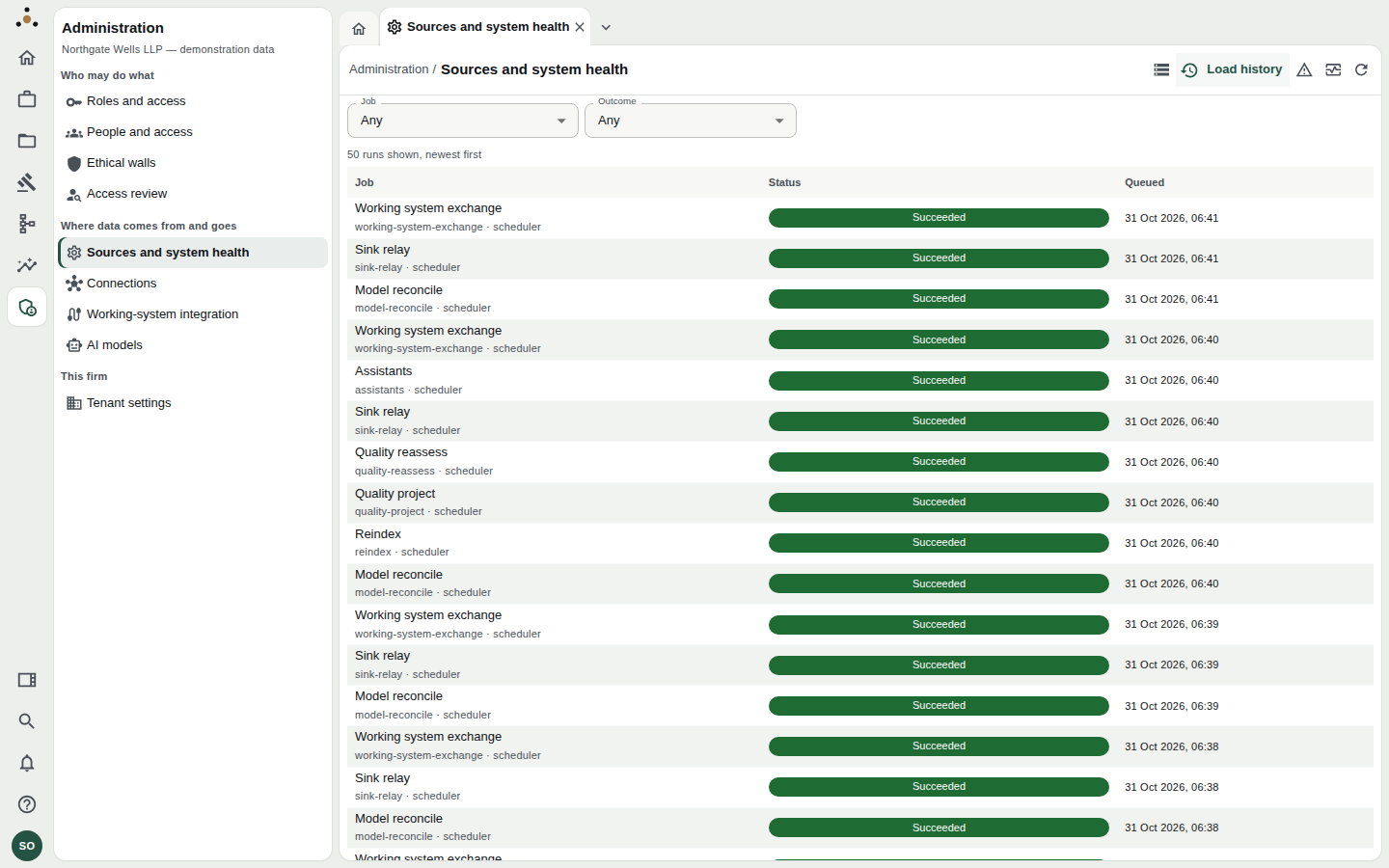
Load history shows the most recent runs first. Each job names the schedule or person that queued it.
Every background task the platform performs is a job: loading a source, reindexing search, rebuilding quality scores, relaying to a downstream sink, exchanging with the paired working system, and so on. Each run records who or what queued it, when, and how it ended.
Use the two filters, Job and Outcome, to narrow the list — for example Load from Elite 3E with outcome Failed. The list shows 50 runs at a time; Show older runs extends it.
| Outcome | Meaning |
|---|---|
| Queued | Waiting for a worker. |
| Running | A worker has it now. |
| Succeeded | Finished normally. |
| Failed | Ended in an error; it will be retried if retries remain. |
| Failed — stopped retrying | Retries exhausted. The run becomes a dead letter. |
| Cancelled | Stopped on purpose. |
Dead letters
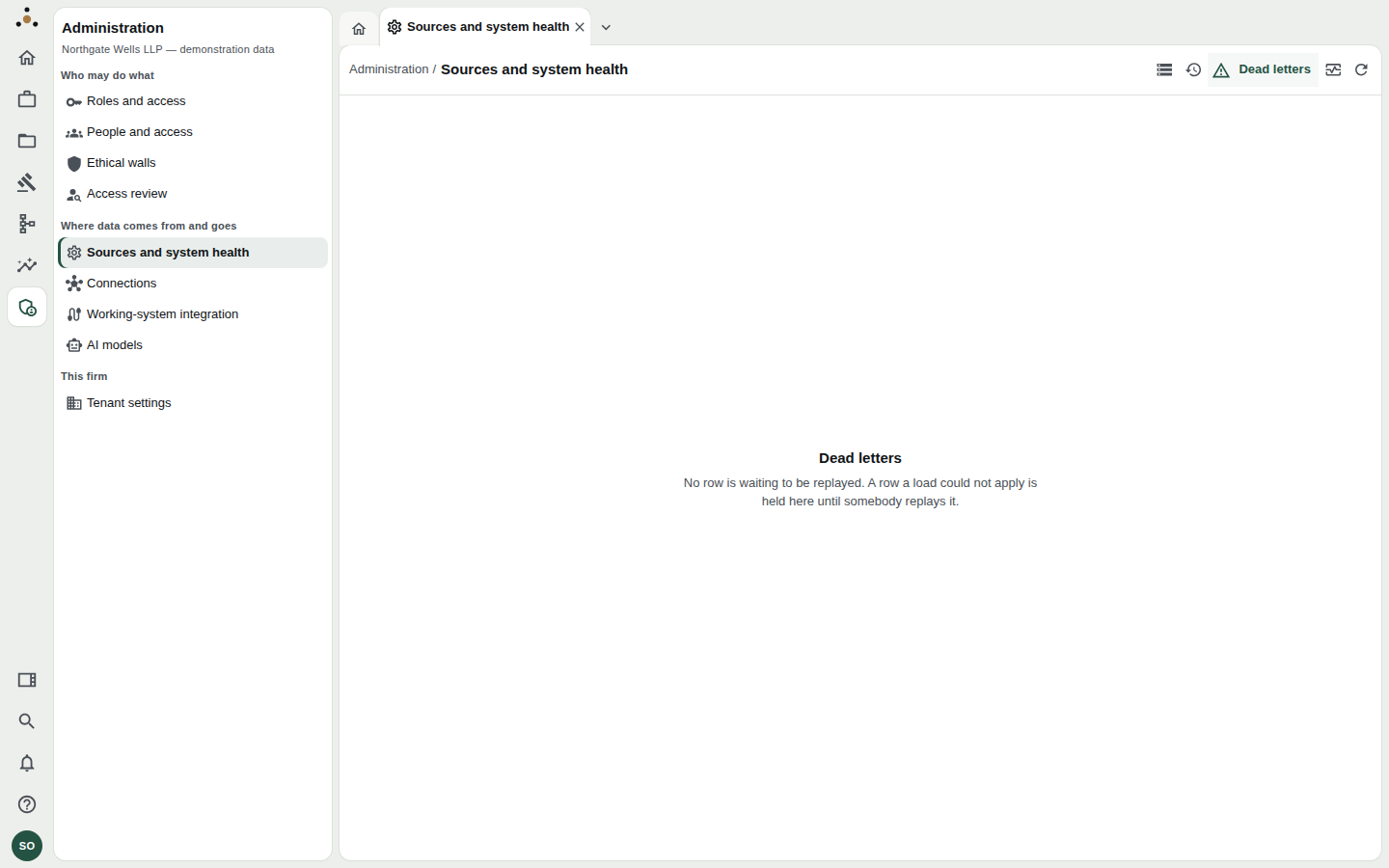
An empty dead-letter list is the healthy state: no row is waiting to be replayed.
When a load cannot apply a row, the row is not discarded. It is held here, with the reason, until an administrator has fixed the cause and replays it. Replaying re-applies the original run, so it asks you to re-authenticate first.
A replay applies the original run again, exactly as it was. If the underlying problem — a missing mapping, a changed column — is still there, the row simply fails again and returns to the list. Look at the connector's mapping on the Connections screen first.
System health
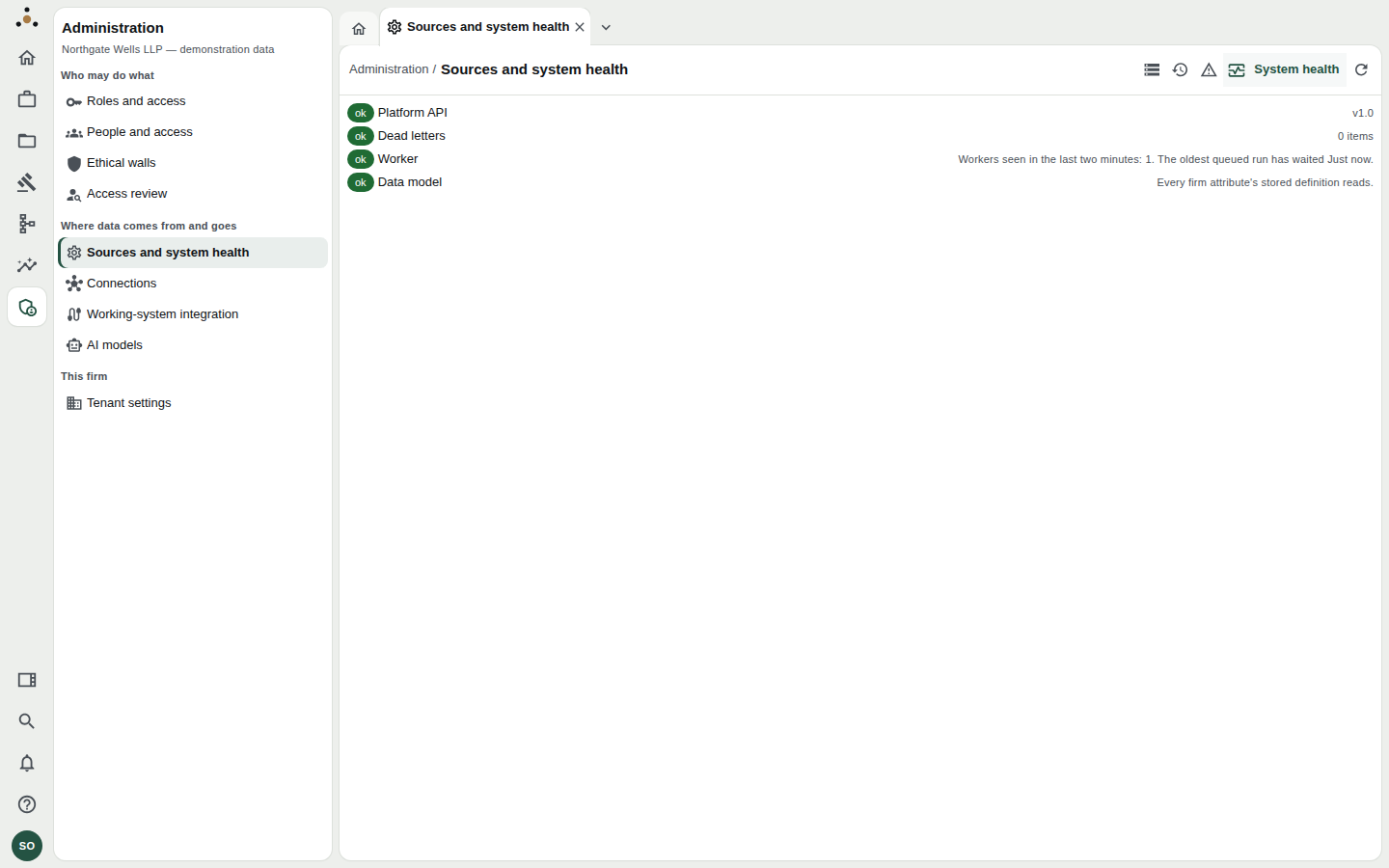
Four checks, each with an ok badge or a plain-language explanation of what is wrong.
| Check | What a healthy result means | If it is not healthy |
|---|---|---|
| Platform API | The API answers and reports its version. | Contact whoever runs the deployment. |
| Dead letters | Zero items waiting. | Open the Dead letters view. |
| Worker | At least one worker has been seen in the last two minutes. | See below. |
| Data model | Every firm attribute's stored definition reads. | The check names the entity or label that does not; ask the data architect to repair it. |
The worker check can fail in two distinct ways, and the console tells them apart:
- No worker has been seen in the last two minutes, so queued runs are waiting and nothing on a schedule fires. No worker process is running at all.
- A worker is running queued work, but none is evaluating the schedule, so nothing on a schedule fires. Work queued by hand still runs, but nothing runs by itself overnight.
Either way, nothing runs on its schedule, which is why the same warning appears on the Connections screen. Restarting the worker is a task for whoever operates the deployment; the console's job is to tell you before the morning.
A daily routine
- Open Sources and system health. Glance at Last load for each source — it should be last night.
- Switch to System health. All four checks should read ok.
- Switch to Dead letters. It should be empty. If not, note the source and the reason, and fix the mapping before replaying.
- If a source failed, open Load history, filter by that job and outcome, and read the most recent failure.
The circular arrow at the right of the toolbar re-reads the current view. The console does not update itself while you watch.
What the console does not do
It does not edit data, merge records or reach into a source. It reports and replays. Changing what a load maps is done on Connections; changing when it runs is done there too.