Roles and access
Administration → Roles and access is the firm's policy for what each kind of person may do in Datum. It answers: what does being a fee earner, or a steward, actually allow?
The platform administrator role carries the Administer the platform permission and no data privilege of any kind. You configure access here; you cannot read the client data you configure access to.
The model in one minute
Datum does not hold user accounts. People are created, disabled and grouped in the firm's own directory (for example Microsoft Entra). Datum only learns of them when they sign in, and reads two things from their token: the directory groups they belong to, and their office or practice unit.
sign in  →  directory groups  →  roles  →  privileges  →  walls
 (token)      (you map these)   (catalogue)  (what a role reaches)  (always last)
- A role is a named bundle of permissions, such as Fee earner or Data steward.
- A privilege is what a role may read or write on each entity, and which attributes are withheld from it.
- A wall is applied after all of that and cannot be overridden by any role. See Ethical walls.
Authenticate, resolve roles, apply privileges, apply walls. Each stage may only remove access granted by the one before. No permission level — including administration — defeats a wall (ADR-0018).
The screen
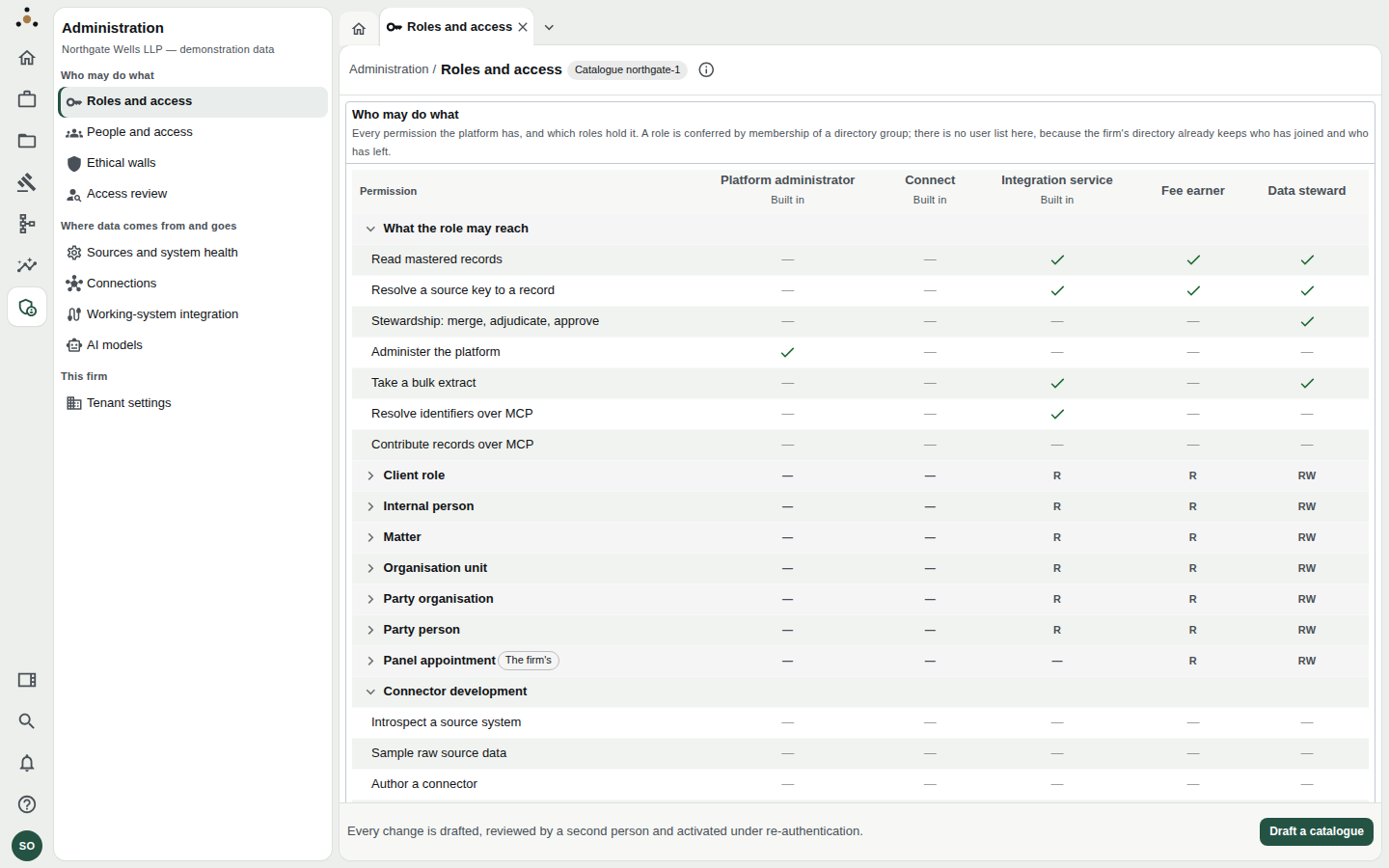
Who may do what: every permission the platform has, as rows, against each role, as columns. The badge beside the title names the catalogue in force — here northgate-1.
The matrix has three parts:
- What the role may reach — the platform permissions. Read mastered records, Stewardship: merge, adjudicate, approve, Administer the platform, Take a bulk extract, and so on. A tick means granted.
- Per-entity rows — Client role, Matter, Party organisation and the rest. Each shows R (read) or RW (read and write) per role. Entities the firm added itself carry a The firm's badge. Click the chevron to expand an entity and see its individual attributes.
- Connector development — the rarely used permissions for introspecting and authoring connectors.
The built-in roles
| Role | Intended for | Key points |
|---|---|---|
| Platform administrator | IT / risk administrators | Administration and nothing else. No data privilege. |
| Connect | Everyone | Permits a session and nothing more. Lets "signed in with no entitlement" appear as a state the product can show rather than a login that looks broken. |
| Integration service | Downstream consumers | Narrower than any human: resolution, read, bulk extract; no stewardship; no restricted attributes. |
| Fee earner | Lawyers | Every entity readable; commercial and compliance attributes that risk and finance own are withheld. |
| Data steward | Stewards | Write access to mastered data, the stewardship actions, and the attributes a match cannot be adjudicated without. |
The firm's own roles (here northgate.fee_earner, northgate.steward) sit alongside the built-in ones. Scroll down for the written description of each.
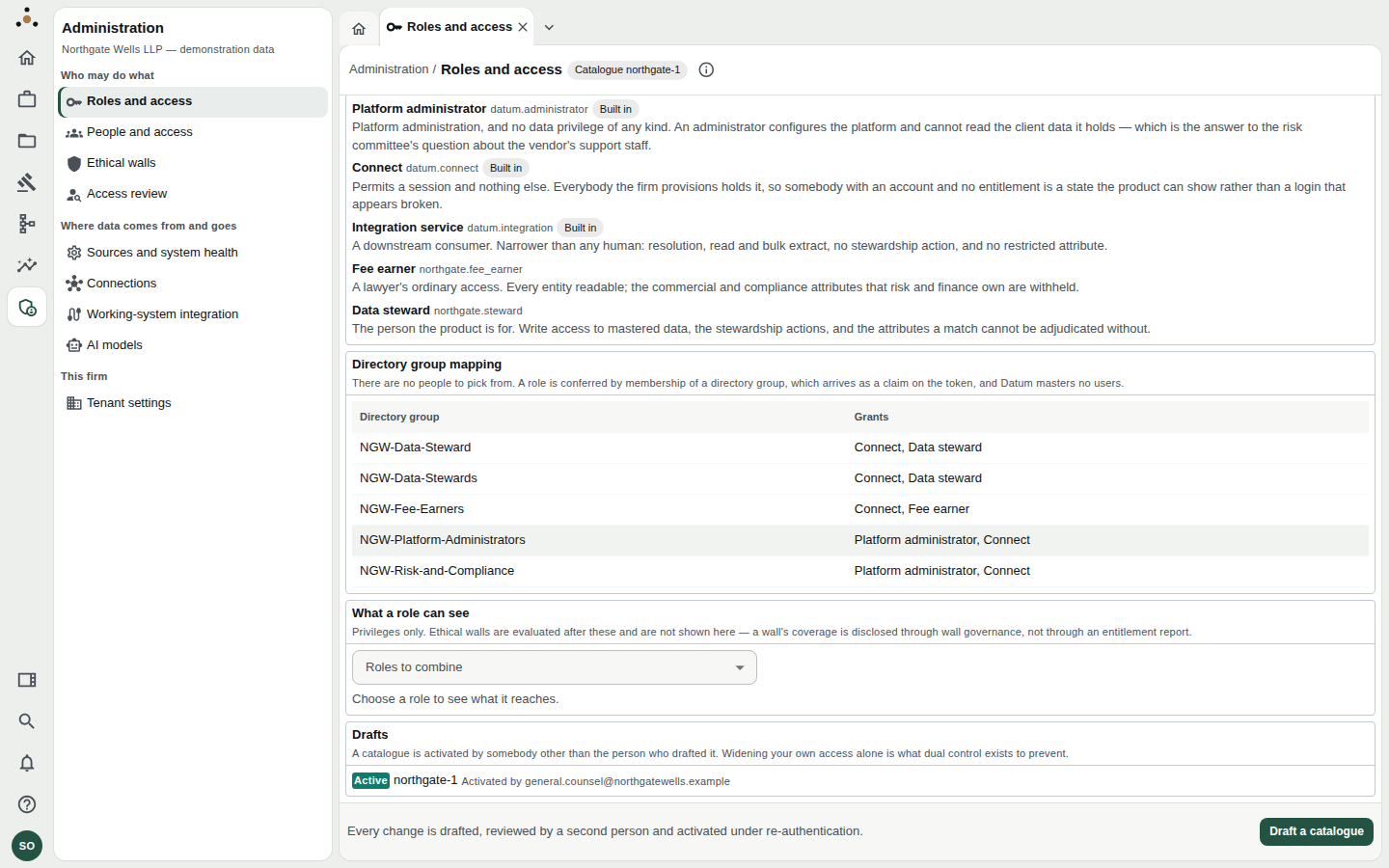
Below the matrix: what each role is for, the directory-group mapping, the "what a role can see" explorer, and the register of drafts. The catalogue in force was Activated by a different person from whoever drafted it.
Mapping directory groups to roles
The Directory group mapping table lists which group confers which role. Examples from the demonstration firm:
| Directory group | Grants |
|---|---|
NGW-Data-Stewards | Connect, Data steward |
NGW-Fee-Earners | Connect, Fee earner |
NGW-Platform-Administrators | Platform administrator, Connect |
Changing a mapping is done on People and access, not here — that is where you can also see who is affected.
Changing the catalogue
Every change to the catalogue is drafted, reviewed by a second person, and activated under re-authentication. Nobody can activate their own draft: Widening your own access alone is what dual control exists to prevent.
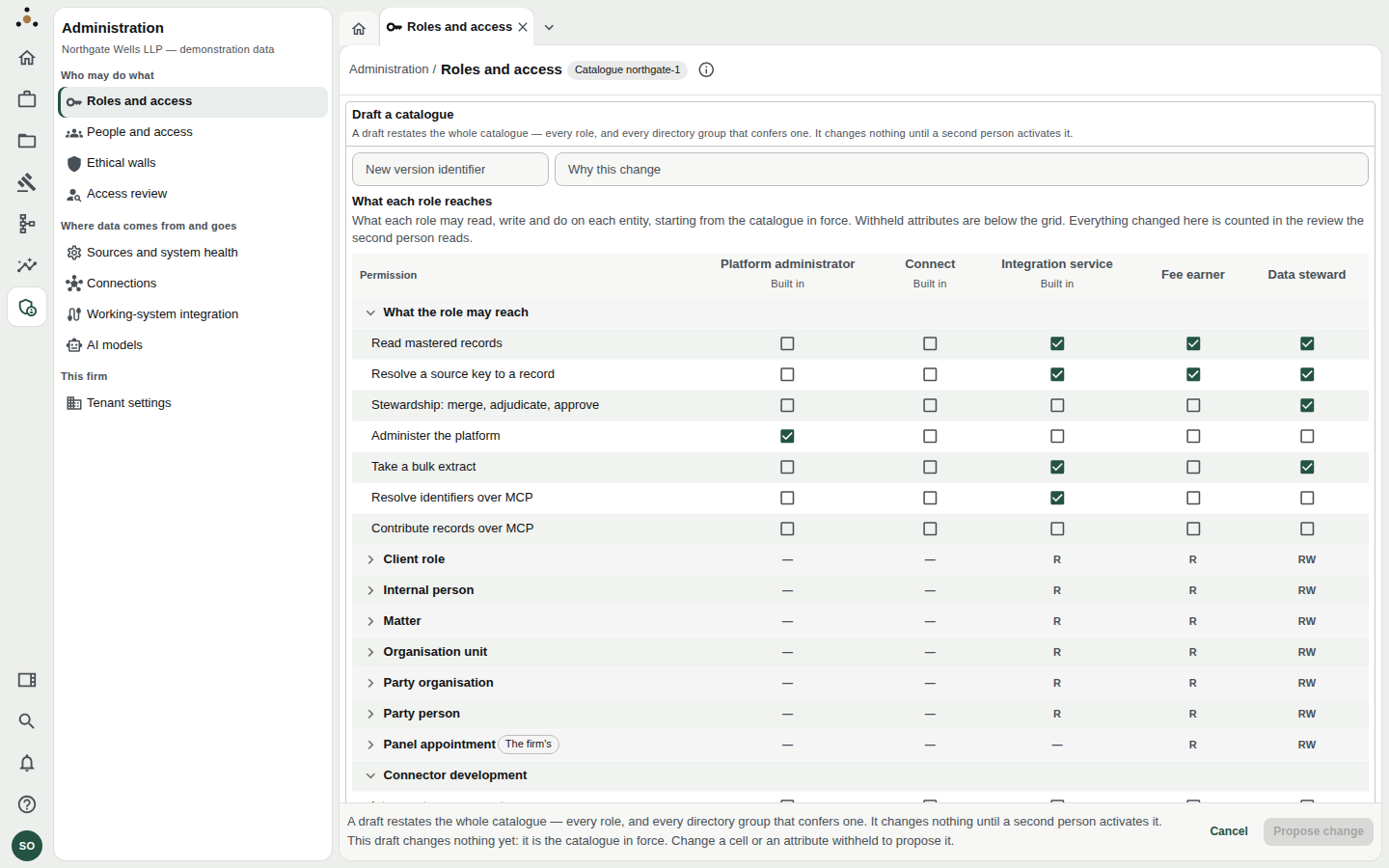
Choosing Draft a catalogue turns the matrix into an editor. The draft restates the whole catalogue and changes nothing until a second person activates it.
To draft a change
- Choose Draft a catalogue at the bottom right.
- Enter a New version identifier (for example
northgate-2) and a Why this change note. The reason is part of the record. - Tick or untick permissions, change an entity's access between none, read and read-and-write, or withhold an attribute from a role. Cells you change are marked.
- Choose Propose change.
To review and activate (the second administrator)
- Open Roles and access; the draft appears under Drafts.
- Read What activating this would change. The review lists, in plain language:
- Widens access — somebody would see more.
- Narrows access — somebody would see less.
- Roles added or removed, and groups newly conferring or no longer conferring a role.
- Choose Activate (re-authenticate). The platform asks you to confirm your identity again.
If you drafted the catalogue, the Activate button refuses with You drafted this catalogue, so you cannot activate it… ask a second administrator. This is the control working, not a fault. See Two-person approvals.
To abandon a draft, choose Discard. A discarded draft stays in the register marked as discarded, with who discarded it; to make the same changes later, draft again.
Withholding attributes
A role can read an entity yet have particular attributes withheld — for example, a client's AML standing, which fee earners cannot read but stewards can. The record is still visible; the withheld field is named as withheld. This is a privilege refusing a field, as opposed to a wall refusing a whole record.
Use the What a role can see picker to choose a role (or combine several) and see exactly what it reaches. Do this before drafting, and again from the draft review.
If no catalogue is configured
A tenant with no catalogue has no attribute privileges in force: every session reads every attribute of every entity it is granted. Walls still apply. The screen warns you with this wording; activate a catalogue to restore attribute-level privilege.