Searching
Needs: mdm:read.
Search is the front door to the firm's data. One box searches clients, matters, parties and people together.
Find a record
- Choose Records in the rail, then Search in the navigator. (Faster: press Ctrl+K and type, or use the Find a client, matter or person box on Home.)
- Type a name, number or identifier — for example
Granby, a client number, or a matter number — and press Enter. - Read the results. They are grouped by entity — Party organisation · 7, Client role · 5, Panel appointment · 2 — and each result says what it matched on (for example Prefix, Name or Exact, Name).
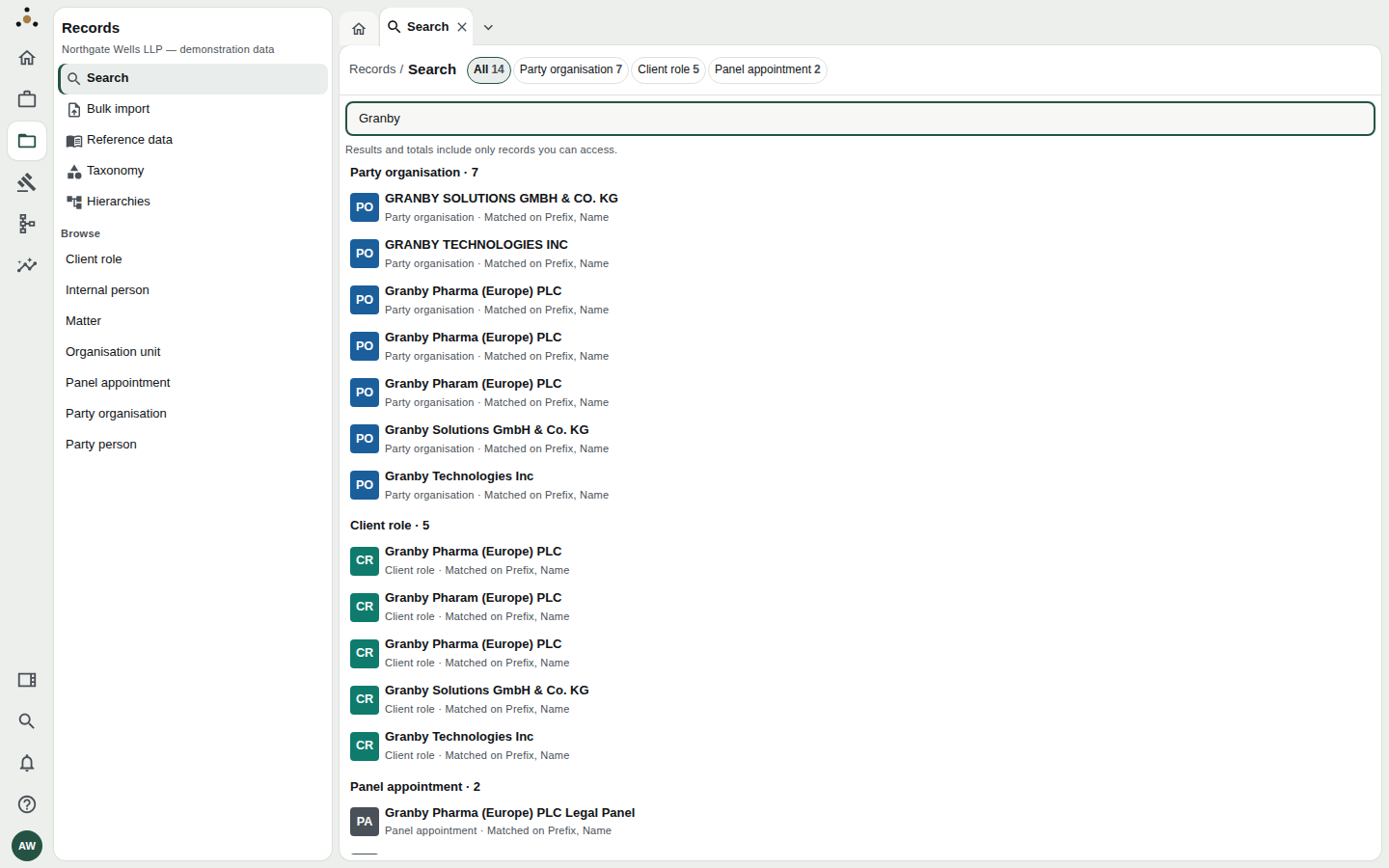
Results for Granby. The chips at the top give the count for each entity; choose one to narrow the list.
- Select a result to see a preview on the right: its entity, whether it is a golden record, and its main attributes. Choose Open to open the record, or Open in a new tab to keep your search where it is.
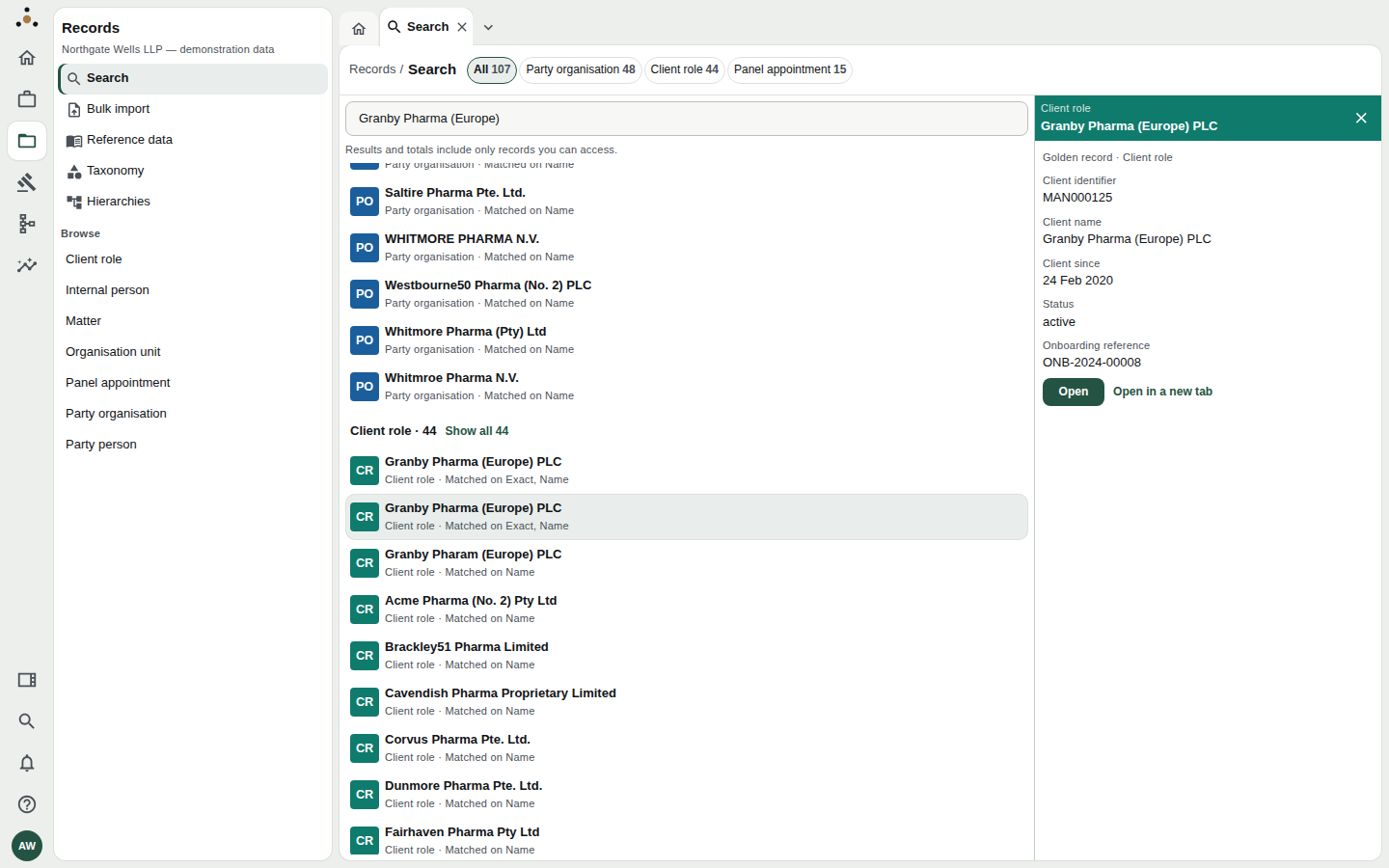
The preview panel. Pressing Open in a new tab leaves the results exactly as they are.
A client appears as a party organisation (the company) and again as a client role (the firm's relationship with it), and sometimes as a panel appointment. That is the model working as intended: see Key concepts. Seeing two near-identical names within the same entity is different — those may be genuine duplicates that a steward has not yet merged.
Narrow the results
- Use the entity chips along the top (All 14, Party organisation 7, …) to look at one kind of record.
- Choose Show all N beside a group's heading to expand it.
- In an entity list, use Narrow the list to filter by name.
Browse an entity
You do not have to search. Under Browse in the Records navigator there is an entry for each entity — Client role, Internal person, Matter, Organisation unit, Panel appointment, Party organisation, Party person. The Search landing page shows the same list with a tile for each, headed Records you can access: N.
- Choose an entity, for example Matter. The heading shows the entity and its count.
- Use Narrow the list to filter by name. For matters, the Client selector filters to one client: start typing a client's name or number and choose it.
- The list loads 50 at a time; Show more loads the next batch.
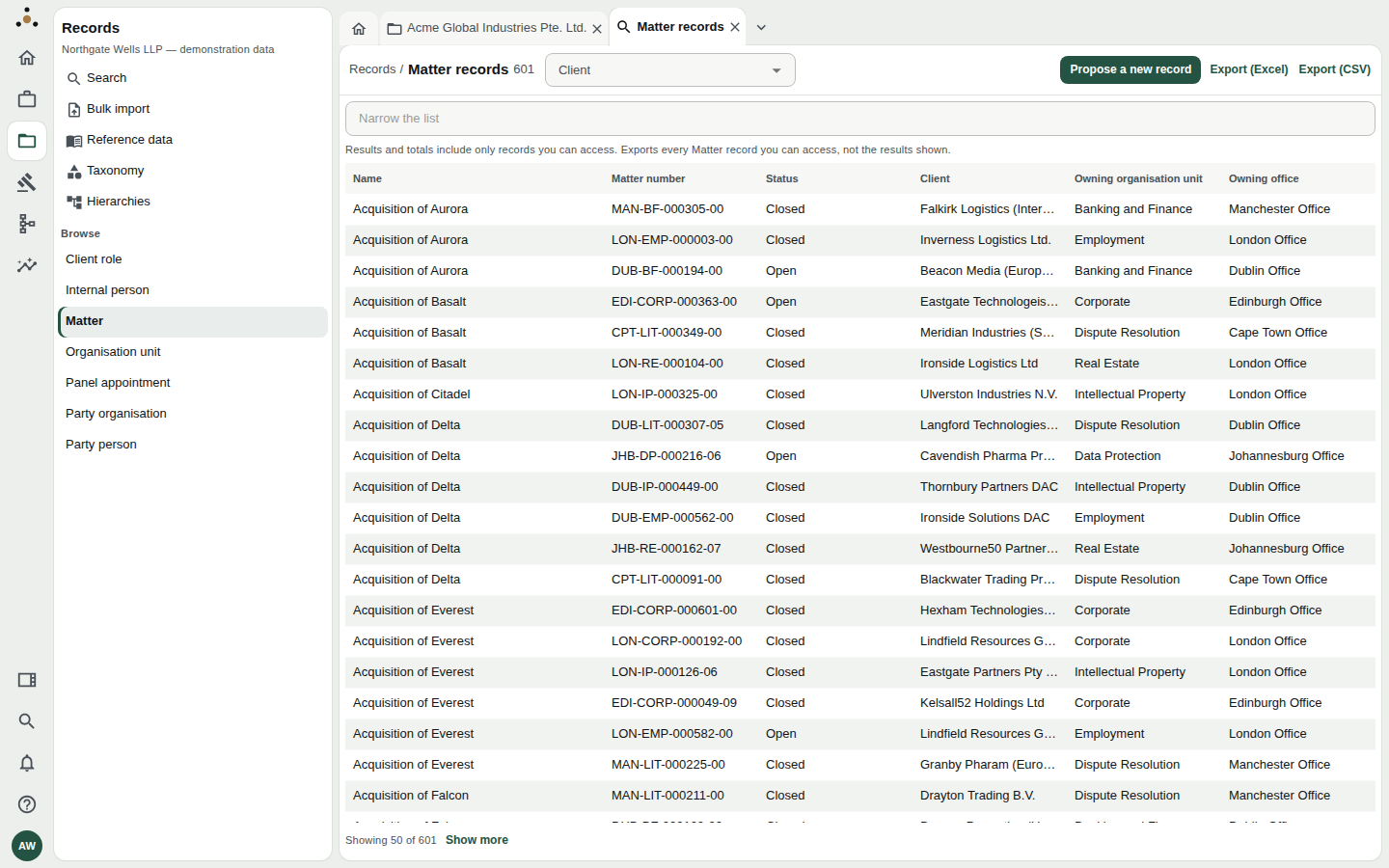
Browsing Matter records. The number beside the heading counts the records this person can access — not the firm's total.
The count in the heading, on the tiles and in the chips is the count of records you can access. A colleague may see a different number for the same list; see What you cannot see.
Export
Entity lists carry Export (Excel) and Export (CSV) buttons.
- An export contains every record of that entity you can access — not only the rows currently on screen or matching your filter. Where you have chosen a client, it contains that client's records.
- The file passes through the same access checks as the screen: records hidden from you are not in it, and the file does not say how many were left out.
- If your role may not take an export you are told: "Your role may not export … records."
Exports contain client and matter data. Treat the file as you would the system itself: store it where firm policy allows, and delete it when you are done.
New records
Browsing an entity shows Propose a new record (for a fee earner) or New record (for a data steward) beside the export buttons. A new record is compared with the records you can already access before it is created. If you hold only read access it becomes a proposal that a steward approves; see Proposing a change.
If something looks wrong
"Nothing matched." — The message is No record you can access matches "…". Check the spelling, clear filters, and remember it can only search what you can access.
A record I just created or changed is not in the results. — Search catches up within about a minute. Datum tells you when N records you created or changed in the last moments are not in search yet. The record opens from its own page meanwhile.
"Records could not be searched." — The platform refused the search; the reason follows (usually insufficient scope). Your role does not include mdm:read. Platform administrators see this on purpose: administering the platform is not a read of the firm's records. See Roles and access.
Two clients that look the same. — Open each, and compare their Sources and History tabs. If you believe they are duplicates, tell a data steward; Proposing a change covers how.