Reading a record
Needs: mdm:read.
A record is where Datum's work shows. This page takes one apart, using a client whose name changed after a rebrand.
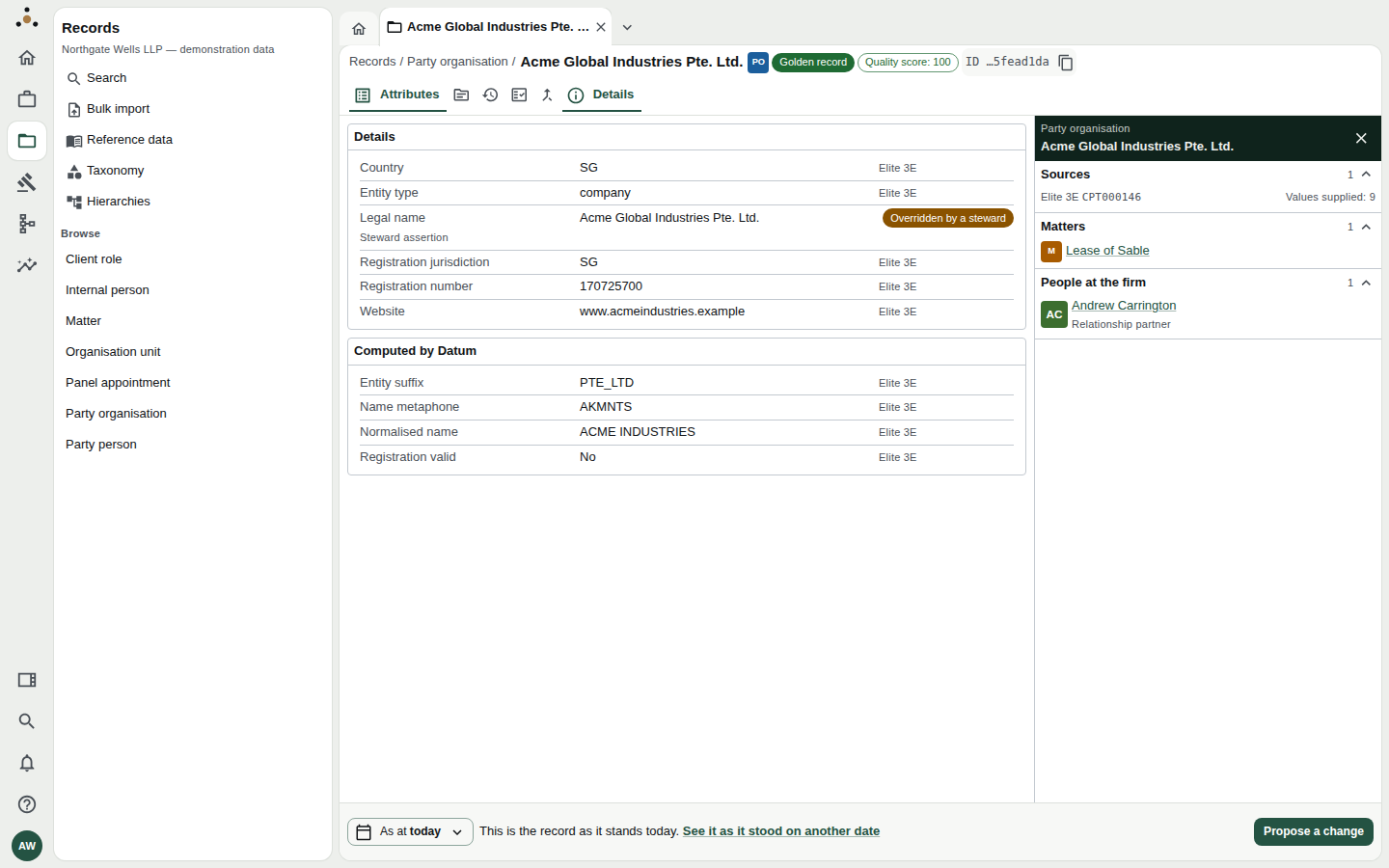
A golden record, open on its Attributes tab.
The header
| Element | Meaning |
|---|---|
| Name and entity badge | The record's name, and a two-letter badge for its entity (PO party organisation, CR client role, M matter …) |
| Golden record | This is the mastered record, not a source row |
| Quality score | A 0–100 score from the firm's data-quality rules. 100 means no open violations. See the Quality tab, below |
| Restricted record (red) | Your role may not read some of this record's fields. The record is real and its other fields are correct — see What you cannot see |
| ID …5fead1da | The permanent master identifier; click the copy button to take the whole thing |
The tabs
The icons beside the title switch views; hover for the name.
Attributes
The values, in up to three groups:
- Details — the record's own attributes.
- Relationships — values that point at other records (the party behind a client role, the originating office, the relationship partner). Names that are links open the other record.
- Computed by Datum — values Datum derives, such as a normalised name used for matching. They cannot be edited; change what they are computed from.
Every value carries a small source tag at its right — Elite 3E, Firm CRM — naming the system that supplied the value that won. A value a steward has pinned shows an amber Overridden by a steward chip and Steward assertion.
Sources
Source comparison lays the source systems' values side by side. By default only attributes where the sources disagree are shown; if all agree, it says so, and Show attributes the sources agree on reveals the rest.
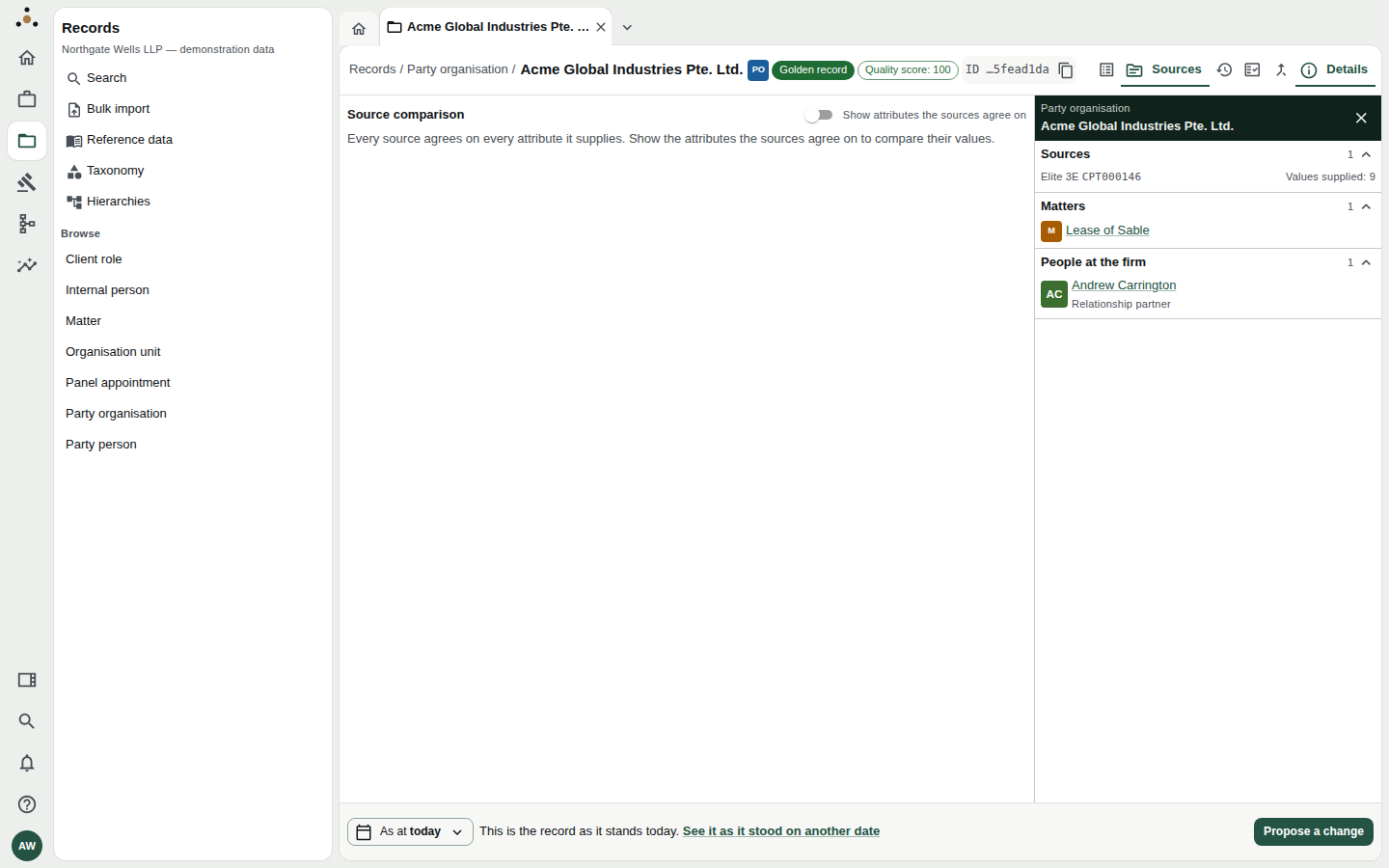
The Sources tab. Here the one source agrees with itself, so nothing is listed until you switch on the toggle.
History
Everything that has happened to the record, newest first — see The record's history below.
Quality
The record's data-quality scorecard: its score, the open violations by severity (error, warning, advisory), and the score over time. Open the printable scorecard gives a page you can print.
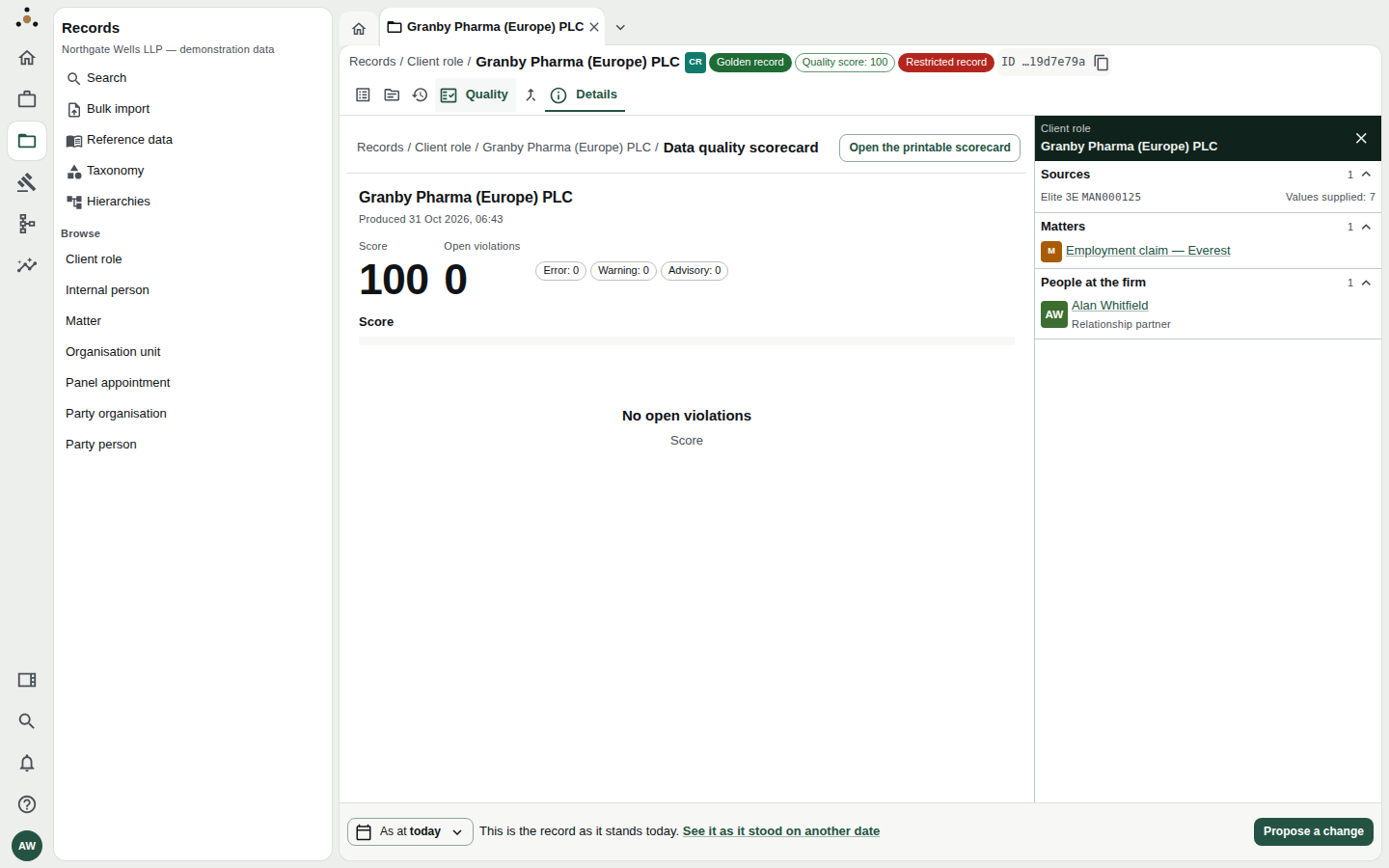
The Quality tab: a score of 100 and no open violations.
Merges
Which records have been folded into this one. You can read this; folding records together and reversing a merge need mdm:steward, and the tab says so if you do not hold it.
The Details panel
The panel on the right is always there: Sources (which systems, and which key in each, with how many values they supplied), Matters this record is named on (only those you can access), and People at the firm such as the relationship partner. Close it with ✕ for more width; reopen it with Details.
Why this value?
You can ask of any value why is it this and not something else?
- On the Attributes tab, click the source tag at the right of the value.
- A Why this value? panel opens.
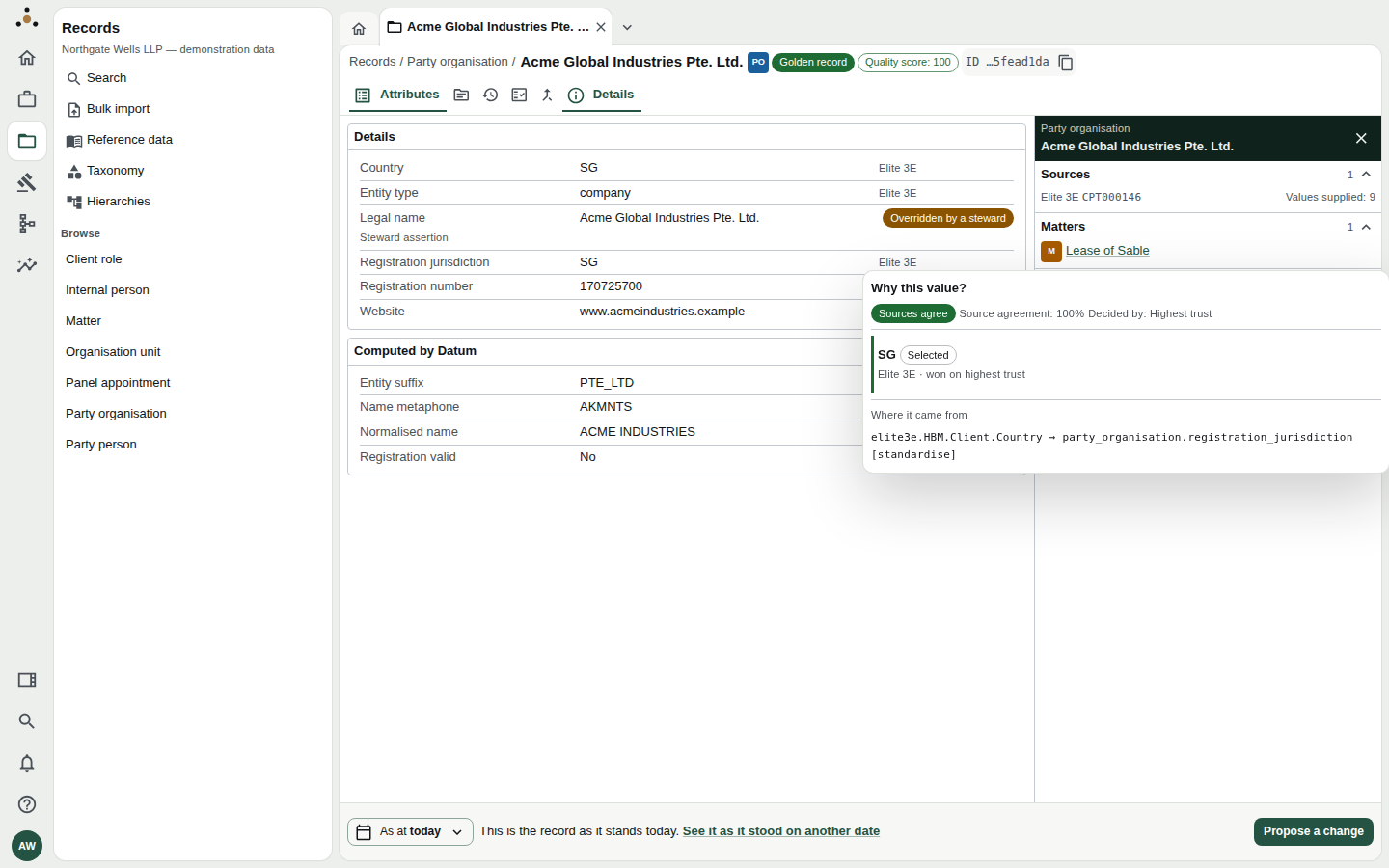
Why this value? for a country. Sources agree, and the highest-trust system won.
It shows:
- Whether the sources agree (Sources agree or Sources disagree) and Source agreement, as a percentage.
- The value chosen (marked Selected), the system it came from and the rule that chose it (won on highest trust).
- Also offered — any other values the sources supplied and lost with.
- Where it came from — the source system's own column, and how it was transformed on the way in (here, standardised).
The decision is reproducible. When someone asks why the client's name here is not what the billing system says, this panel is the answer, and it will be the same answer next month.
If a steward has pinned the value, the panel says A steward set this value (or shows what the rules chose and what the steward pinned instead).
The record's history
The History tab is the record's story.
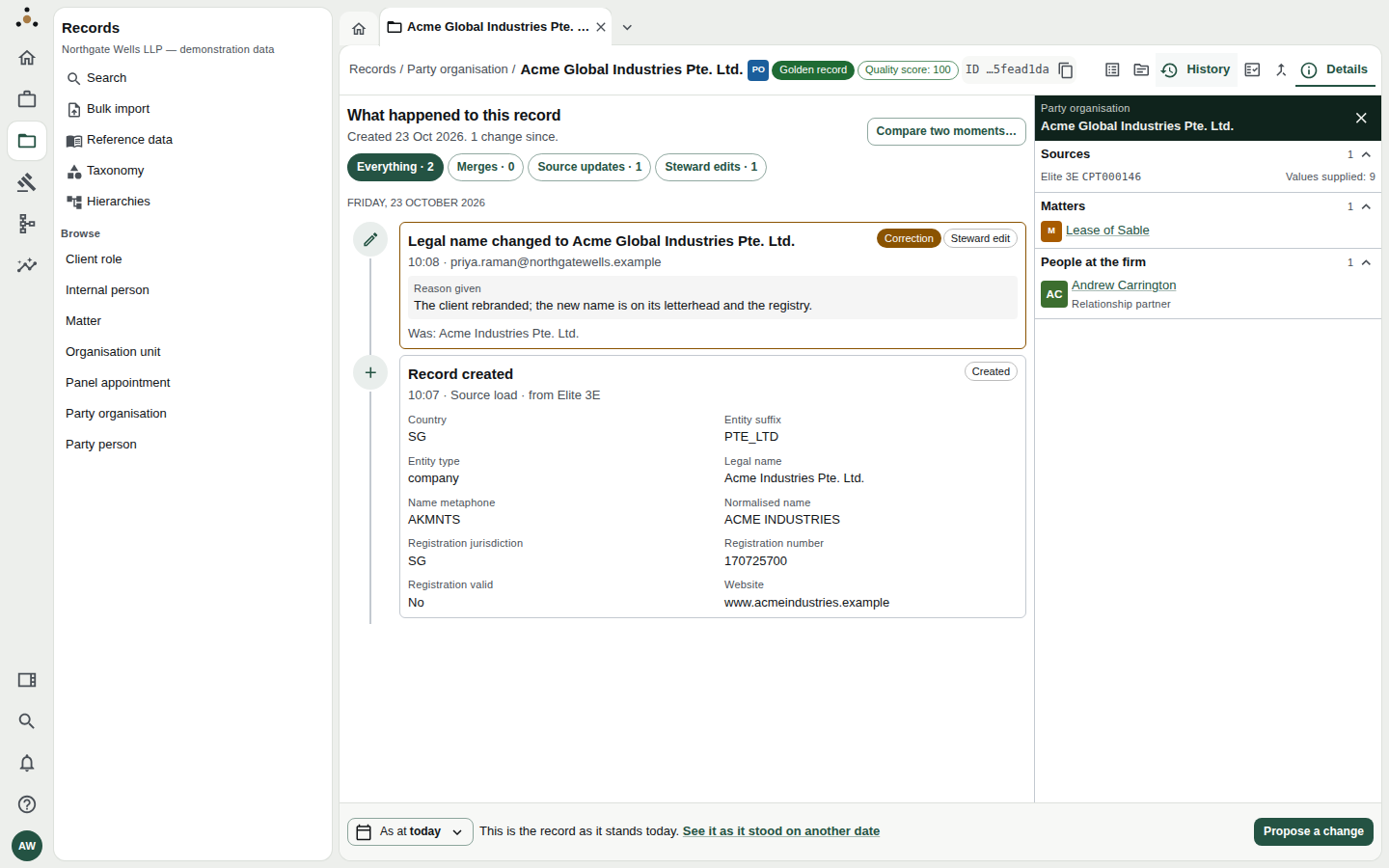
A rename. The newer entry is a Correction, with the reason a steward gave and Was: the earlier name. Beneath is the record's creation from the source load.
- A sentence at the top summarises: Created 23 Oct 2026. 1 change since.
- Filter chips limit it to Merges, Source updates, Steward edits or Proposals not applied, each with a count.
- Each entry says what changed, when, by whom or what, the reason given, and what the value was.
- An entry badged Correction corrects an earlier belief rather than recording a change in the world. See Key concepts.
- Compare two moments… sets two points in time side by side and lists what differs.
If a reason could describe a value your role cannot read, the history shows Withheld. It may describe a value you cannot see on this record in its place. The entry is still there.
As at: seeing the record on another date
The bar at the foot of every record shows As at today and This is the record as it stands today. To look back:
- Choose As at today, or the link See it as it stood on another date.
- Fill in either or both:
- Valid on — when was this true in the world? Type a date as
DD/MM/YYYY, or pick Start of this month, Start of this year or End of last year. - As recorded on — what did the firm know by then?
- Valid on — when was this true in the world? Type a date as
- Choose Apply.
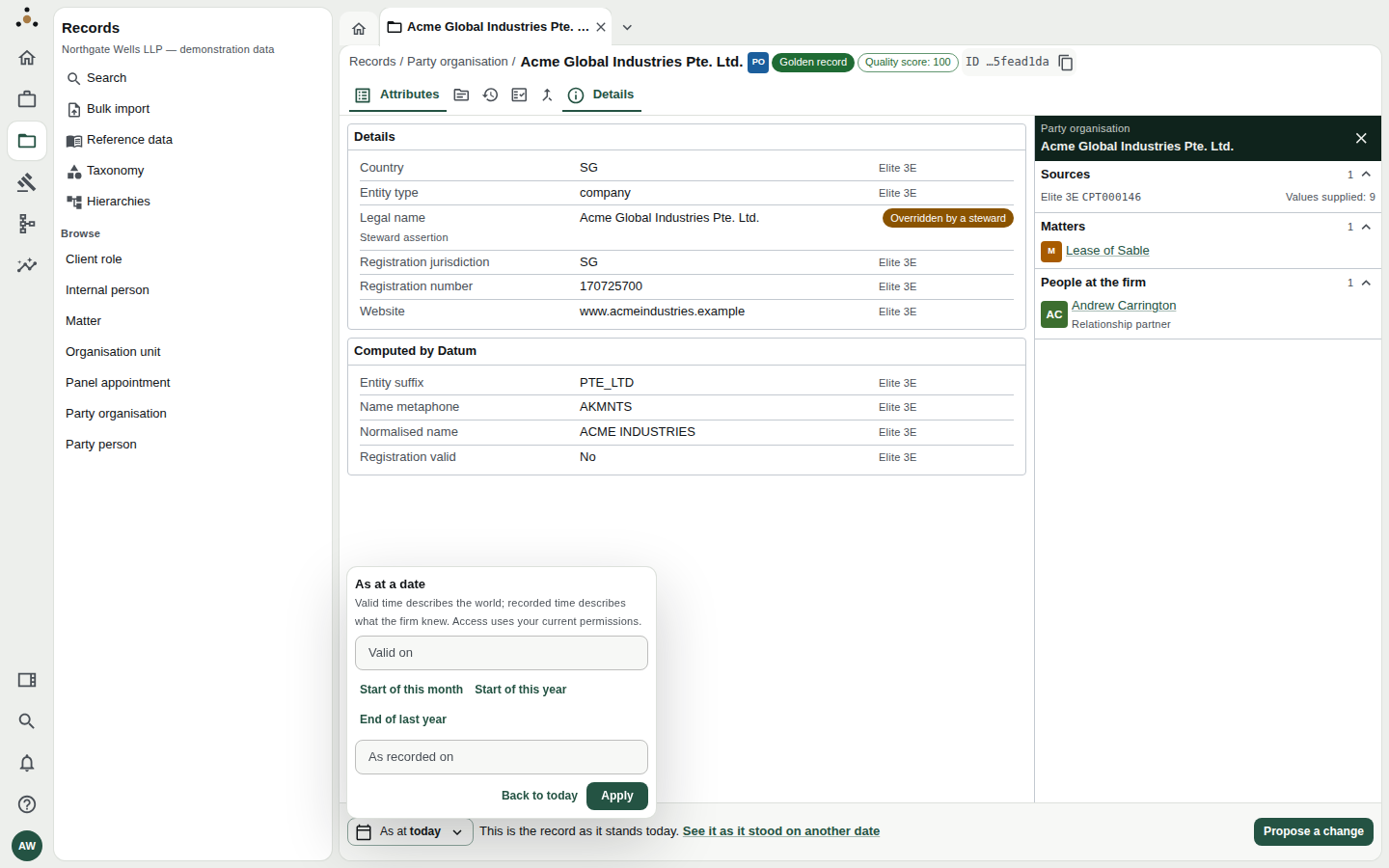
The As at panel. Either field may be left empty.
The record redraws as it stood, and the foot bar says in words which view you are in:
| You chose | The bar says |
|---|---|
| Valid on only | This is the record as it stood on the date |
| As recorded on only | as it stands today, but only as far as the firm had recorded it by the date. Anything recorded since is not shown. |
| Both | as it stood on the first date, as far as the firm had recorded it by the second |
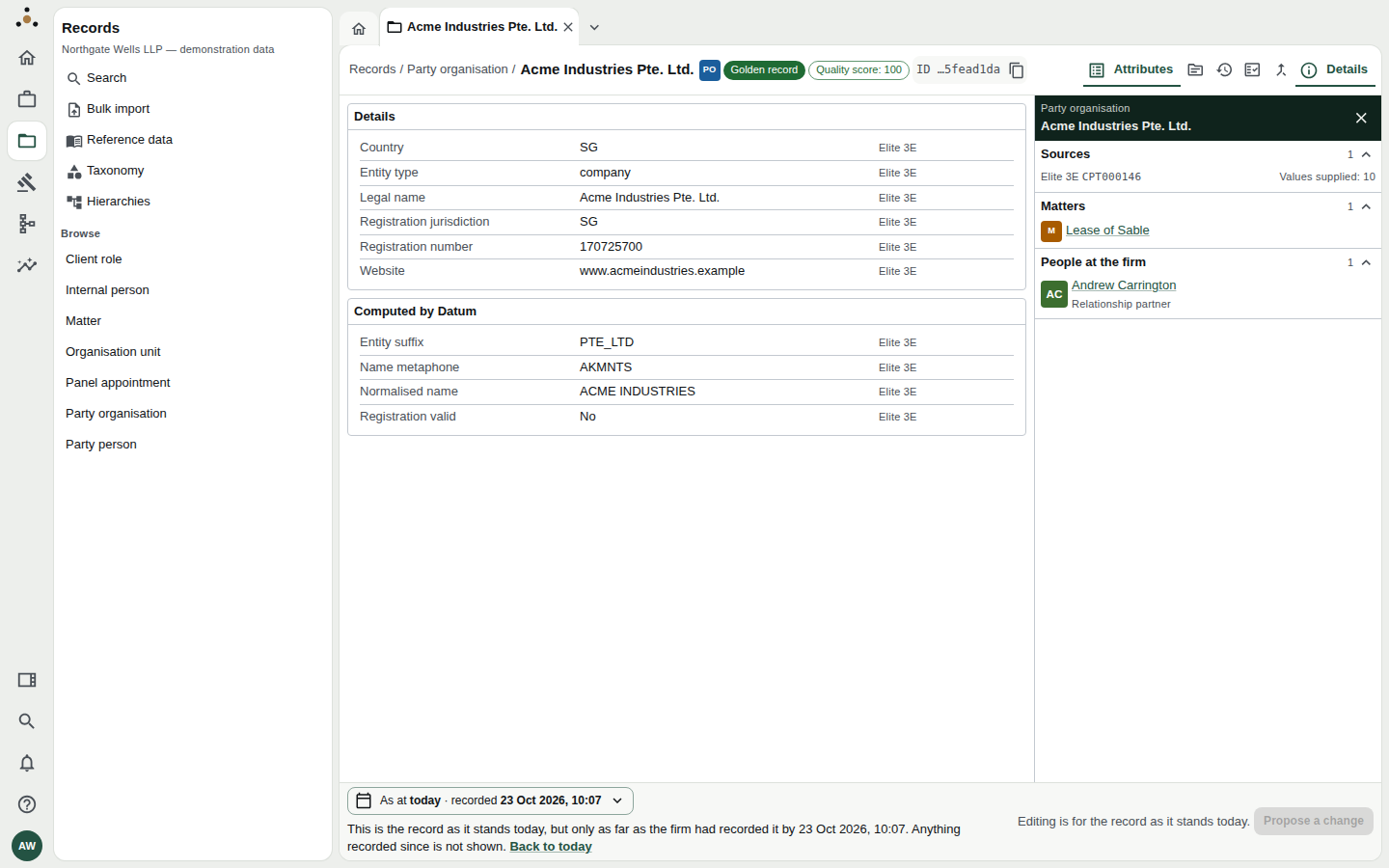
The same client viewed as recorded before the correction: the earlier name. Back to today returns to the present.
Things to know:
- It opens in its own tab, so today's view and the past view sit side by side.
- You cannot edit a past view. The button reads Editing is for the record as it stands today. Choose Back to today first.
- It is a link. The address carries the dates (
?valid=and?recorded=), so you can send a colleague the record as it stood. - A day is read at its end. A recorded day means the end of that day in the firm's time zone, so a correction made later the same day is shown. To land exactly before a change, use the instant from the History tab.
- Access still applies. Access uses your current permissions: looking at a past date never shows what you could not see today.
- If nothing was on record at the date you chose, you are told so: Nothing on record at that time, with the date Datum first recorded it.
Use Valid on to answer what was the client's name when we sent that letter? Use As recorded on to answer what did our system say when we relied on it? They differ whenever something was corrected after the fact.
Common questions
The Merges tab says I need the stewardship class. — You can read the tab; acting on it needs mdm:steward.
A value I expect is missing. — Either no source supplied it (Not supplied), or your role withholds it. Your account panel's Fields withheld from you says which.
I want to correct something I can see. — Proposing a change.