Workflow studio
A workflow is the route a piece of work takes. When someone proposes a change to a client record, a workflow decides what state that proposal is in (pending, in review, approved), who may move it on, and what must happen when it moves. Model › Workflows is the Workflow studio, a diagram of those workflows.
Workflows are data your firm writes
Workflow definitions are data, not code (ADR-0024). The platform ships three, and a firm can write more or supersede the shipped ones with versions of its own. What a firm cannot do is invent new behaviours: guards and actions come from a closed vocabulary that the engine knows by name. A firm decides the shape of an approval (its states and the order they run in), and the platform decides what a step can actually do.
| Shipped workflow | What it governs |
|---|---|
| change approval | Approval of a proposed change to a mastered record. |
| matter intake | Opening a matter, with the intake checkpoints as states. |
| reference data approval | Approval of a change to a reference code list. |
Reading the diagram
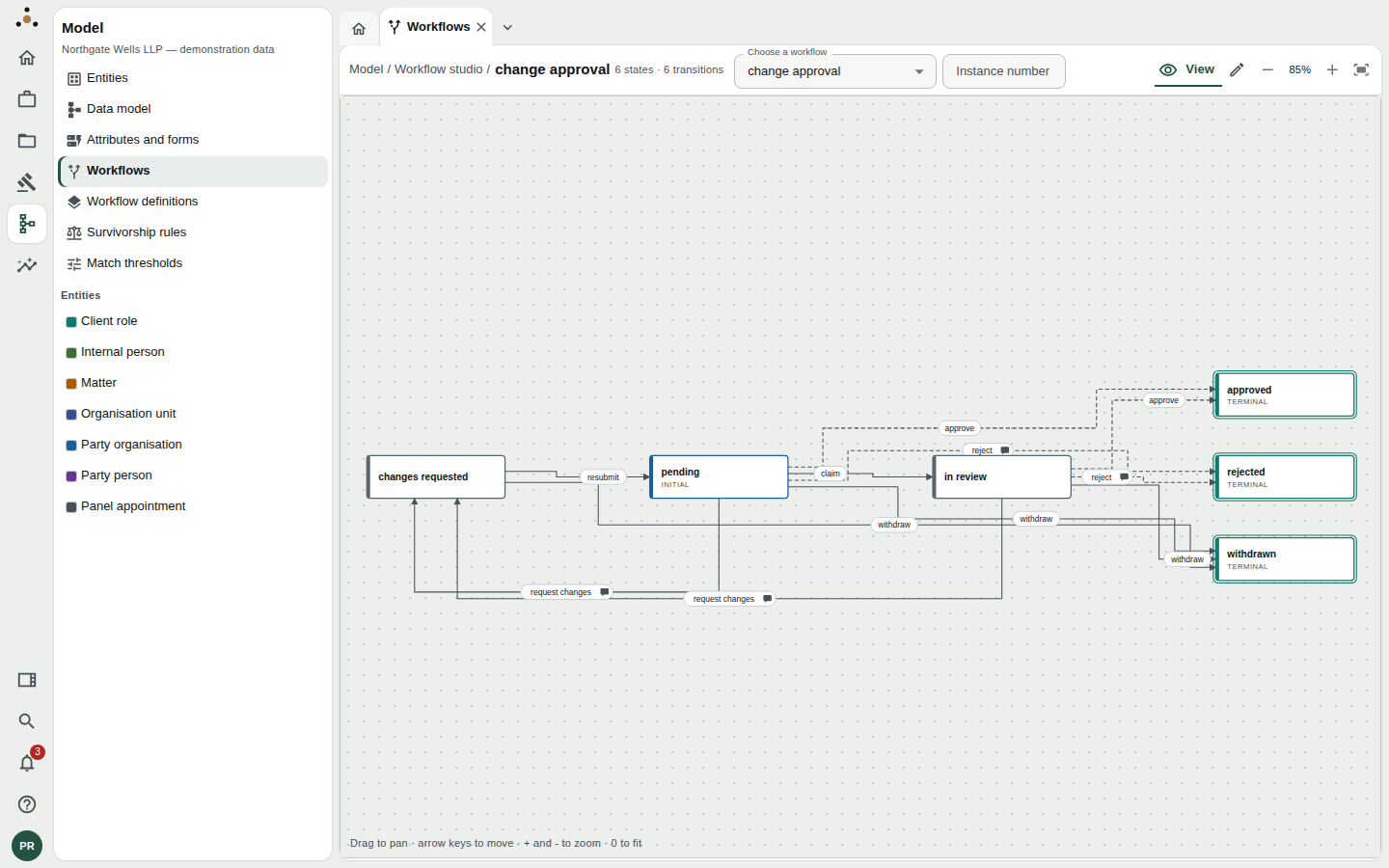
The change approval workflow: 6 states and 6 transitions.
Choose a workflow in Choose a workflow. The header reports its size (6 states · 6 transitions).
- A box is a state. The label beneath the name says whether it is the Initial state (where every instance begins) or Terminal (where it ends). A terminal state takes no further transition.
- An arrow is a transition, labelled with its name (claim, approve, request changes).
- A speech-bubble on an arrow means the transition requires a comment: whoever fires it must say why.
- A dashed arrow marks a guarded transition: one the engine may refuse. For change approval, approve and reject are guarded by the requester cannot approve or reject their own change.
Pan by dragging, zoom with + and − or the keyboard, and press 0 to fit. A text alternative lists the states and transitions for anyone who prefers a list.
Overlaying a running instance
Type an instance number into Instance number to overlay a live workflow on the diagram. Its current state is highlighted and the transitions it can fire from there are drawn live. Use Clear overlay to remove it. If the instance belongs to a different workflow, the screen says so and offers Open for the right one.
This is the quickest way to answer "why hasn't this moved?": see where it is, and what leaves that state.
Sketching a change
Switch from View to Edit draft (the pencil) to sketch.
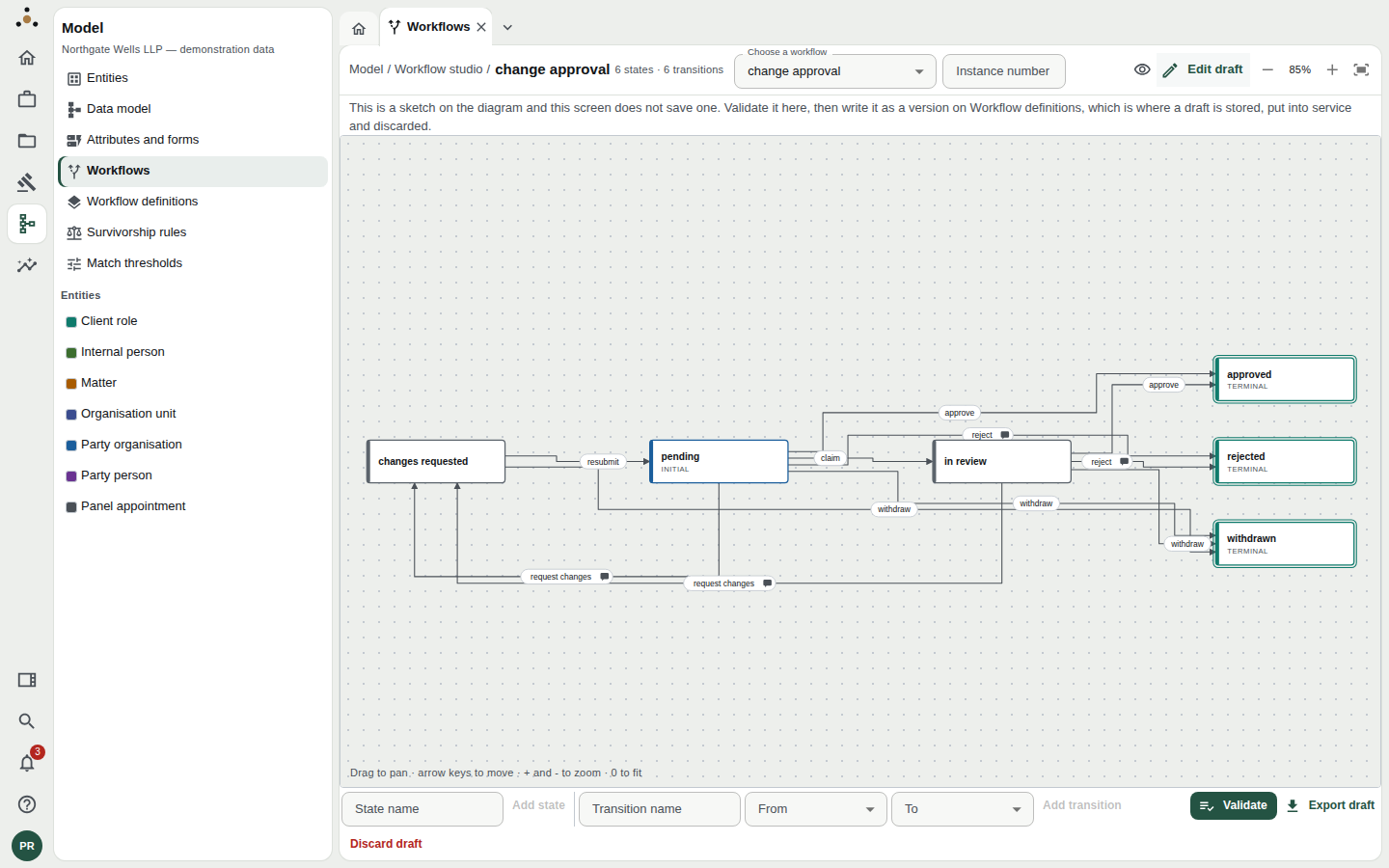
Edit mode adds controls below the diagram.
- Add state: type a state name and add it.
- Add transition: name it, choose From and To states, and add it.
- Validate sends the draft to the platform's own engine. It reports whether every state is reachable and every transition resolves, and says which state or guard is the problem if not. It is the real engine answering, not a second copy of its rules in the browser.
- Export draft downloads the sketch.
- Discard draft throws it away.
The studio does not save a draft. As the banner says: "This is a sketch on the diagram and this screen does not save one." Validate it here, then write it as a version on Workflow definitions, which is where a draft is stored, put into service and discarded. A discarded sketch leaves no copy to return to, and the workflow in service is untouched.
Validation needs a connection to the platform; if it has none, the screen says "Nothing was checked."
Who can do what
| You can… | Steward | Administrator |
|---|---|---|
| View any workflow and overlay an instance | Yes | Yes |
| Sketch and validate a draft | Yes | Yes |
| Save, activate or discard a version | No | Yes |
What to read next
- Workflow definitions — the version register, where a draft is written, put into service and discarded.
- In the stewardship area, Running workflows lists live instances and what each can do next, and Routing rules (administrators) decides who receives the tasks a workflow raises.