The data model diagram
Model › Data model draws every entity as a card and every reference between entities as a line. It answers the question that comes before any change: what do we hold, and how does it fit together?
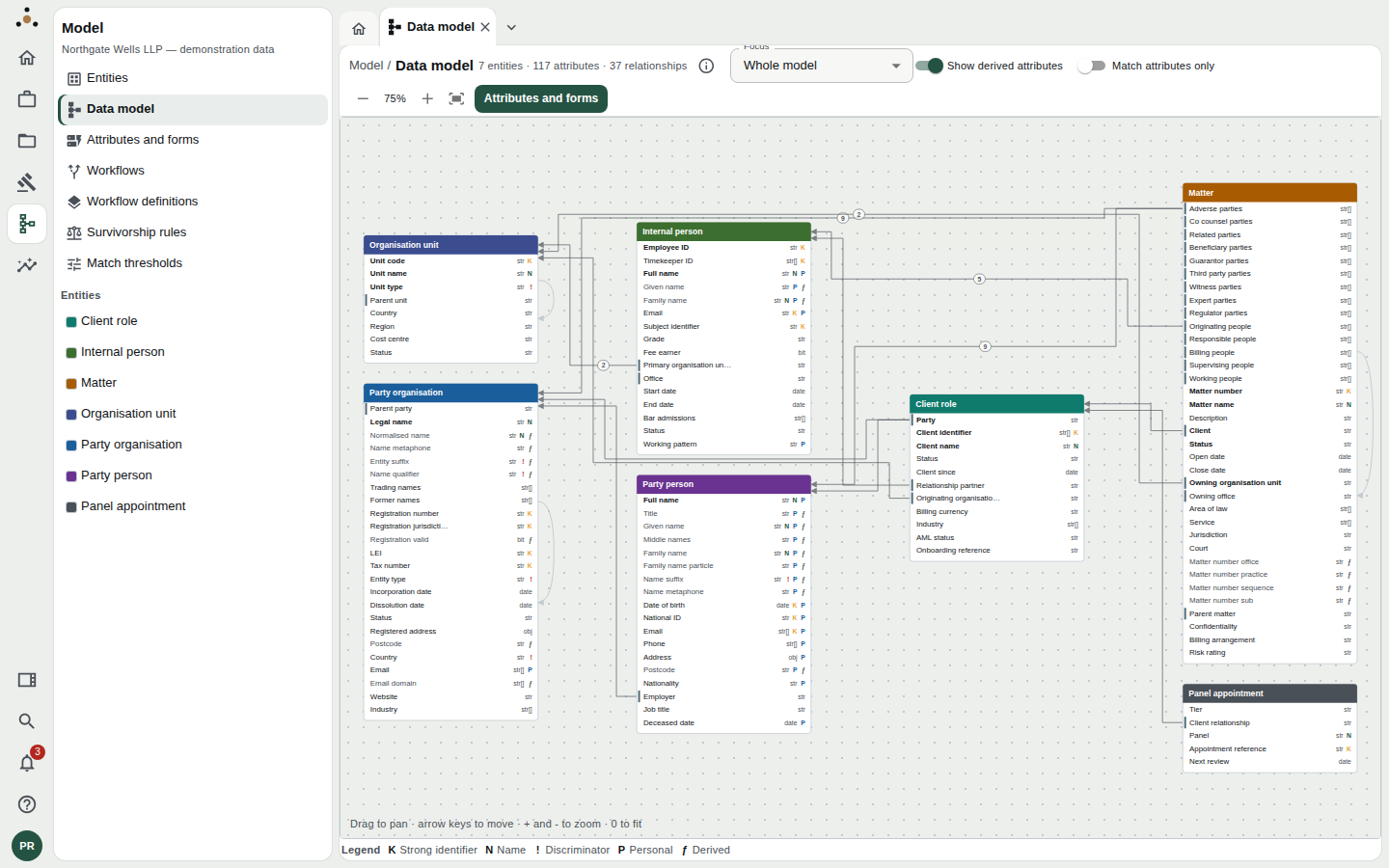
The whole model of the demonstration firm: 7 entities, 117 attributes and 37 relationships.
The diagram reads the model and cannot change it. Platform entities are defined in code, and the diagram is the same on every screen that shows them. To add an attribute or arrange a form, use the Attributes and forms button at the top of the diagram, which takes you to the page described in Attributes and forms.
What you are looking at
The header counts the model: entities · attributes · relationships. The information icon beside it repeats the note above.
Each card is one entity. Its title bar carries the entity's colour, matching the navigator. Each row is an attribute, with its type on the right (str for text, str[] for a multi-valued text, date, bit for yes/no, obj for structured data).
Each line is a reference: a Client role refers to a Party; a Matter refers to its Organisation unit. A small number on a line means several attributes refer across it.
A legend along the bottom explains the letters at the right-hand end of a row:
| Mark | Meaning |
|---|---|
| K | Strong identifier. A value that identifies a record, such as a registration number or LEI. Agreement here is powerful evidence two records are the same. |
| N | Name. Compared as a name: exact, near or by overlapping words. |
| ! | Discriminator. Disagreement counts strongly against a match, such as a legal-form suffix (Ltd against GmbH). |
| P | Personal data. Holds information about a person and is handled accordingly. |
| ƒ | Derived. Computed by Datum from other attributes, not entered. |
Attributes with no mark are held and displayed but not used for matching. See Match thresholds for what the marks do.
Moving around
- Drag the canvas to pan. The arrow keys also move it.
- Use + and − (or the keyboard
+and-) to zoom, and the fit button (or0) to fit the whole model to the window. The current zoom, such as 75%, is shown between the buttons. - Click an entity card to select it and highlight what it touches; click again to deselect.
Focusing on one entity
The whole model is useful once. After that, you usually want one entity and its neighbours.
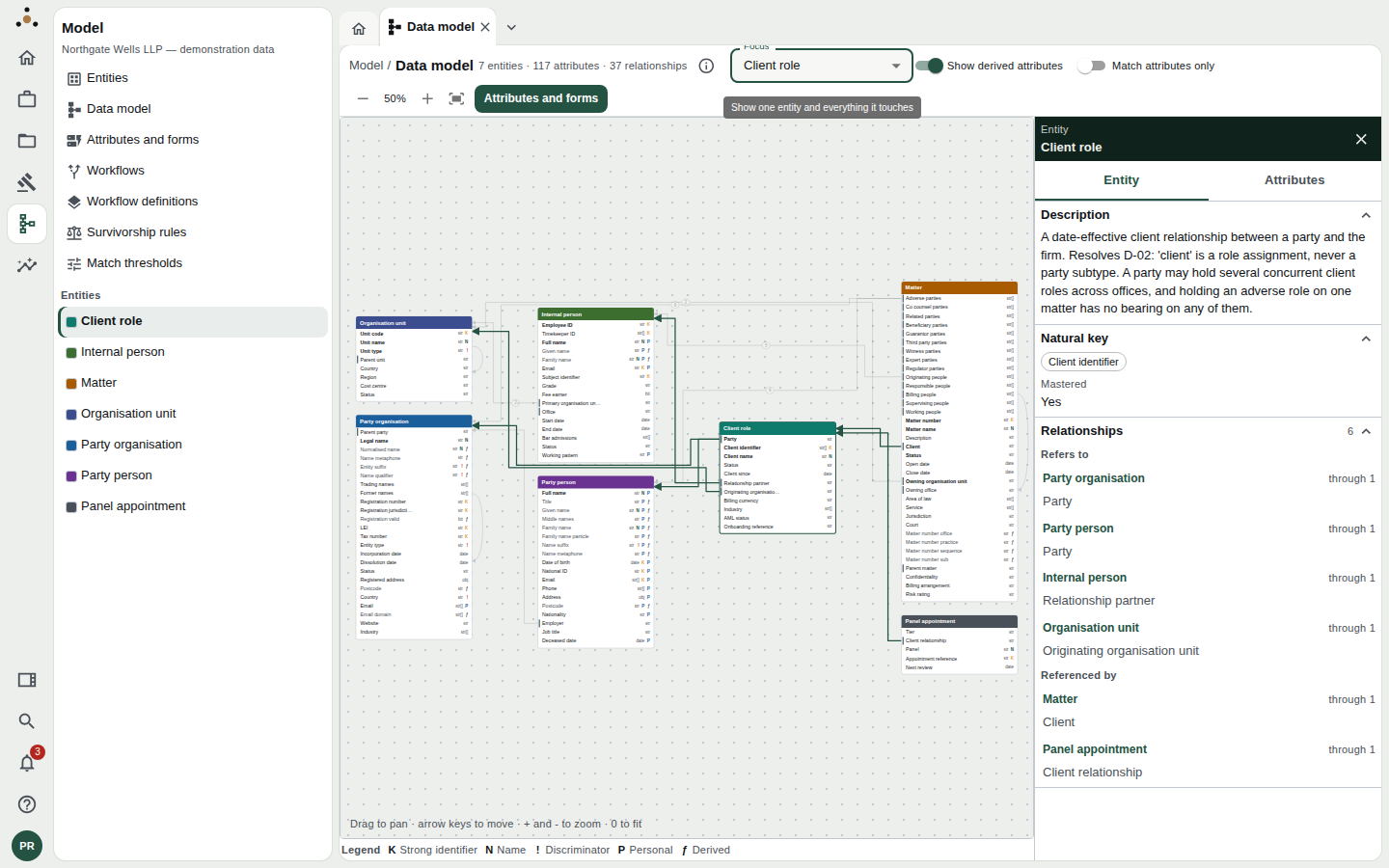
Focus set to Client role: only that card, and everything it touches, remain.
Open the Focus menu and choose an entity. The diagram shows that entity and everything directly related to it. Choose Whole model to return.
Two switches
- Show derived attributes (on by default). Turn it off to hide the ƒ rows and see only what people enter or sources supply.
- Match attributes only. Turn it on to hide every attribute that plays no part in matching. What is left is, for each entity, exactly what Datum compares when it looks for duplicates.
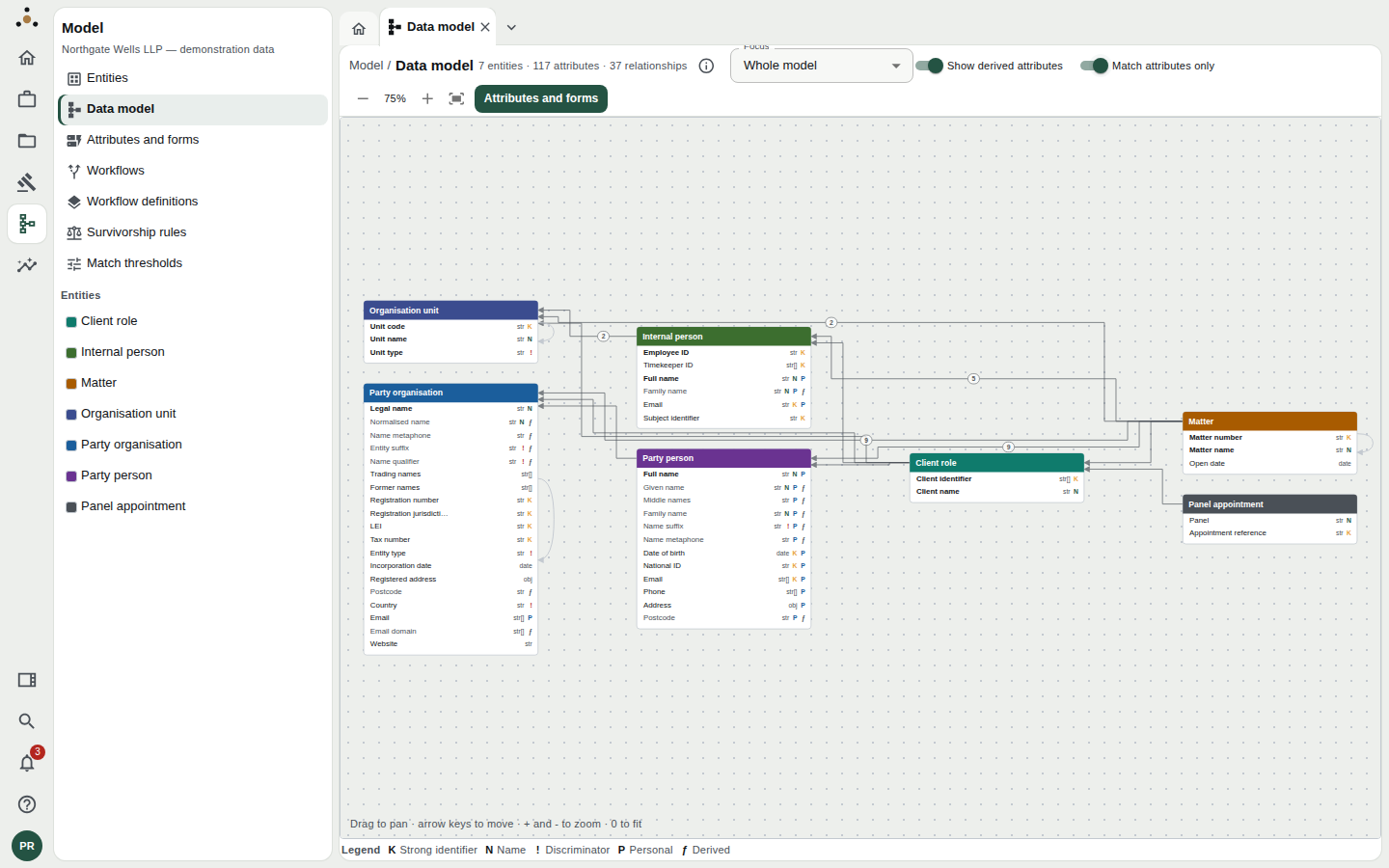
With Match attributes only on, each card shrinks to the evidence the match model uses.
If a steward tells you "it keeps proposing these two as duplicates", switch on Match attributes only and focus on the entity. The answer is usually visible: the two records agree on everything marked N and nothing is marked K or ! to tell them apart.
Prefer a list?
The diagram has a text alternative: the same entities and relationships as a list, each entity with what it refers to and what refers to it. It is there for screen-reader users and for anyone who finds a list easier to scan. Use the Entities and their relationships, as a list option.
Troubleshooting
| Symptom | What it means |
|---|---|
| "The schema returned no entities." | The platform could not read the model. Reload; if it persists, tell your administrator. |
| A firm-added attribute is missing | It may not be in service yet. See Not yet in service on Attributes and forms. |