A tour of the workspace
Every Datum screen has the same four parts. Learn them once and every other page in this guide will make sense.
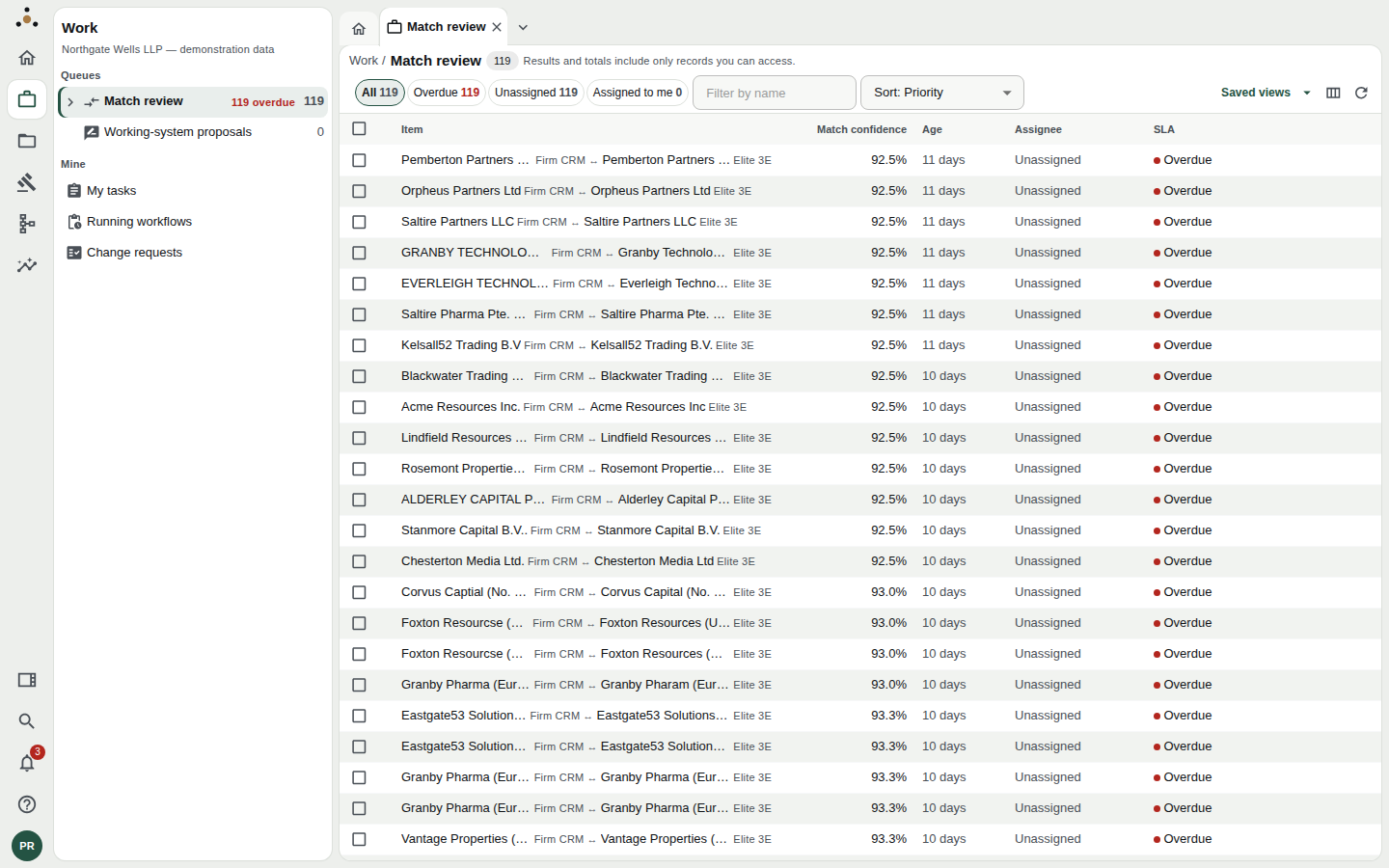
The workspace on the Match review queue. From left: the area rail, the navigator, and the work area with its tabs above.
1. The area rail
The narrow column of icons at the far left switches between areas. Hover over an icon for its name.
| Area | What lives there |
|---|---|
| Home | Your starting page |
| Work | The things waiting for a person: match review and the other queues, your tasks, running workflows, change requests |
| Records | Finding and browsing records, bulk import, reference data, the taxonomy and hierarchies |
| Legal operations | The party register, registry verification, retention and legal holds, timekeepers |
| Model | The data model, attributes, workflows, survivorship rules and match thresholds |
| Insight | Dashboards and AI suggestions |
| Administration | Roles, walls, connections, settings — administrators only |
An area appears in the rail only if there is at least one screen in it that your role may use. A fee earner will not see Administration, and an administrator will not see Records — see Roles and access.
At the foot of the rail are four tools, covered in Palette, notifications and your account: the navigator toggle, search, notifications and keyboard shortcuts, then your account.
2. The navigator
Beside the rail is the navigator: the screens in the area you have chosen. In Work, for instance, it lists the queues with their counts (and how many are overdue), then Mine — your tasks and running workflows. In Records it lists Search, Bulk import, Reference data, Taxonomy and Hierarchies, and under Browse one entry for each entity.
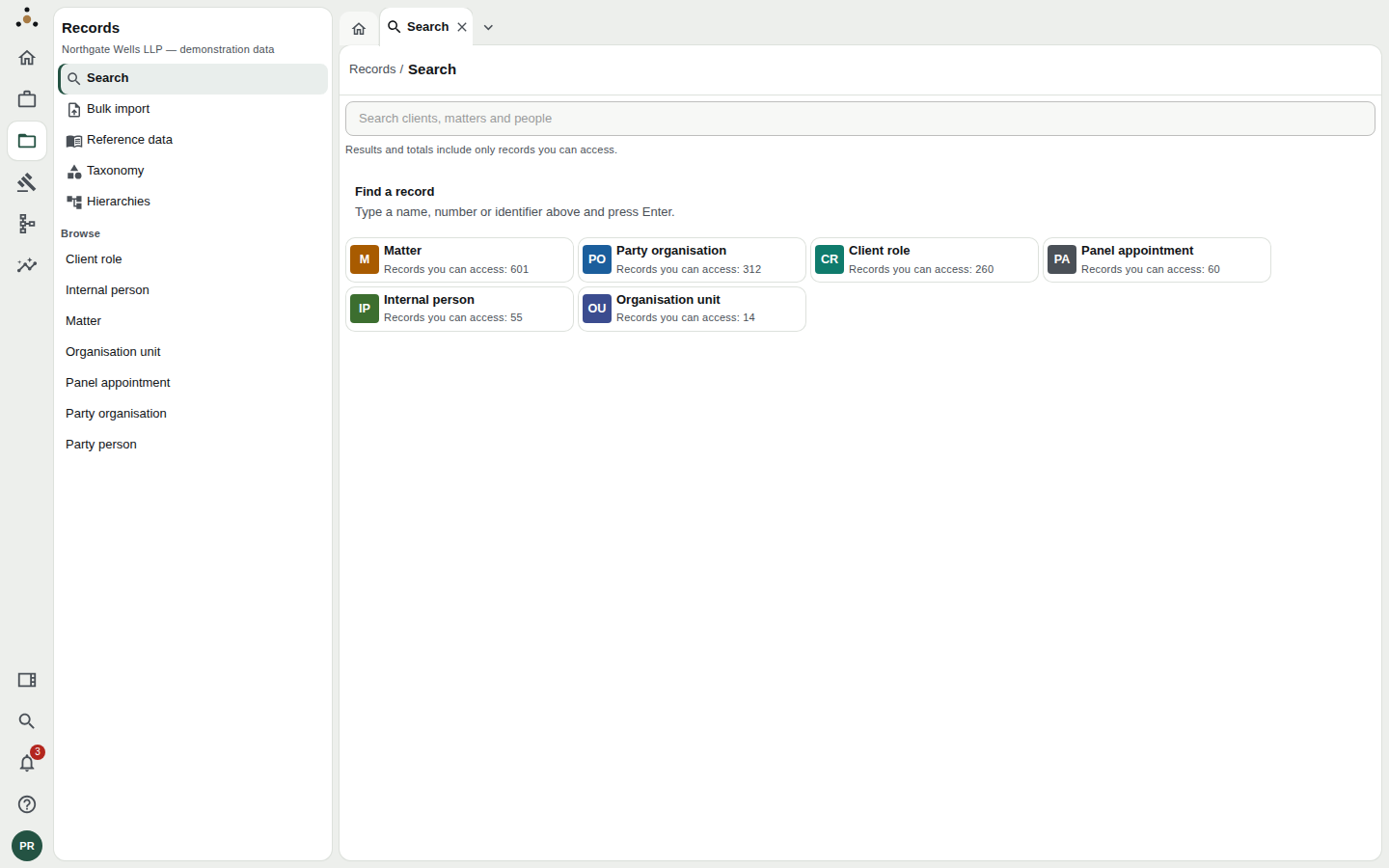
The Records area. Under Browse each entity has an entry; on the Search landing each shows how many records you can access.
Hide the navigator with the toggle at the foot of the rail (or Ctrl+B, ⌘+B on a Mac) when you want the whole width for a wide table.
3. Tabs
Whatever you open becomes a tab across the top, so you can hold several things at once — a search, a record, a review — and move between them without losing your place.
- Home is pinned as the first tab and cannot be closed.
- A screen — a list, a queue, Search — takes over the tab you are on if that tab holds a screen. Choosing Match review and then Search from the navigator swaps one for the other rather than piling up tabs.
- An object — a record, a review pair, a timekeeper, a workflow — opens in a tab of its own, and an open object stays where you left it. Opening something already open just takes you to its tab.
- The ✕ on a tab closes it; so does a middle-click. The ▾ at the end of the strip lists every open tab — useful when the width has pushed some out of sight.
- Closing a tab with unsaved changes asks first, and tells you what would be lost.
- Twelve tabs at most, Home included. Opening a thirteenth closes the oldest one that is not on screen and holds no unsent work.
- Tabs survive a reload but belong to this browser window and you: a new window starts clean, and somebody else signing in on the same window does not inherit yours.
Opening a record as at a past date opens it in its own tab, so you can keep today's view beside it. See Reading a record.
4. The work area
The work area is the screen itself. Most have the same shape:
- A title bar with a breadcrumb (Records / Search), the screen's name, and often a count.
- An ⓘ beside the title on screens that explain themselves. It opens a short note on a click — never on hover — and closes with Esc.
- A list or detail in the middle, and for records a Details panel on the right.
- A bar at the foot for actions that belong to the whole object (for a record: As at, and Propose a change or Edit).
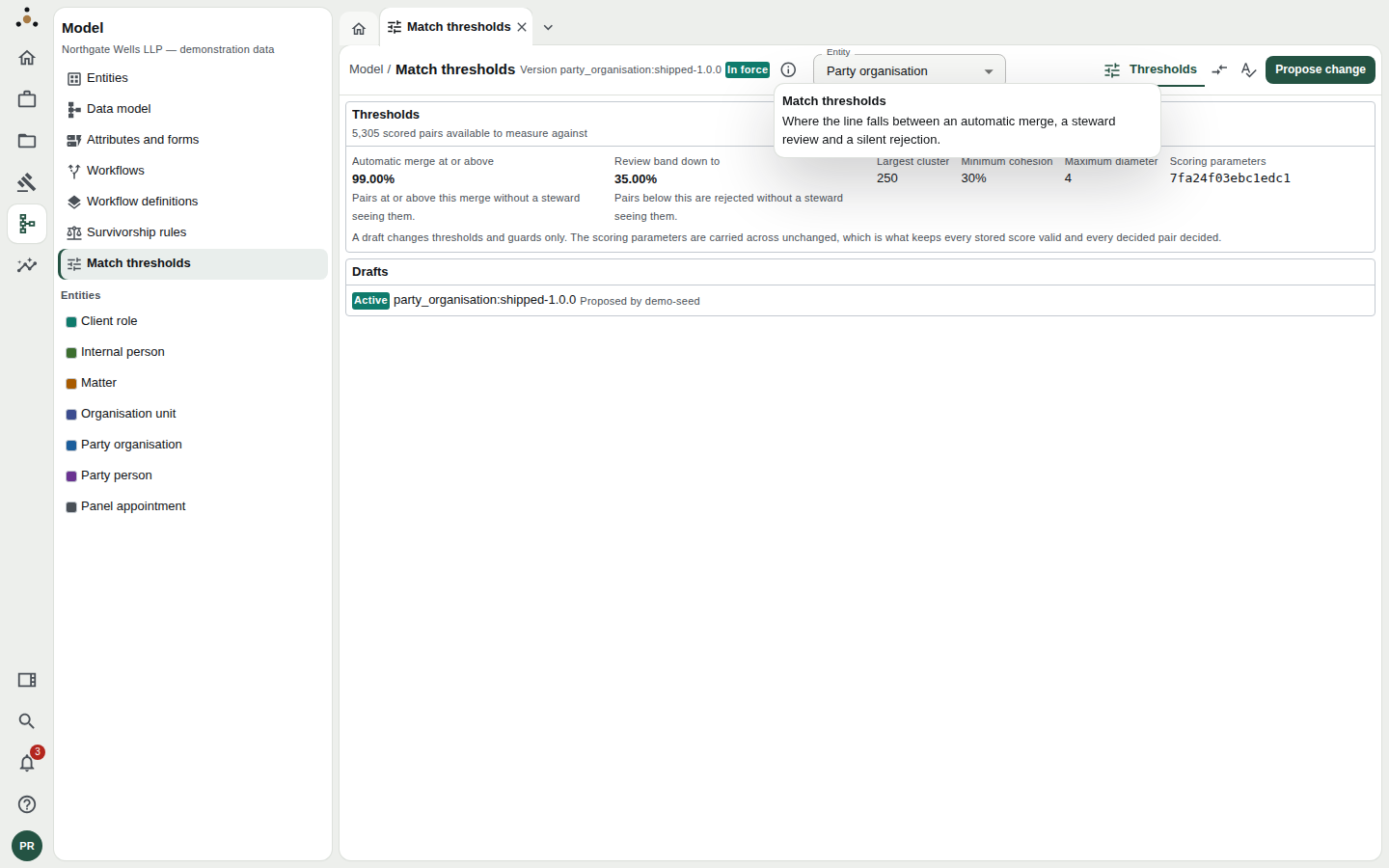
The ⓘ beside a screen's title explains what the screen is for. Here it explains Match thresholds.
Home
Home is the one screen that is different for everybody.
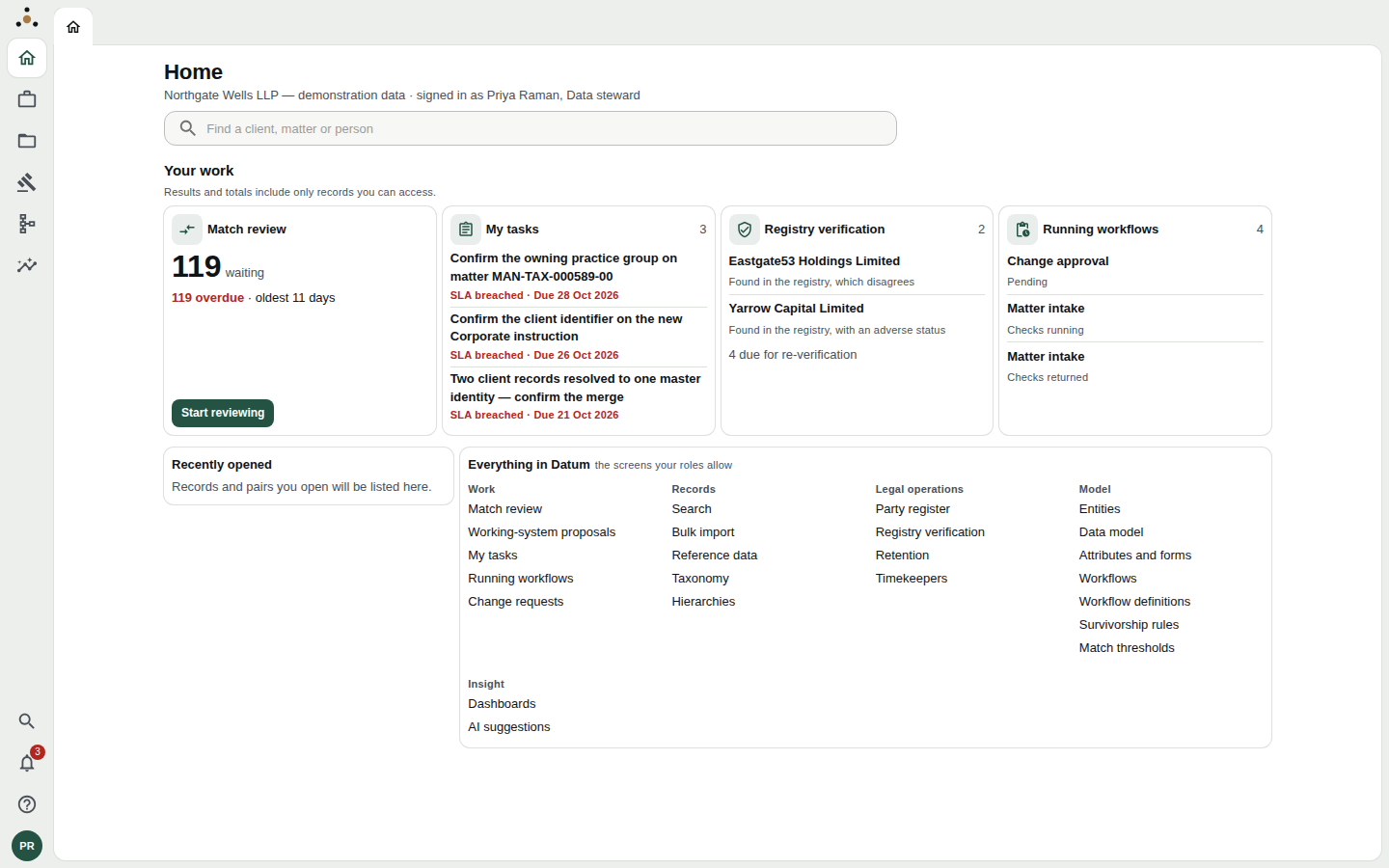
A data steward's Home.
- A search box — Find a client, matter or person — at the top.
- Your work: cards for the queues and lists that apply to you, with counts, how many are overdue, and the oldest item. A steward's Start reviewing button opens the top match-review pair directly.
- Recently opened: the records and pairs you opened lately.
- Everything in Datum: every screen your roles allow, grouped by area. If a screen you expect is not here, your role does not reach it.
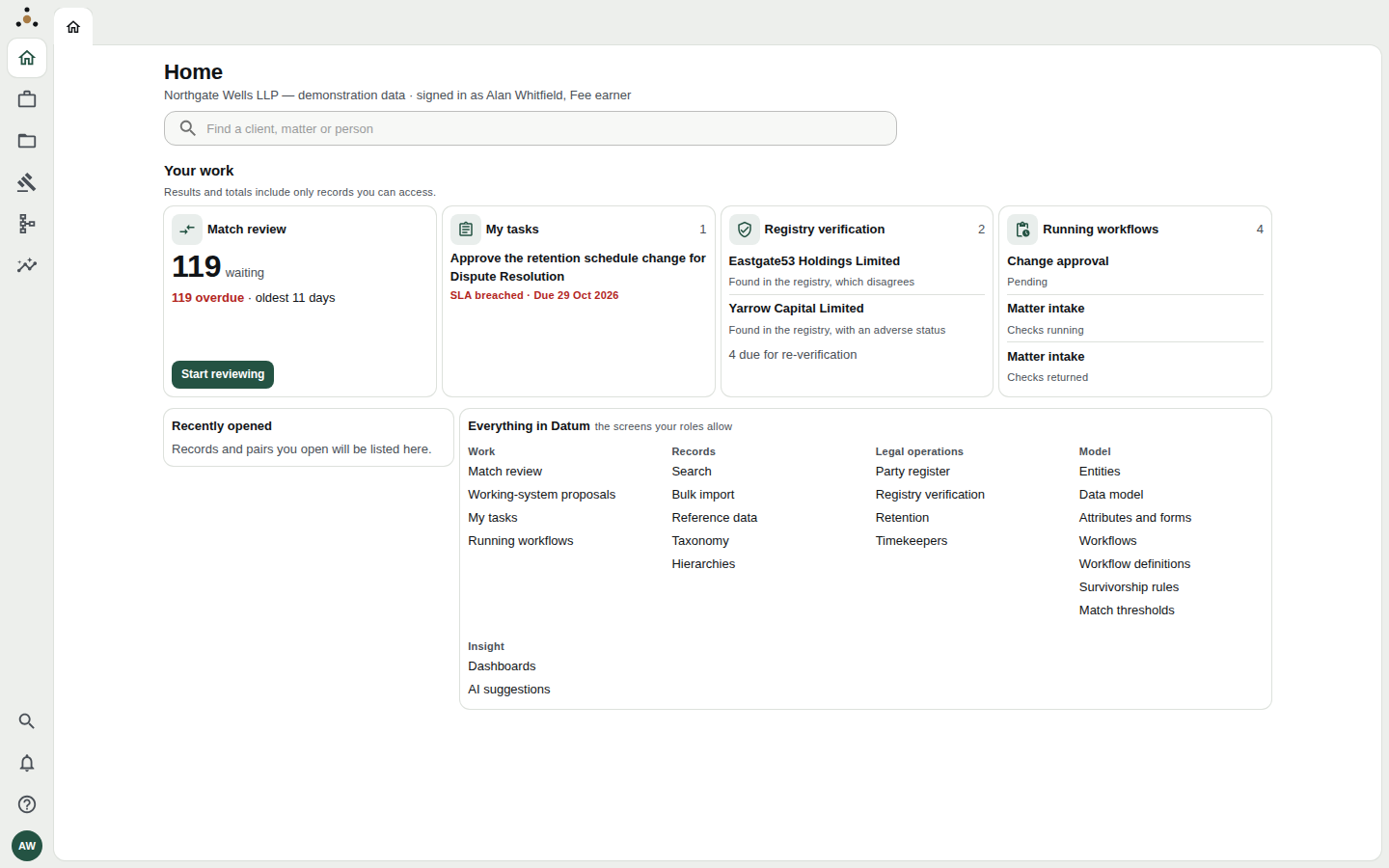
A fee earner's Home. Same layout; what is offered follows the role.
"Results and totals include only records you can access." appears on every list and total in Datum. It is always there, whether or not anything has been held back from you, and it never says how much. Key concepts explains why.