Palette, notifications and your account
At the foot of the area rail, below the navigator toggle, are the tools you reach for from any screen.
| Tool | Icon | Shortcut |
|---|---|---|
| Hide or show the navigator | A panel | Ctrl+B (⌘+B on a Mac) |
| Search or run a command | A magnifier | Ctrl+K (⌘+K), or / |
| Notifications | A bell, with a count of unread | — |
| Keyboard shortcuts | A question mark | ? |
| Your account | Your initials | — |
The command palette
The palette is the quickest way to get anywhere. Open it from any screen with Ctrl+K and start typing.
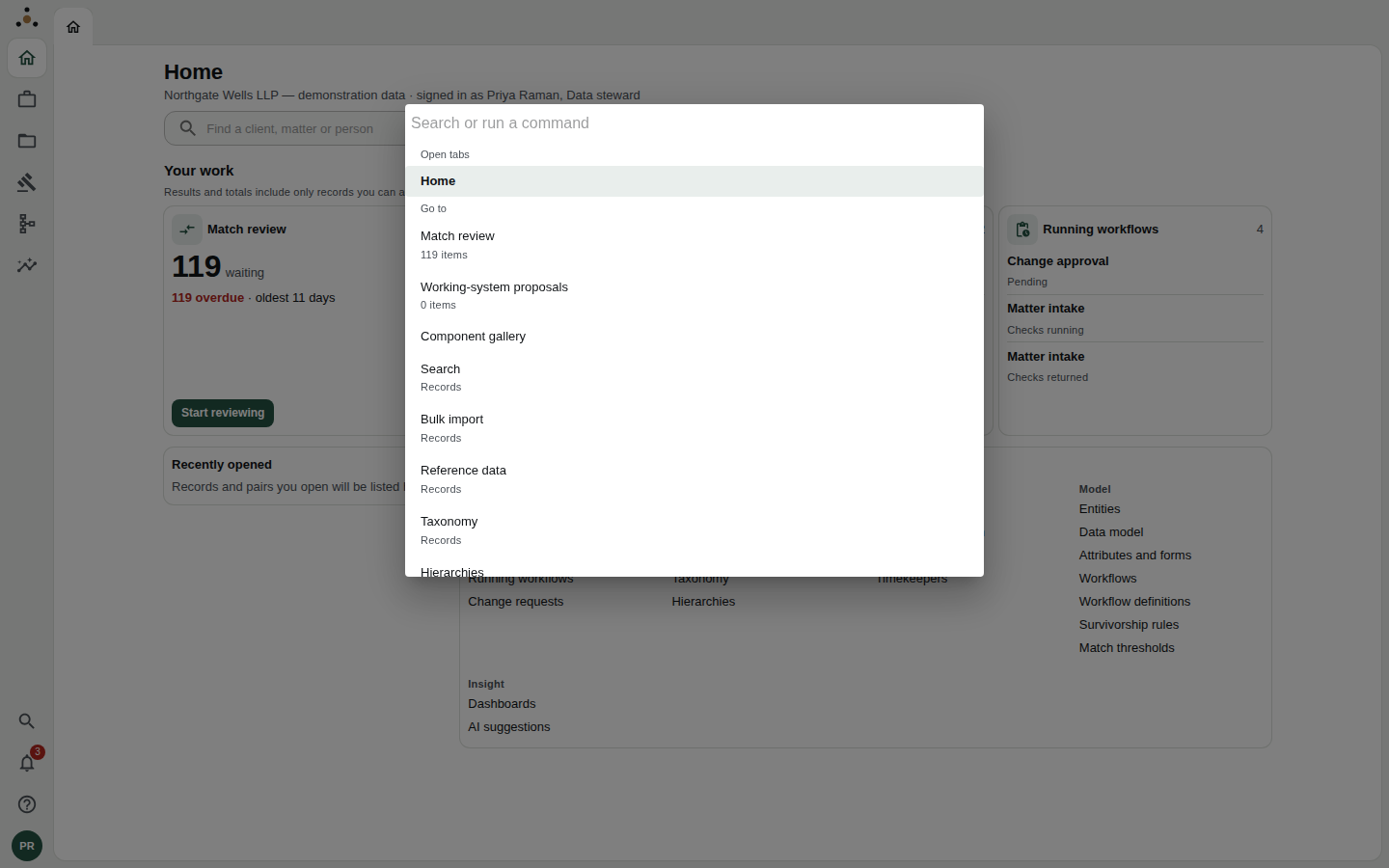
The palette, opened with nothing typed: the screens and actions you can reach.
What it offers, in groups:
- Go to — every screen your roles allow.
- Actions — change density, change theme, collapse the navigator, open the shortcut list, sign out.
- Records — as you type two or more characters, records that match. These come from the same search as the Search screen, under your access, so a record you cannot access is not offered here either.
- In your queues — items waiting in your queues that match what you typed. These only appear once you type.
- Open tabs — jump to something you already have open.
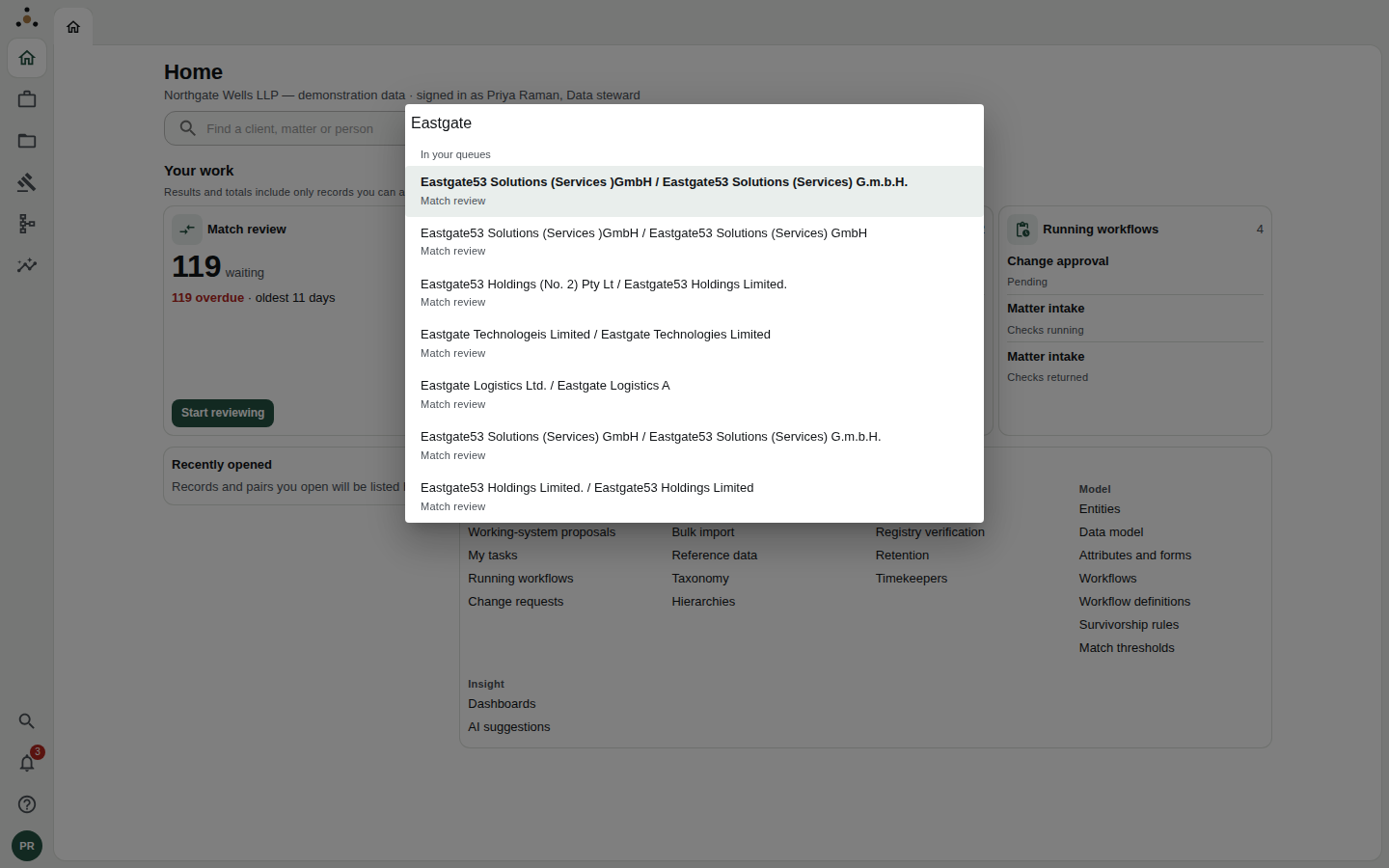
Typing Eastgate: matching pairs from your queues. Records that match appear beneath, after a short pause.
Tips
- Type part of a screen's name and press Enter — three letters is usually enough.
- Press ↑ and ↓ to move, Enter to choose, Esc to close — from anywhere, including from inside the box.
- Press Ctrl+Enter to open the choice in a new tab.
- Start with > to restrict the palette to screens and actions only — no record search.
The palette says Records could not be searched plus the reason when the search was refused — for example, a session without the read endpoint class. It does not say "No matches", because that would tell you nothing was there when in fact nobody looked. See Troubleshooting.
Notifications
The bell shows how many notifications are unread. Open it to see them, newest first.
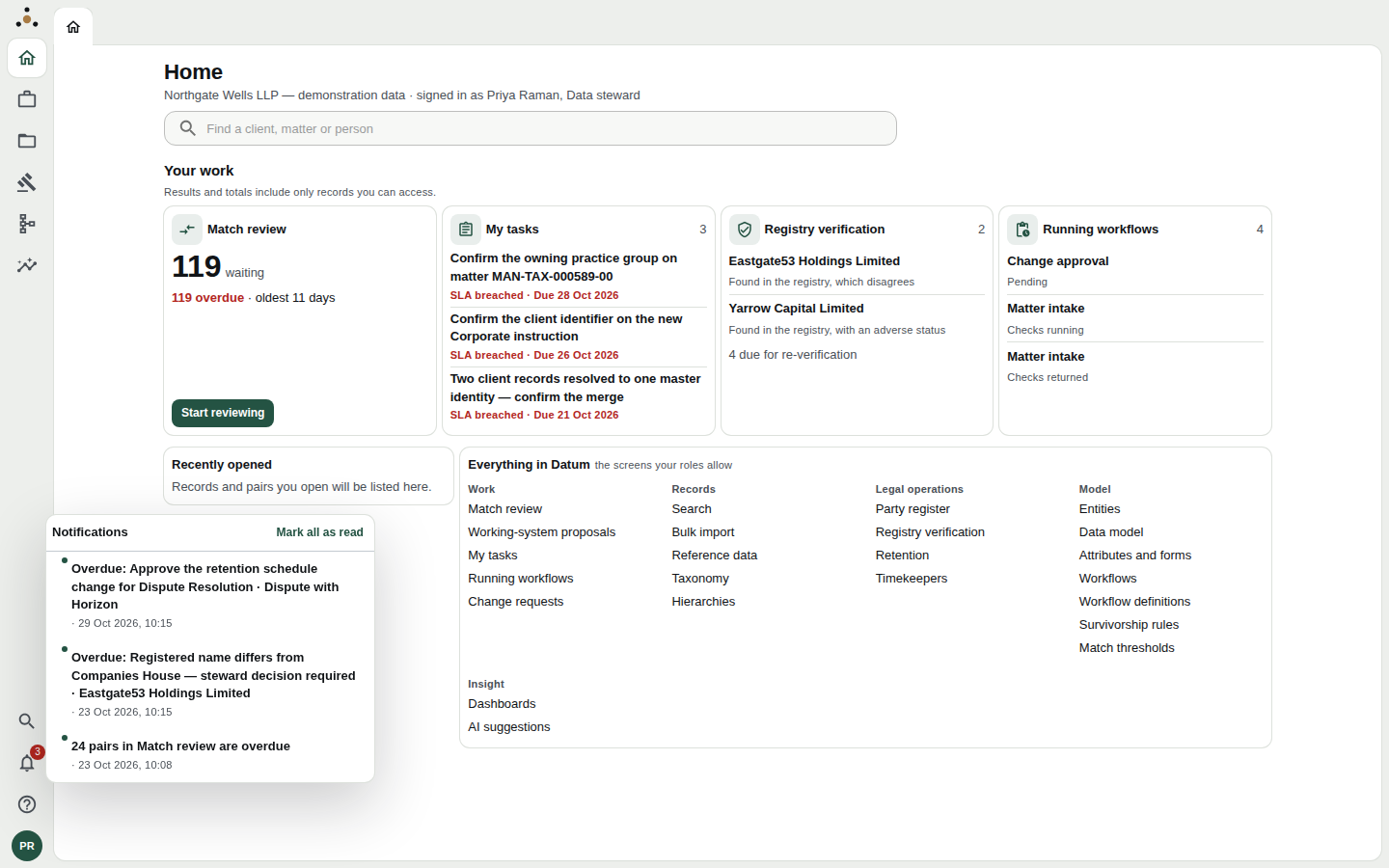
Notifications are about your work: overdue tasks, items that need a decision, and counts that have crossed a limit.
- Choose a notification to go straight to what it is about; it is marked read as you do.
- Choose Mark all as read to clear the lot.
Notifications are read with the read endpoint class (mdm:read). A session without it is not asked for any, and says so. Notifications about a record respect walls and privileges like everything else: a notification does not disclose what you could not open.
Keyboard shortcuts
Press ? anywhere (or choose the question-mark button) for the shortcuts that work on the current screen. The list is built from the live key bindings, so it only ever shows keys that do something. The full list is on Keyboard shortcuts.
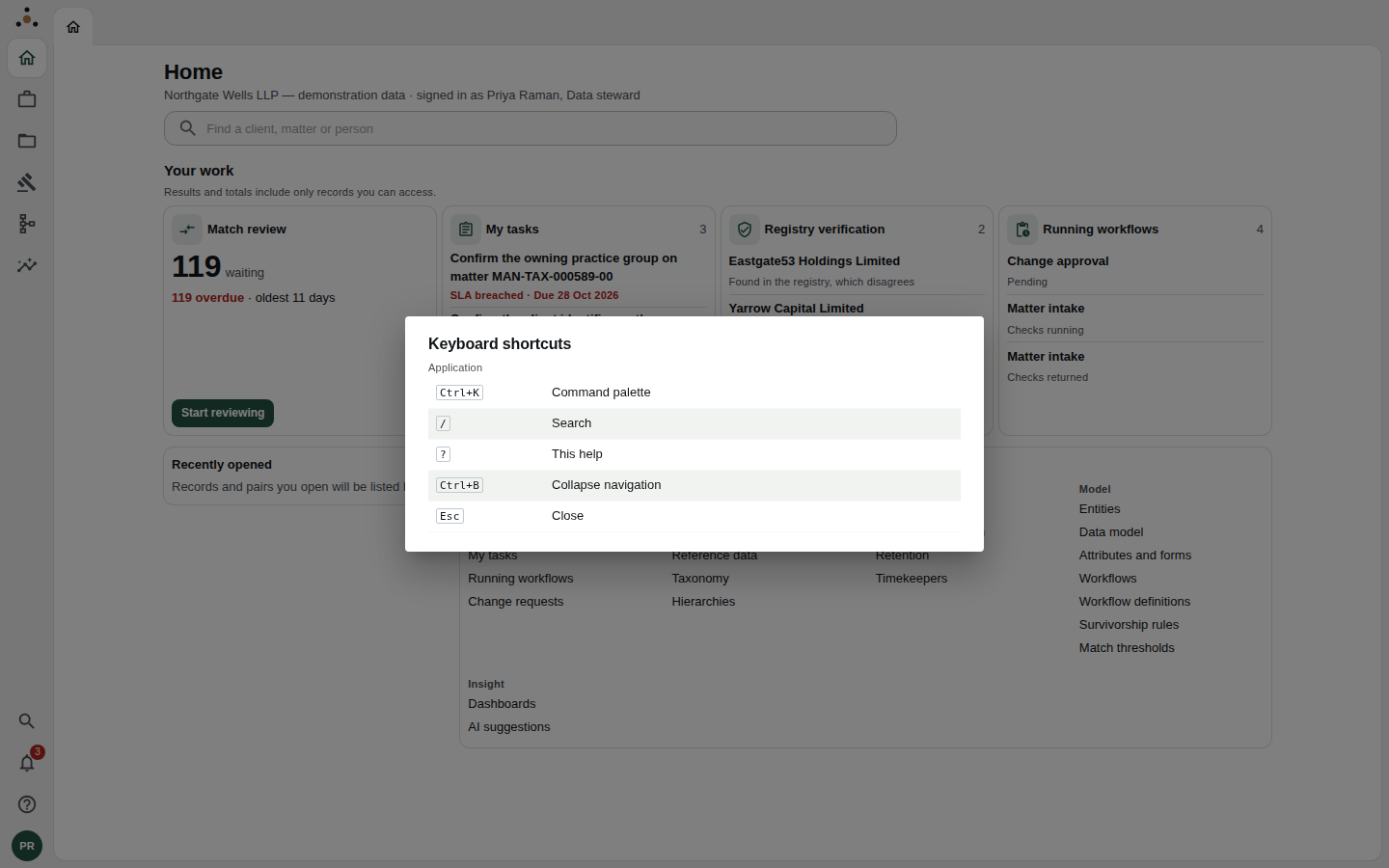
The shortcut list on Home. On the match-review screen it gains a Decisions group.
Your account
Choose your initials to open the account panel. It is the answer to "what can I do here, and why can't I see that?".
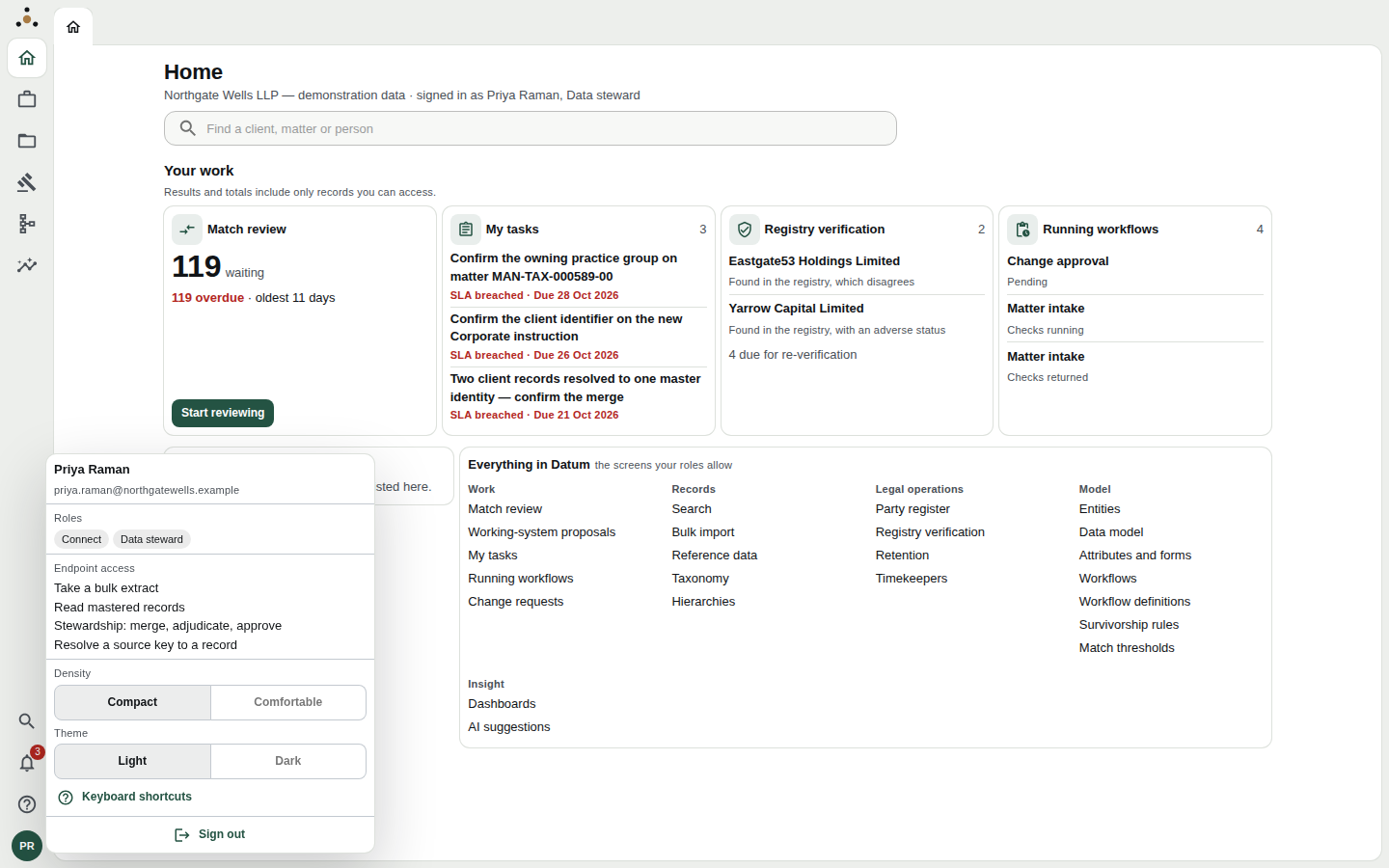
A data steward's account panel.
| Section | What it tells you |
|---|---|
| Name and email | Who Datum thinks you are |
| Roles | The roles your directory groups resolve to |
| Endpoint access | In plain words, what those roles let you do: read mastered records, resolve a source key, take a bulk extract, steward (merge, adjudicate, approve), administer the platform |
| Fields withheld from you | Attributes your role may not read, entity by entity — shown only if there are any |
| Density | Compact (more rows on screen) or Comfortable (more space) |
| Theme | Light or Dark |
| Keyboard shortcuts and Sign out | As named |
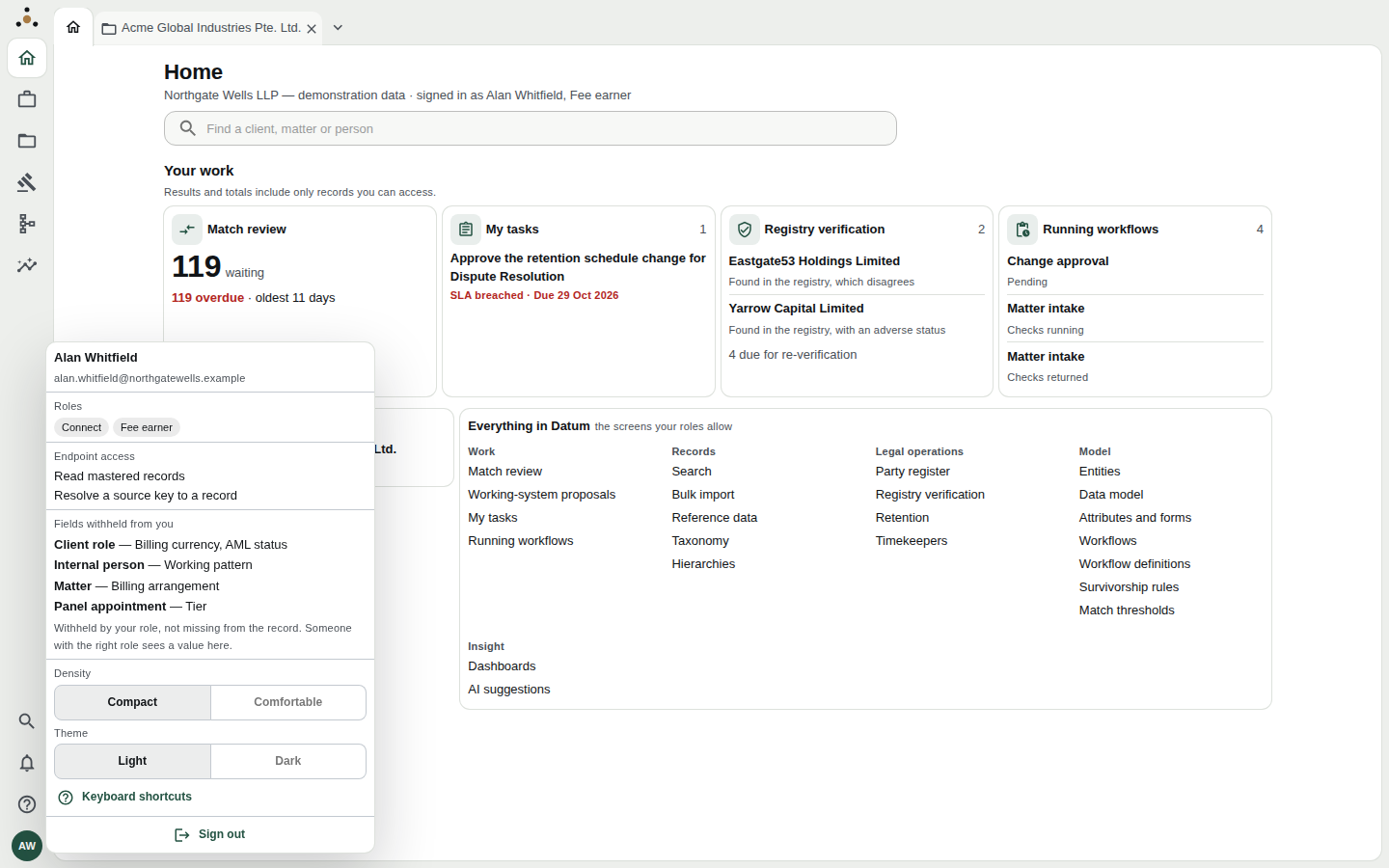
A fee earner's panel. Fields withheld from you lists what your role does not read, and says why: Withheld by your role, not missing from the record.
If a screen refuses you or a value is not where a colleague says it is, check this panel before you raise a question. It usually answers it.
The ⓘ beside a title
Many screens carry a small ⓘ beside their title. It opens a short explanation of what the screen is for — on a click, not on hover — and closes with Esc. Explanations live there, rather than in a banner, so they do not push your work down the page every time you visit.